Use teache in WhatsApp
Make a lesson note or a scheme of work in a WhatsApp chat. You tap buttons, teache writes the document, and the Word and PDF files arrive in the same chat.
Start the chat
teache’s WhatsApp number is +233 59 372 4543. Save it, or tap the button to open the chat.
Send Hi. teache answers with two buttons.
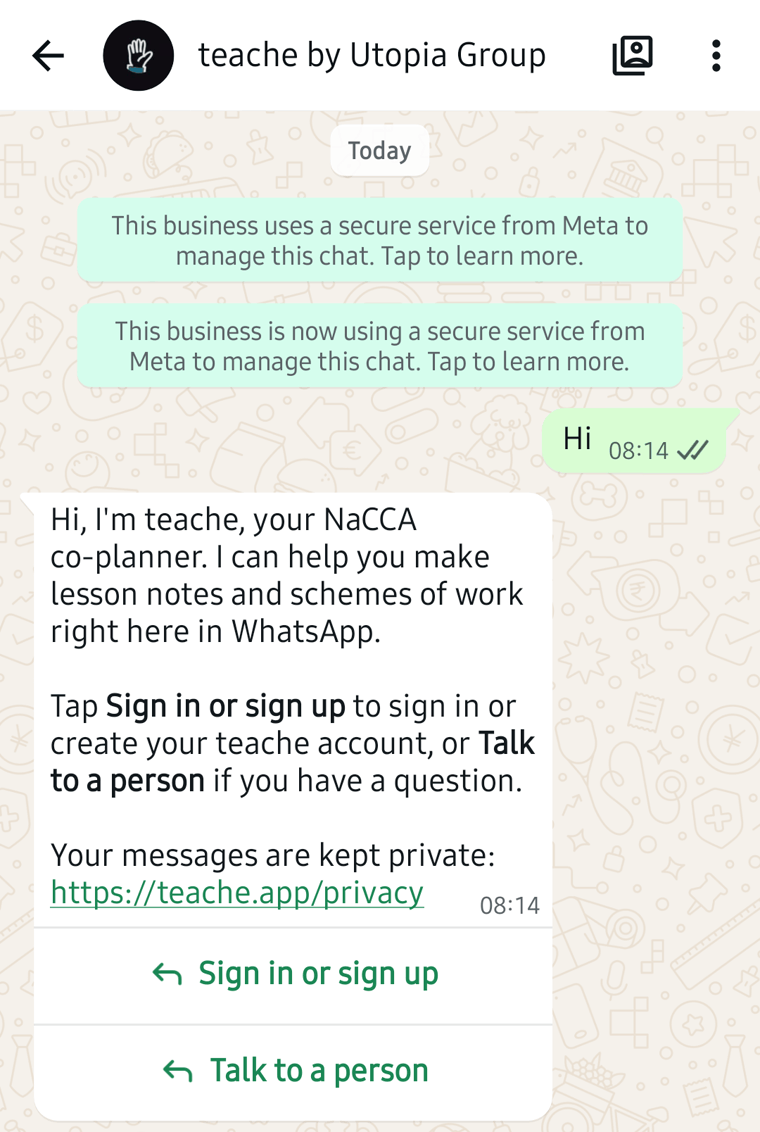
Link your teache account
You do this once. After that, the chat knows your classes and credits.
1. Tap Sign in or sign up
teache sends a new message with a Sign in or sign up link under it.
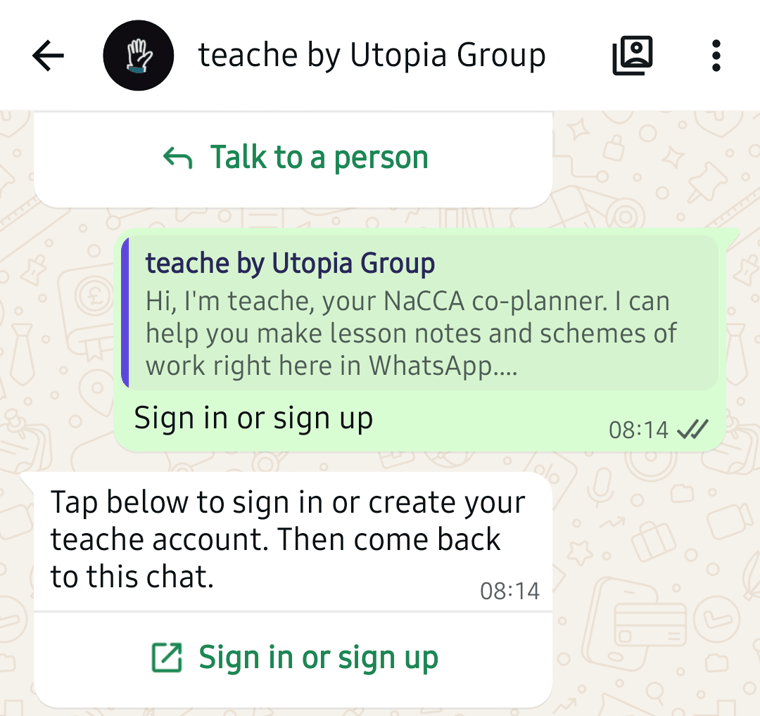
2. Open the link
Tap that link. WhatsApp may ask before it opens the teache website. Tap Continue.

The teache sign-in page opens inside WhatsApp.
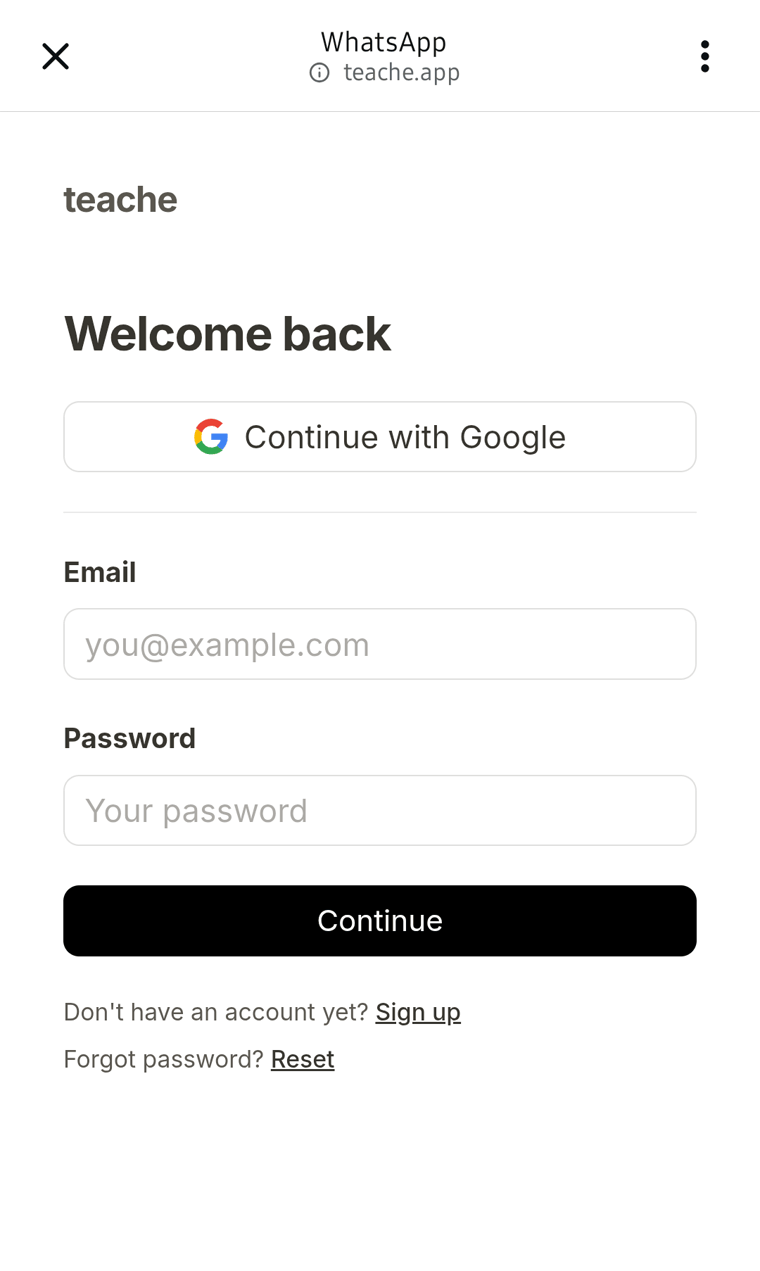
3. Sign in, or create your account
Type your email and password and tap Continue. New to teache? Tap Sign up. A new account asks for your school and your first class.
If you use Continue with Google, WhatsApp asks for your Google email and password, even when you are signed in to Google on your phone.
After you sign in, the teache on WhatsApp page opens.
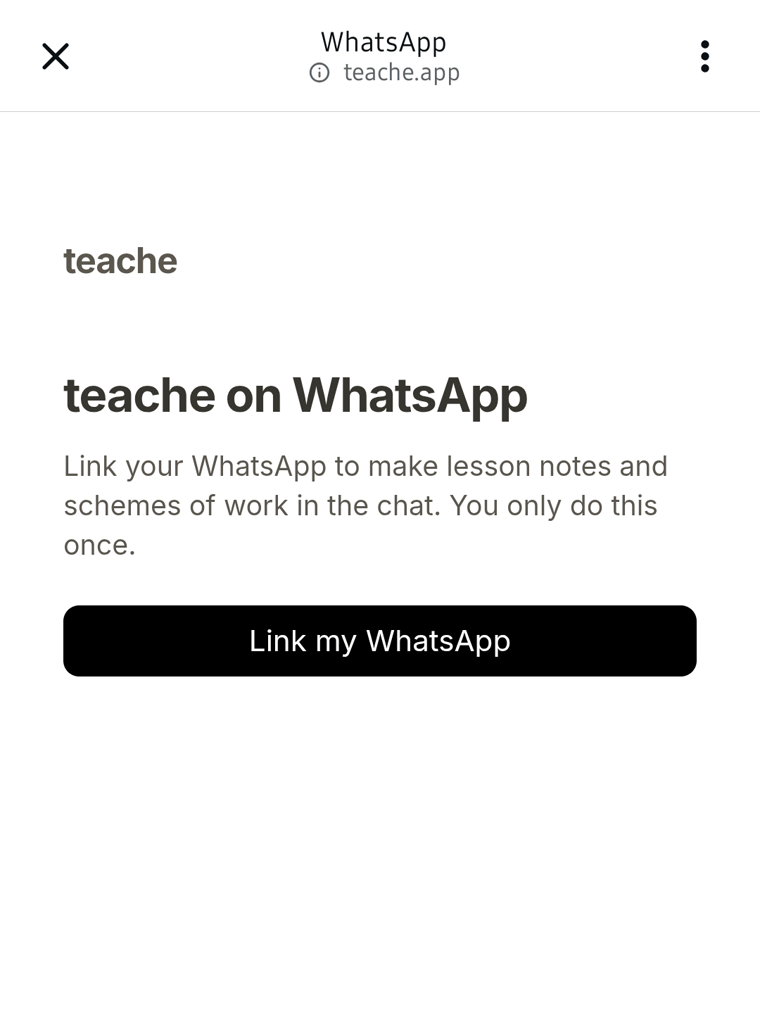
4. Tap Link my WhatsApp
A Back to WhatsApp button appears. Use it within 10 minutes. If the time runs out, tap the link in the chat again, then Link my WhatsApp.
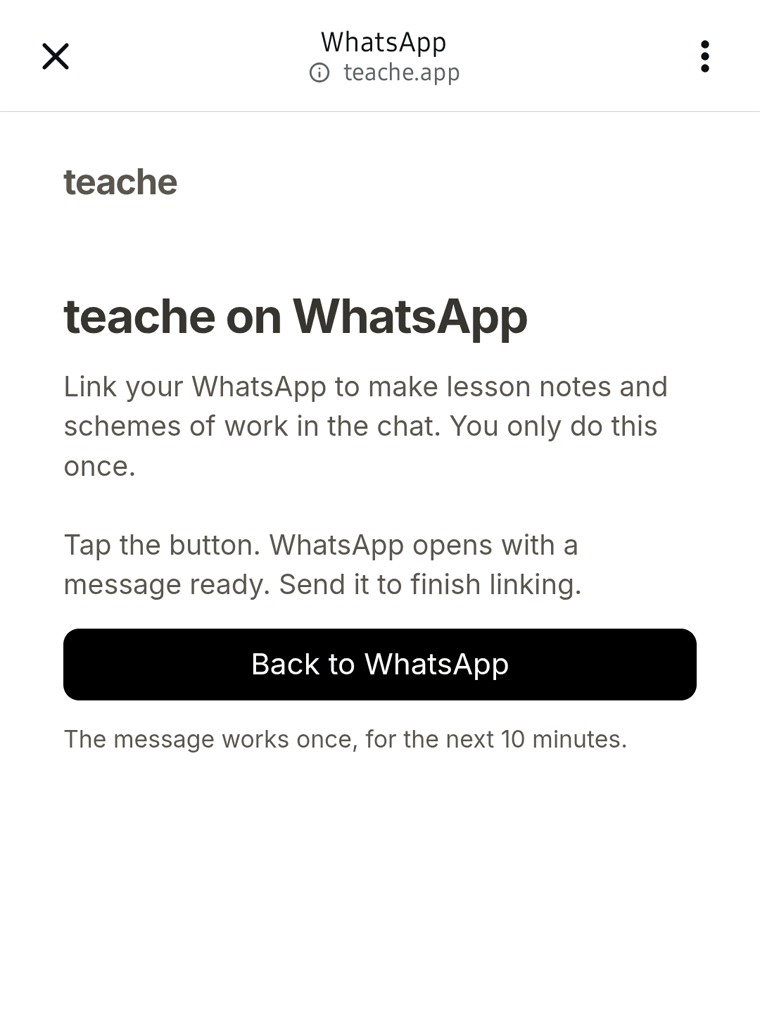
5. Tap Back to WhatsApp and send the message
WhatsApp opens the teache chat with a short code already typed in the message box. Send it.
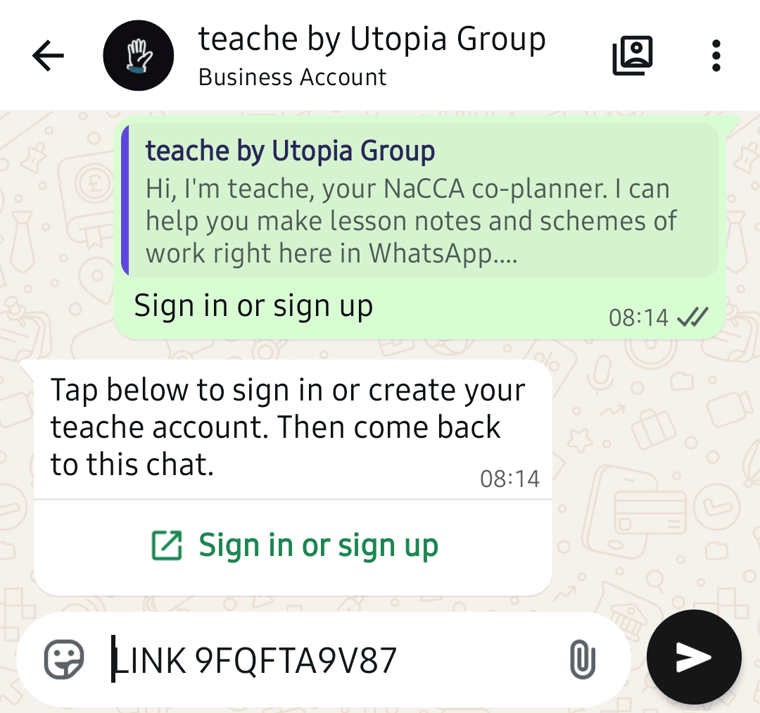
teache confirms that your WhatsApp is linked and shows your credits, with three buttons: Lesson note, Talk to a person and More. From now on, send Hi to see them again.
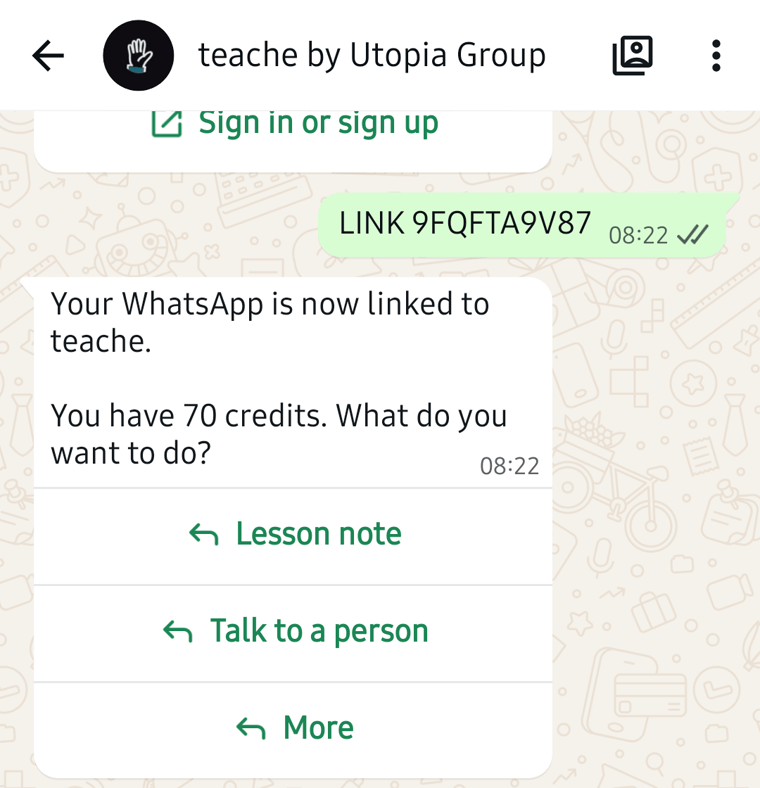
Make a lesson note
1. Tap Lesson note
teache asks which class the lesson note is for.
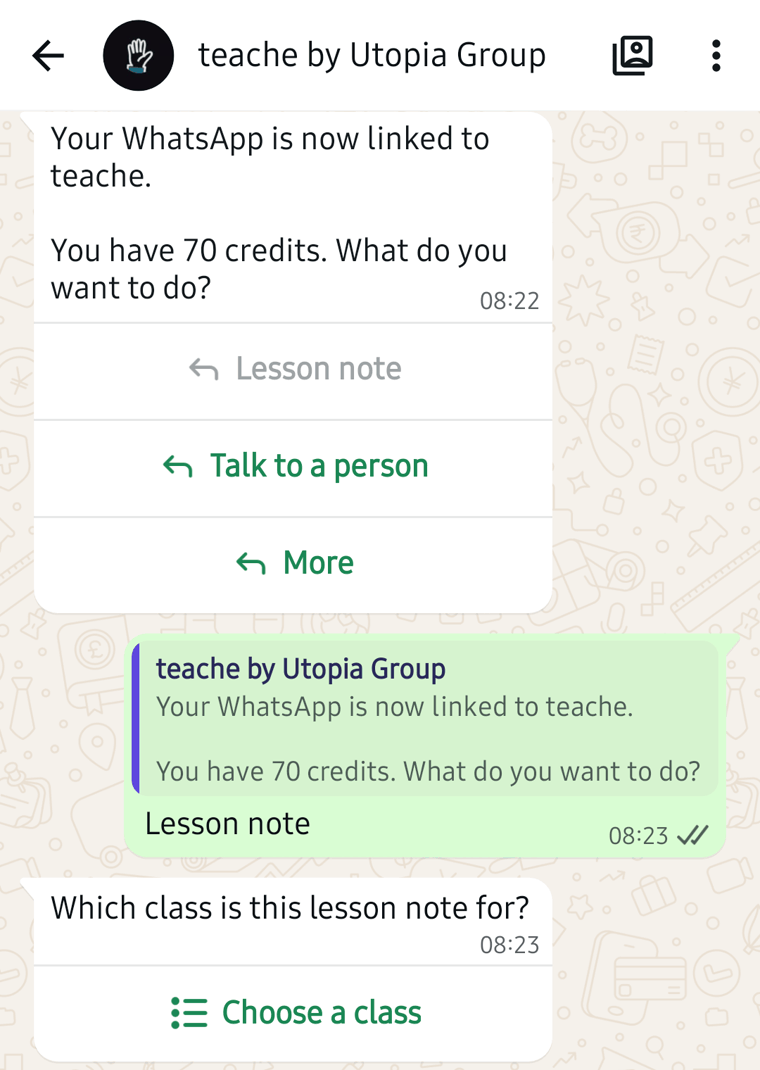
2. Choose the class
Tap Choose a class, pick the class and tap Send. To add another class, pick + Add a class.
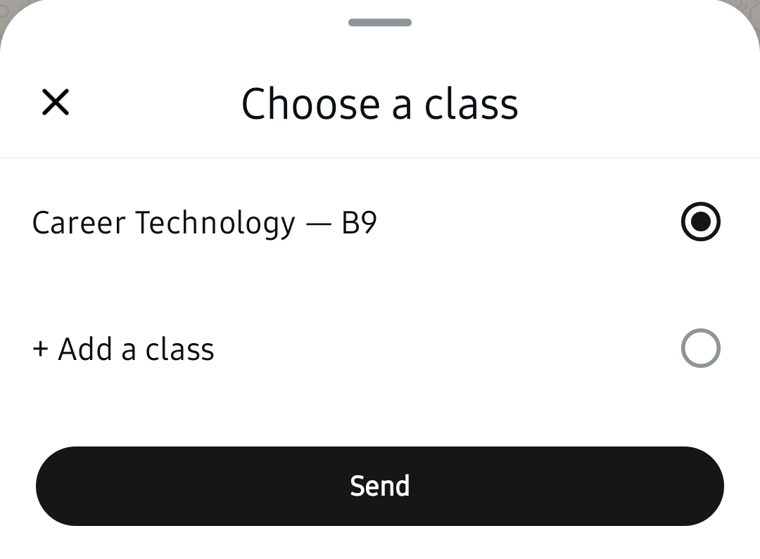
The first time, teache asks which days you teach the class. It keeps them for the term.
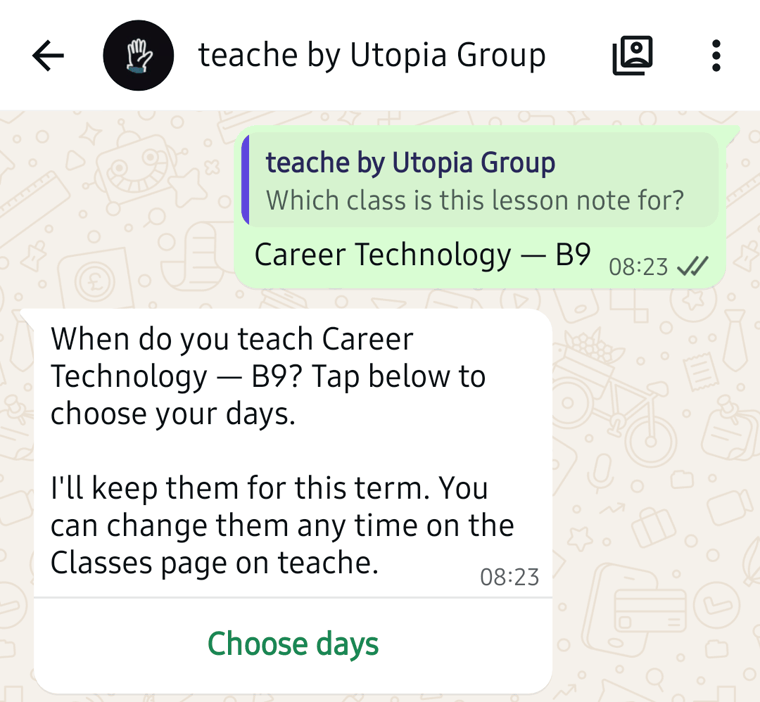
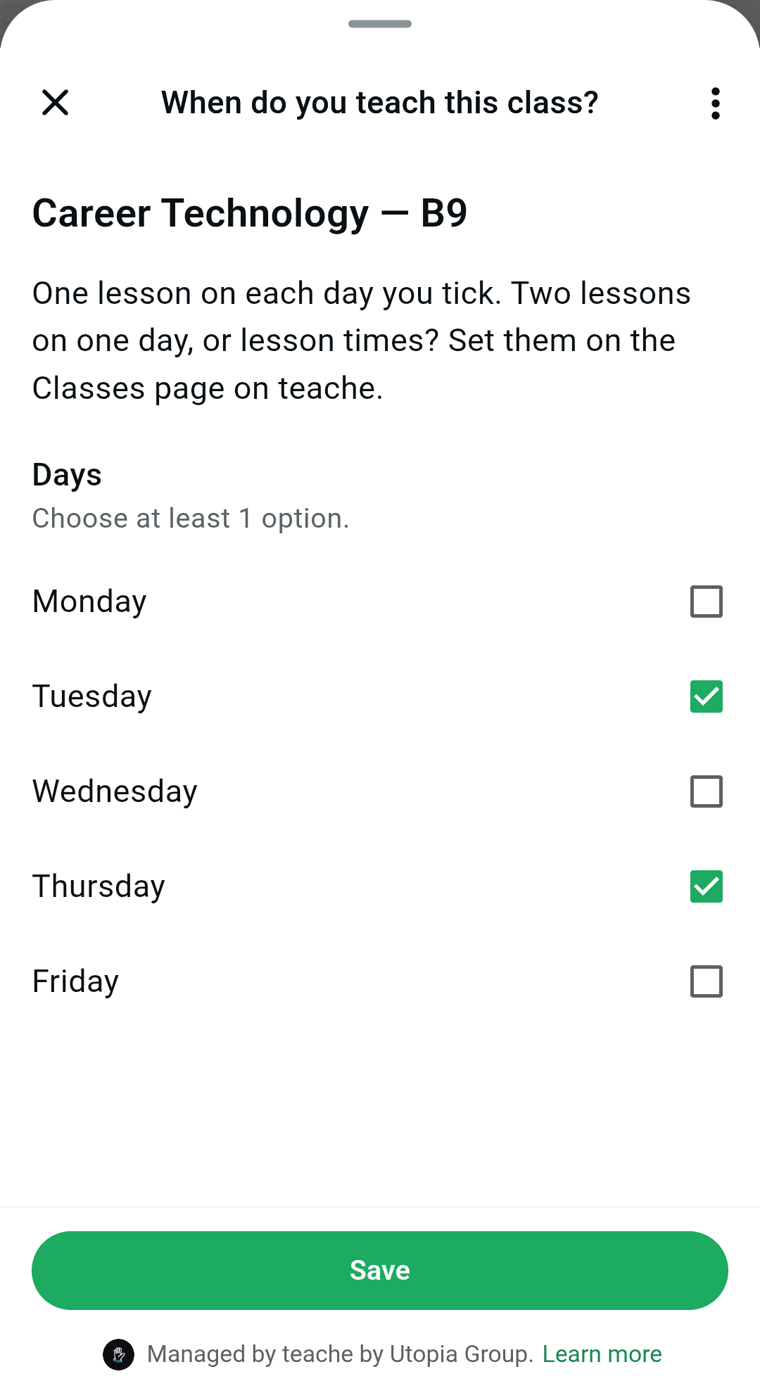
3. Choose the days you teach the class
Tap Choose days, tick the days and tap Save.
If the class has a scheme of work, teache takes this week’s topic from it and goes straight to step 5. If it has none, it asks you to choose the indicators.
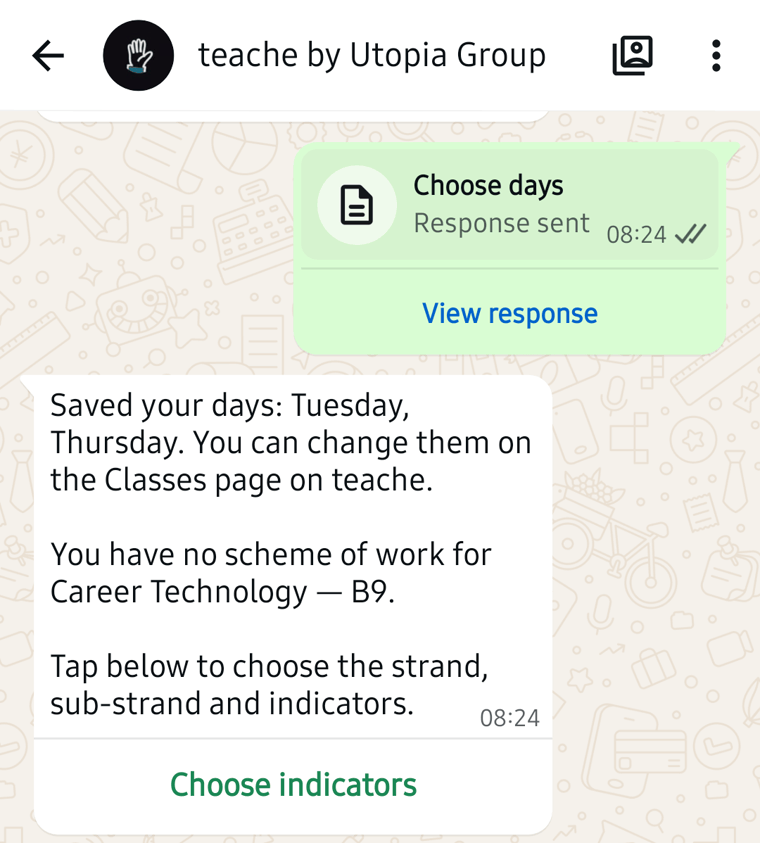
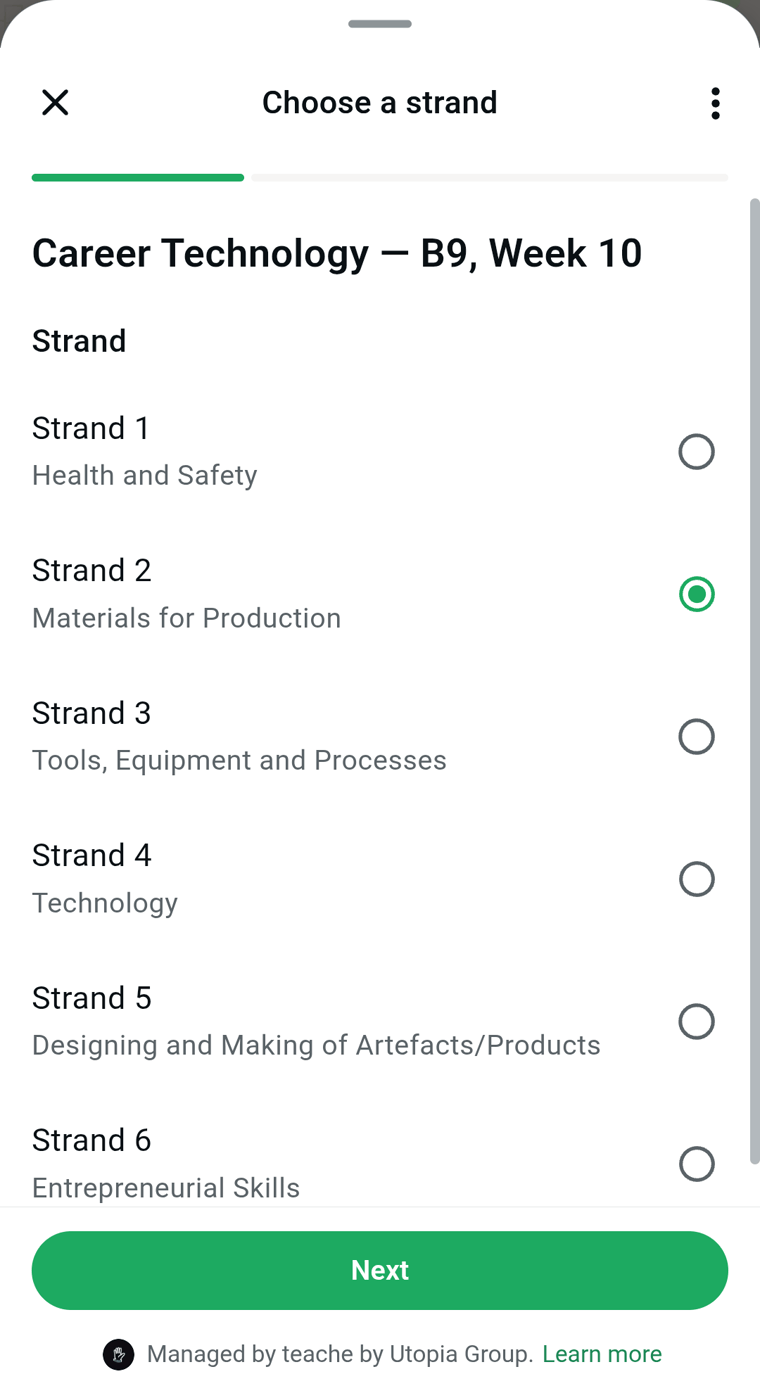
4. Choose the indicators
Tap Choose indicators. Pick the strand and tap Next.
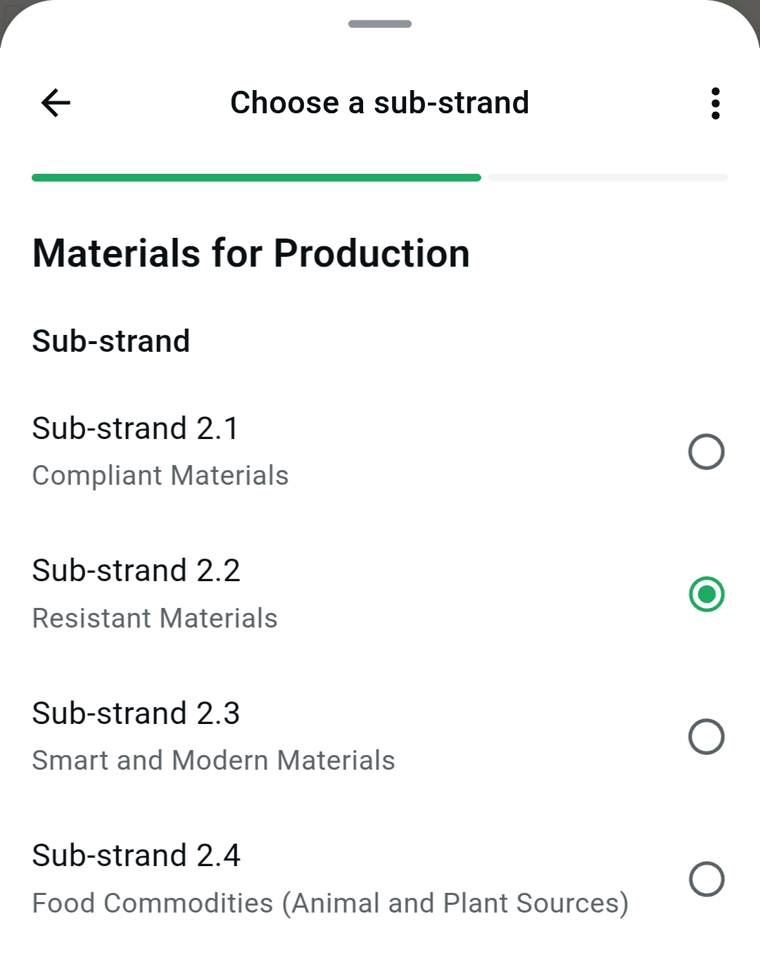
Pick the sub-strand and tap Next.
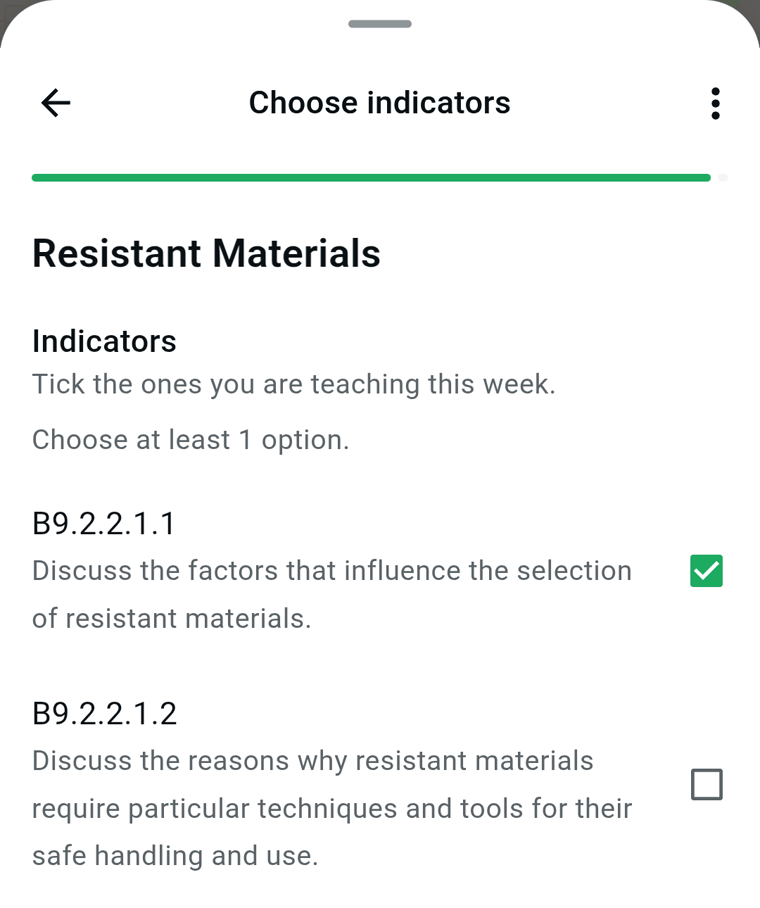
Tick the indicators you are teaching this week and tap Done.
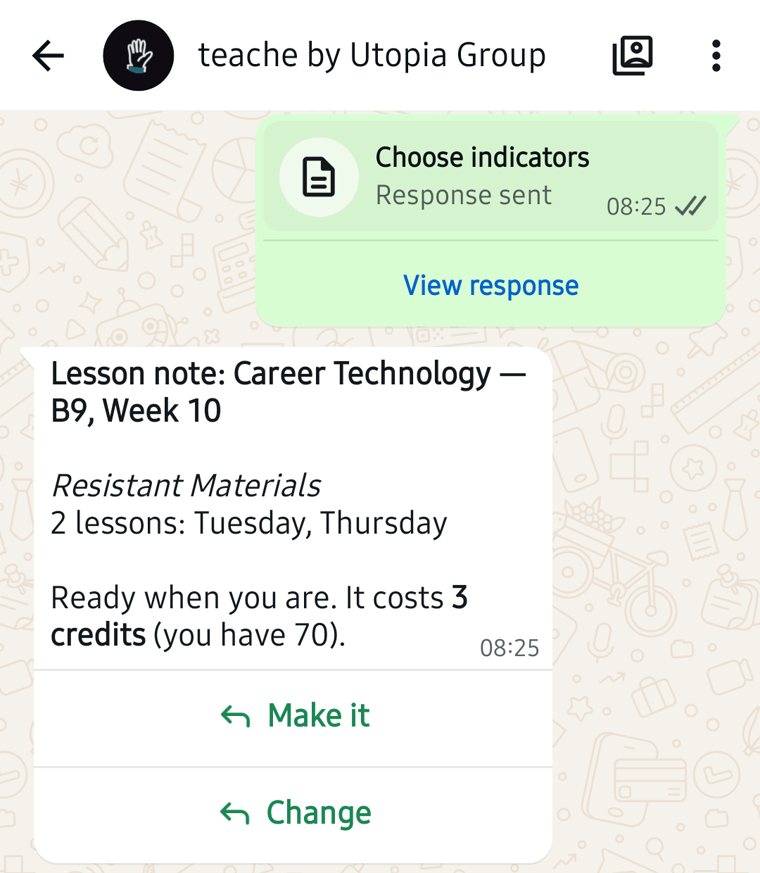
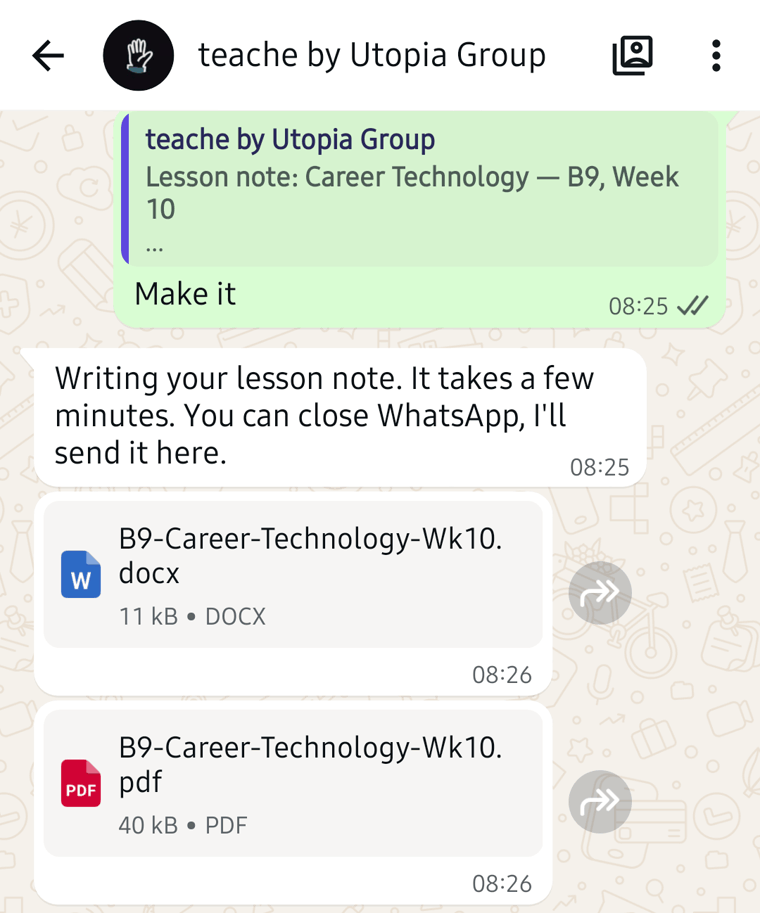
5. Check it and tap Make it
teache shows the class, the week, the topic, the lessons and the price. A lesson note costs 3 credits. Tap Make it, or Change to pick again.
Writing takes a few minutes, and you can close WhatsApp while you wait. teache sends the lesson note to the chat as a Word file and a PDF.
Make a scheme of work
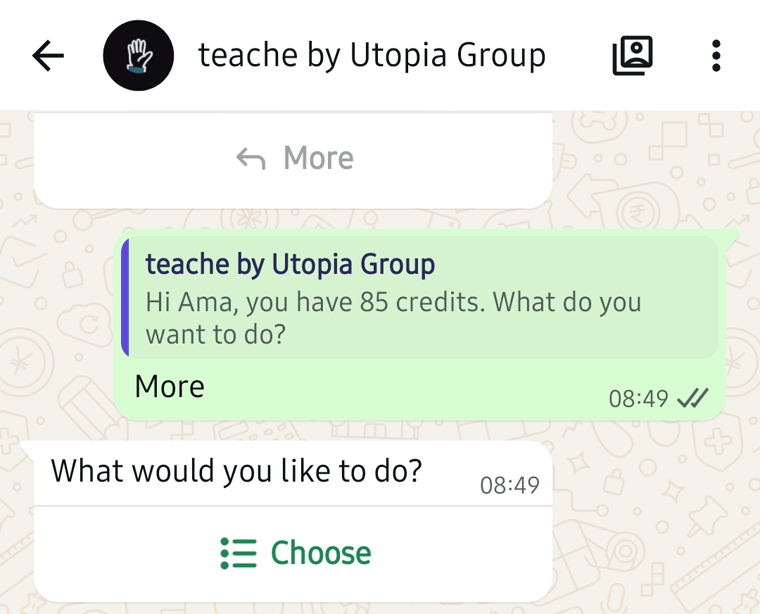
1. Tap More
teache asks what you would like to do, with a Choose button.
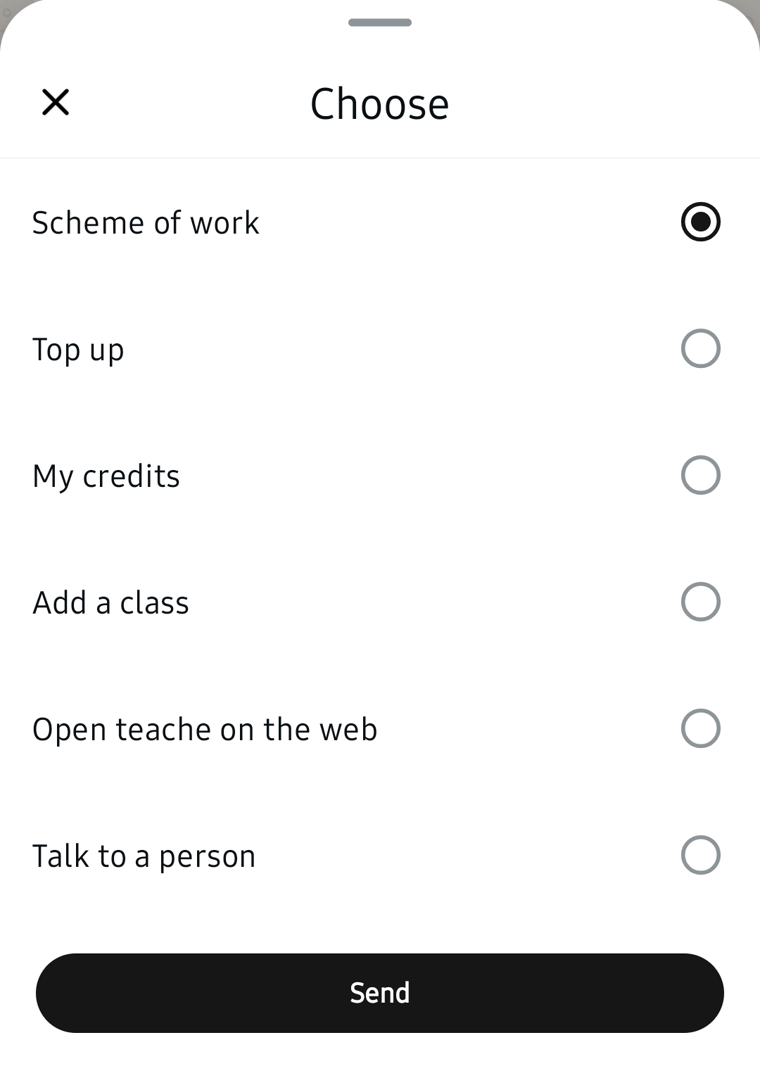
2. Choose Scheme of work
Tap Choose, pick Scheme of work and tap Send.
teache asks which class the scheme of work is for.
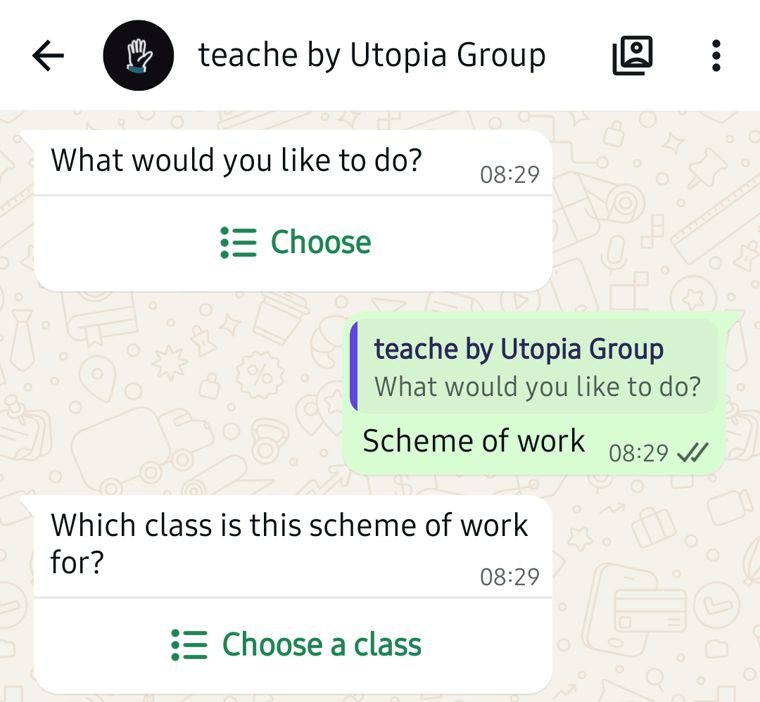
3. Choose the class
Tap Choose a class, pick the class and tap Send. teache shows the price. A scheme of work costs 12 credits and covers the whole school year.
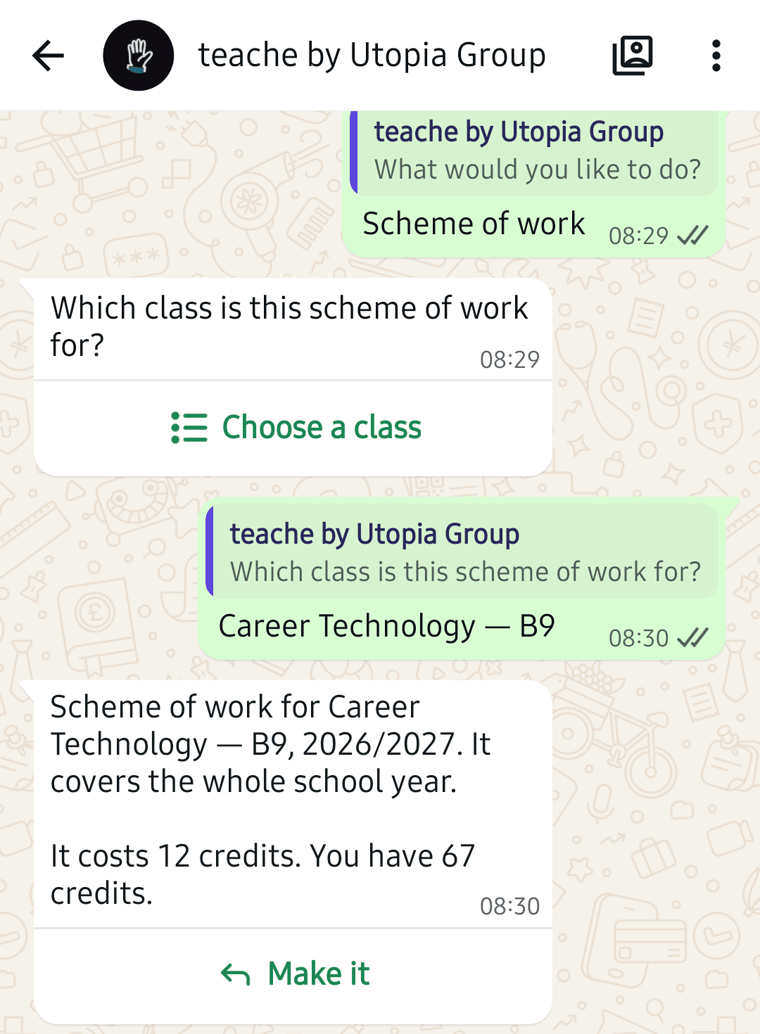
4. Tap Make it
Writing takes a few minutes. When the scheme is ready, teache asks which part you want sent.
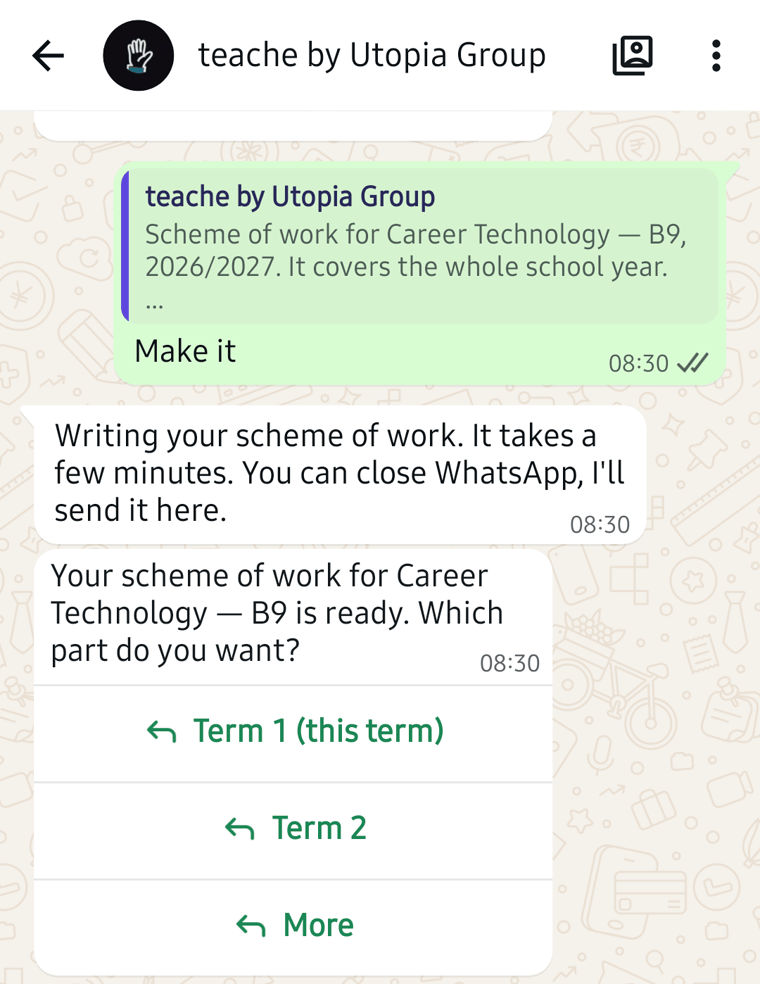
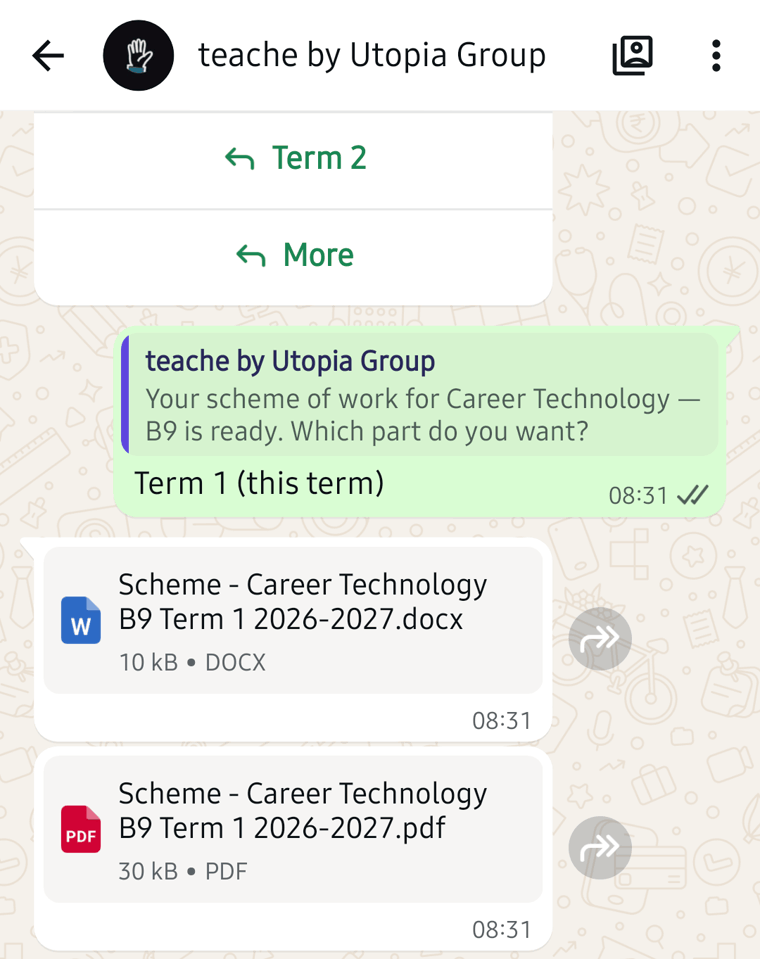
5. Choose the term
Tap the term you want, or More for another term or the whole year. The Word file and the PDF arrive in the chat.
Top up with Mobile Money
1. Choose Top up
Tap More, then Choose. Pick Top up and tap Send.
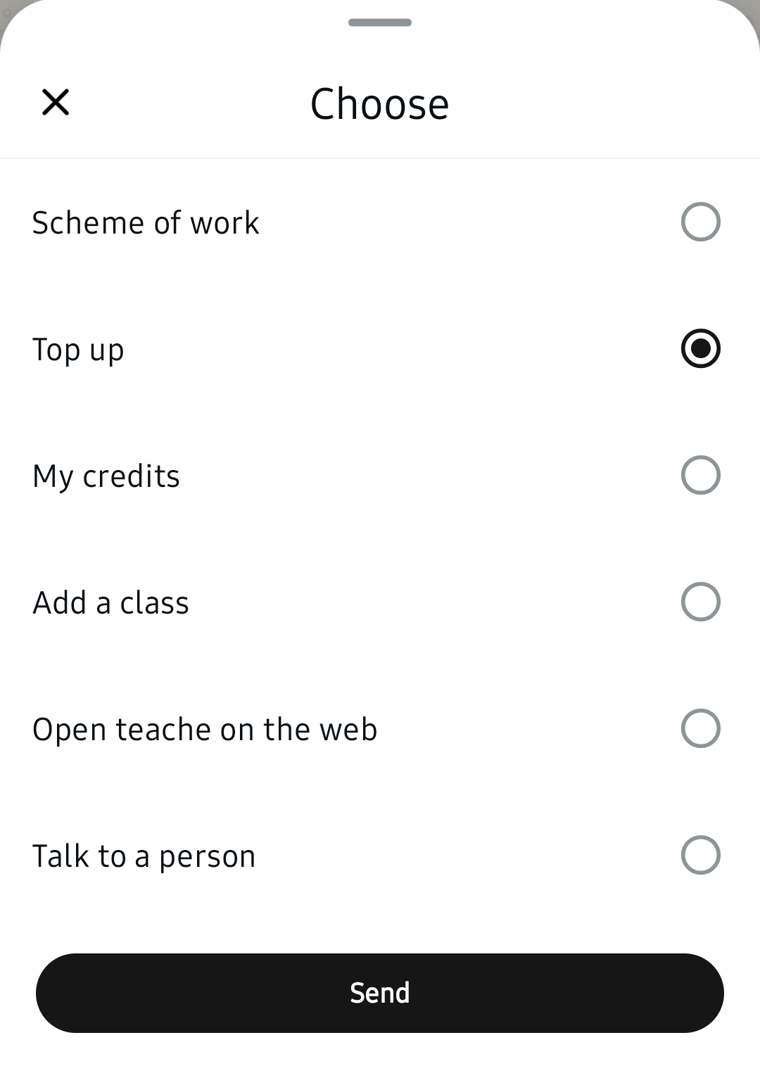
teache shows your credits and the packs.
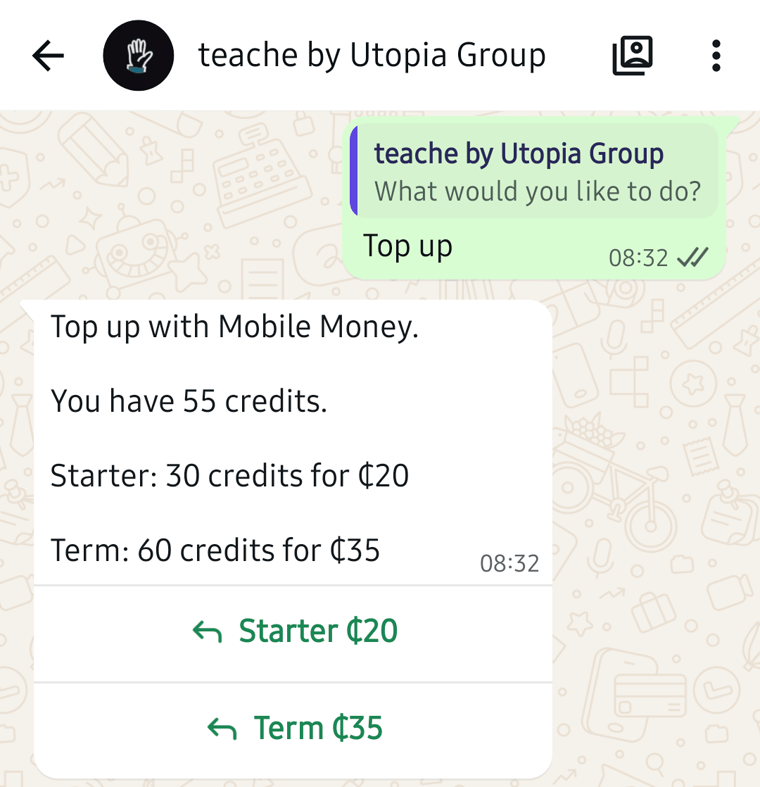
2. Choose a pack
teache asks for your network.
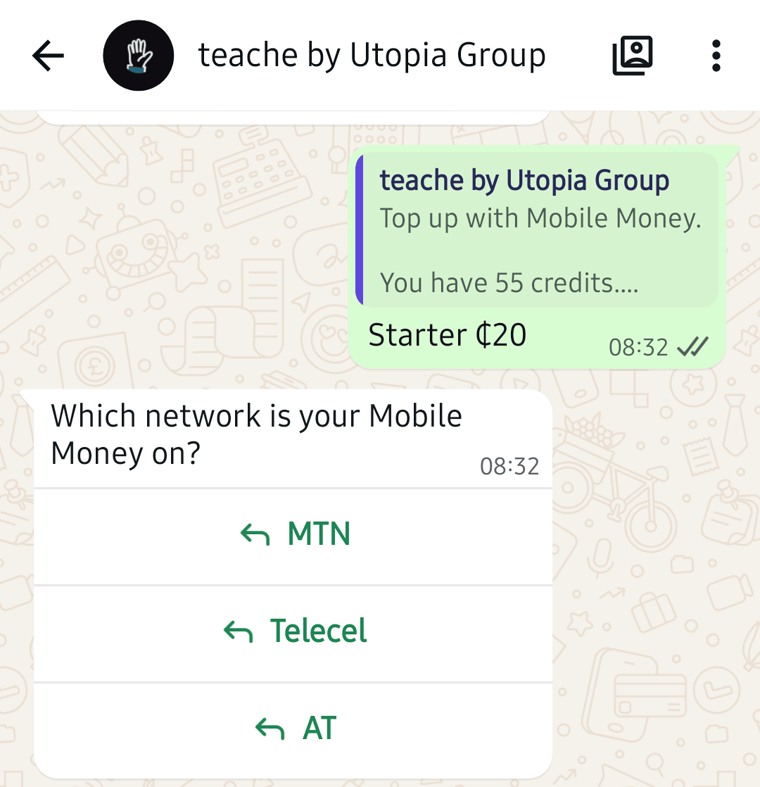
3. Choose your network
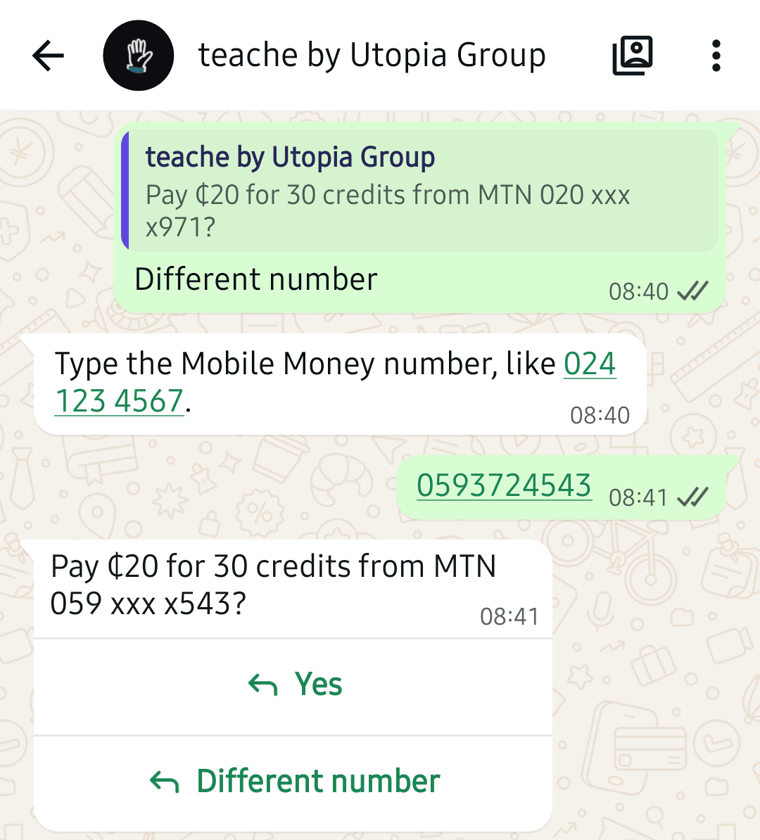
teache asks you to check the amount and your Mobile Money number. Part of the number is hidden.
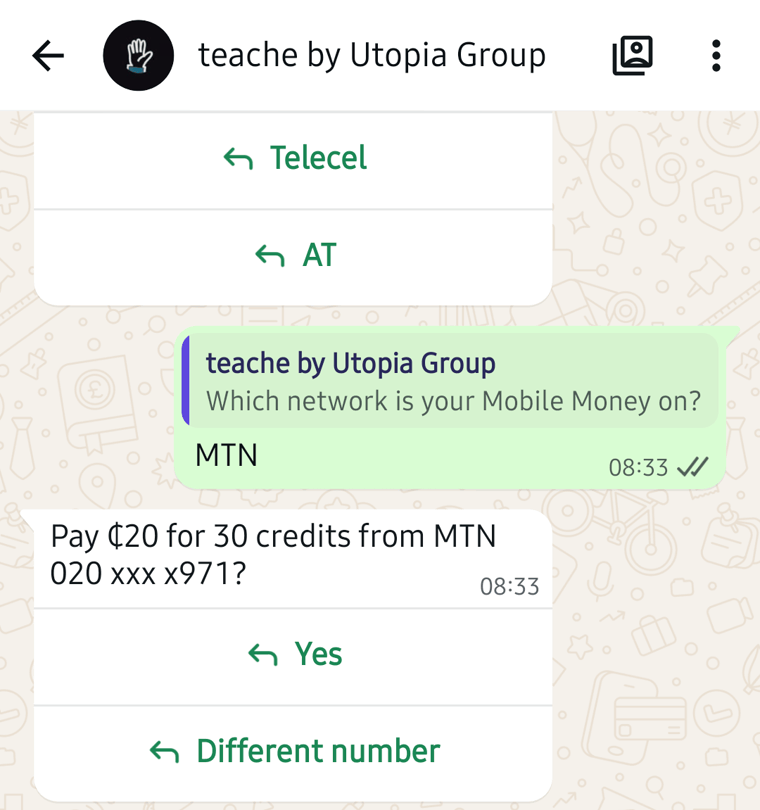
4. Check the number and tap Yes
If the number is right, tap Yes. To pay from another number, tap Different number, type the number, then tap Yes.
5. Approve the payment on your phone
teache asks you to check your phone.
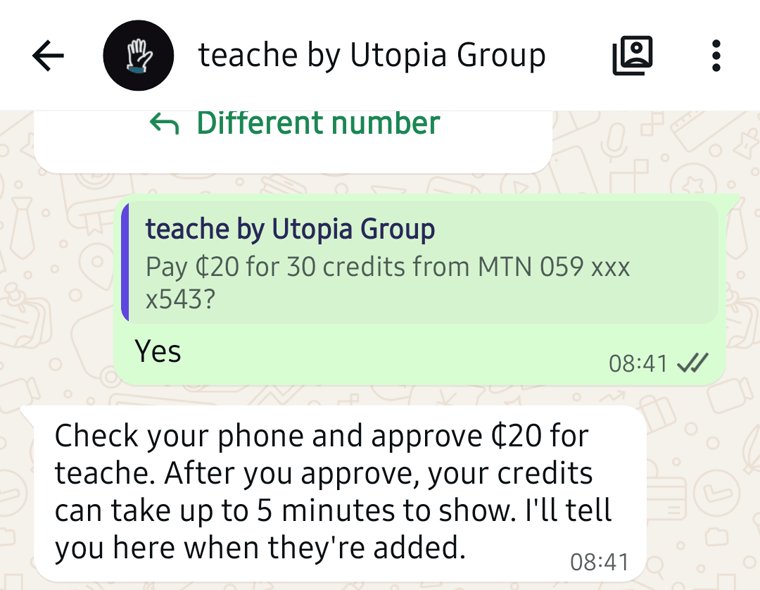
A Mobile Money prompt opens on the phone that has that number. Enter your Mobile Money PIN and tap Send. The prompt comes from your network, so its words can differ from these.
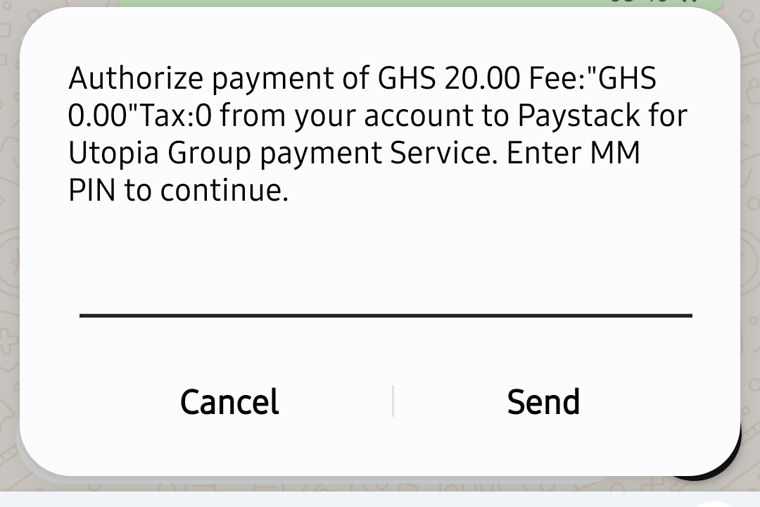
Approve the payment. On MTN, type 1 and tap Send.
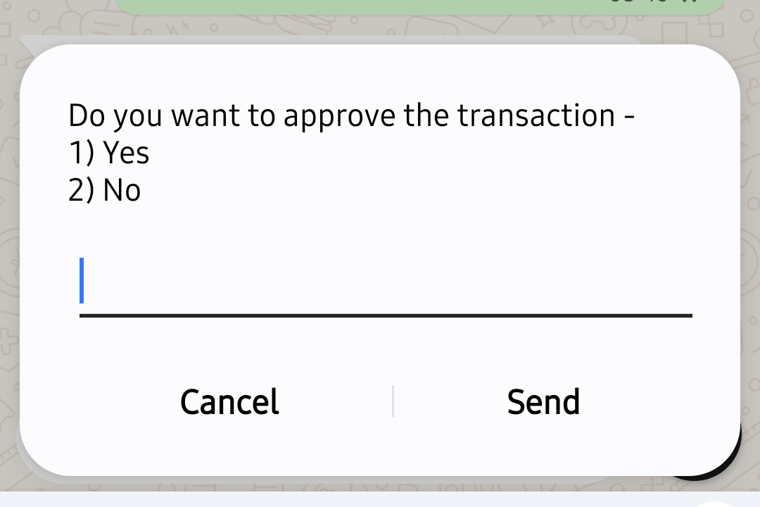
6. Wait for your credits
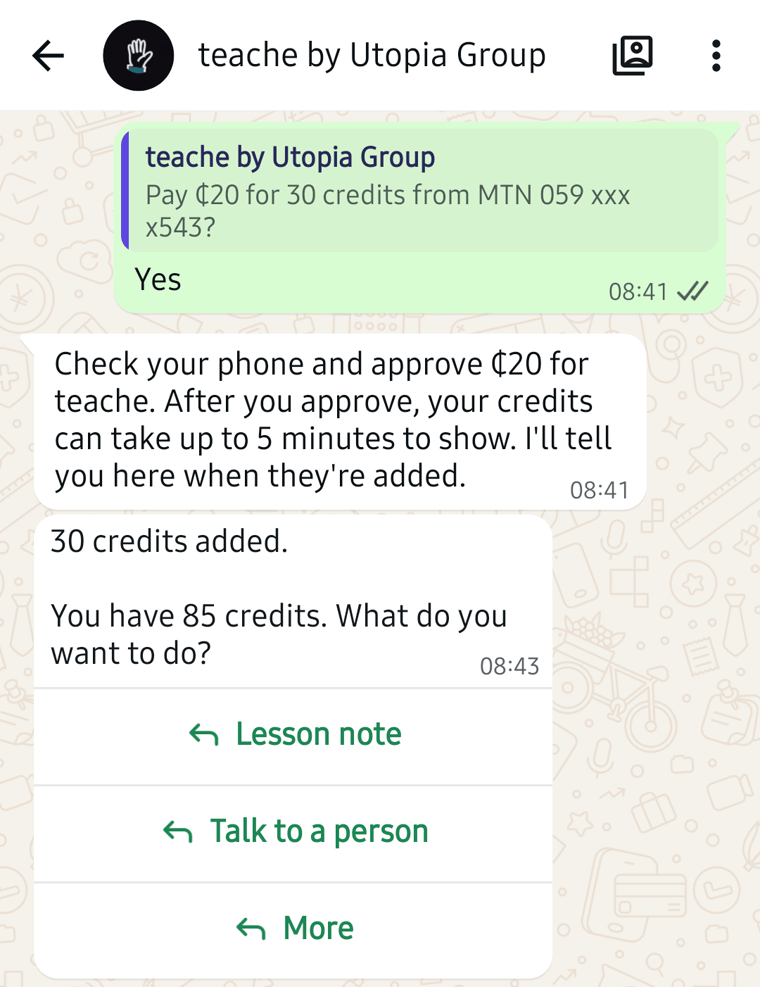
Your credits can take up to 5 minutes to show. teache tells you in the chat when they are added.
Edit your documents on teache
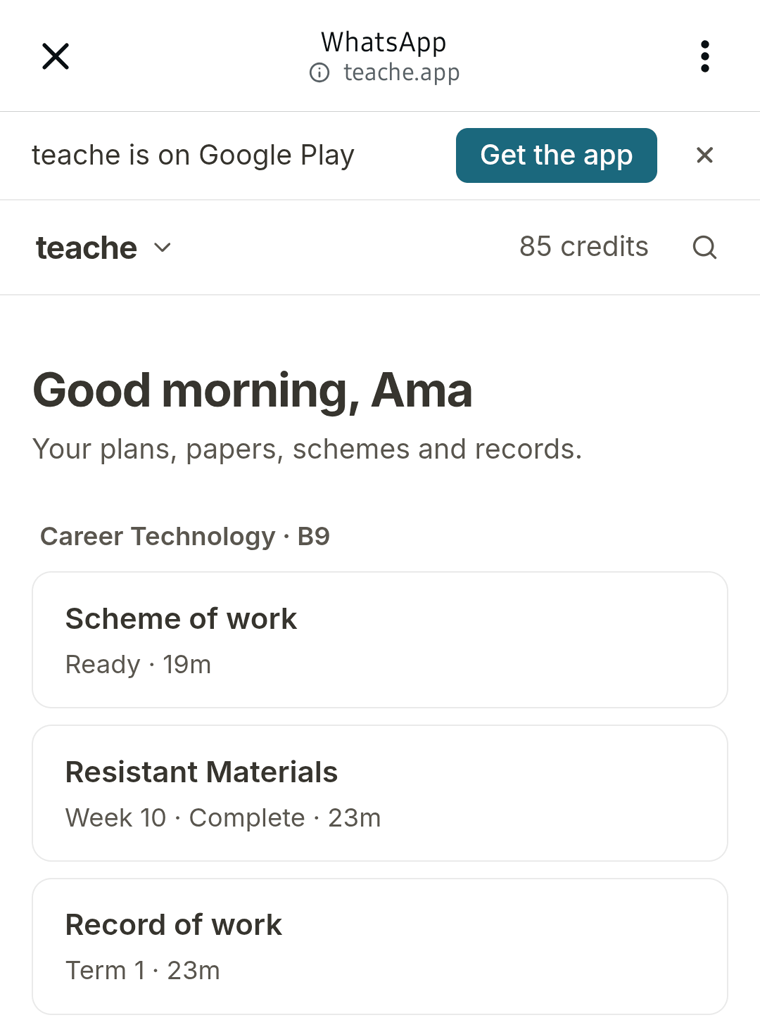
Every document you make in WhatsApp is saved in your teache account, where you can change it, print it or download it again. Practice tests, class tests and the record of work are made there too, not in the chat.
1. Choose Open teache on the web
Tap More, then Choose. Pick Open teache on the web and tap Send. teache sends an Open teache button.
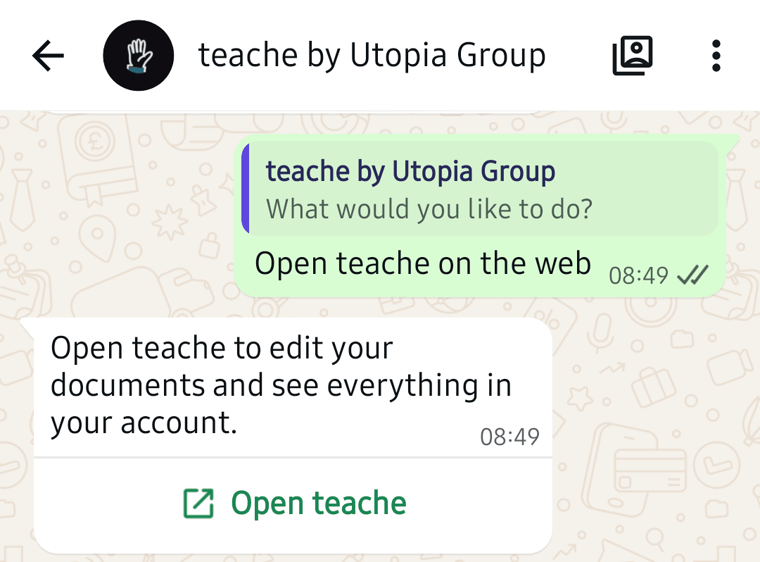
2. Tap Open teache
Your home page opens with the documents you made in the chat.
Get help from a person
Tap Talk to a person. teache replies with a second Talk to a person button.
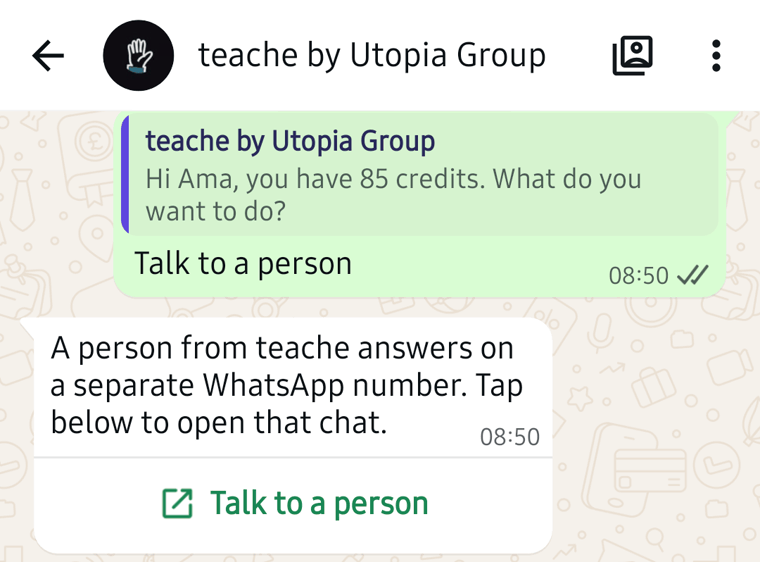
Tap it to open a separate WhatsApp chat that a person from teache answers.
New to teache? Read set up your classes and subjects and understand credits.
Next in Apps and WhatsApp: Use the teache mobile app