Use the teache mobile app
Make lesson notes, schemes of work and tests on your phone, then share them or save them. Everything you make in the app is in your teache account on the website too.
Get the app
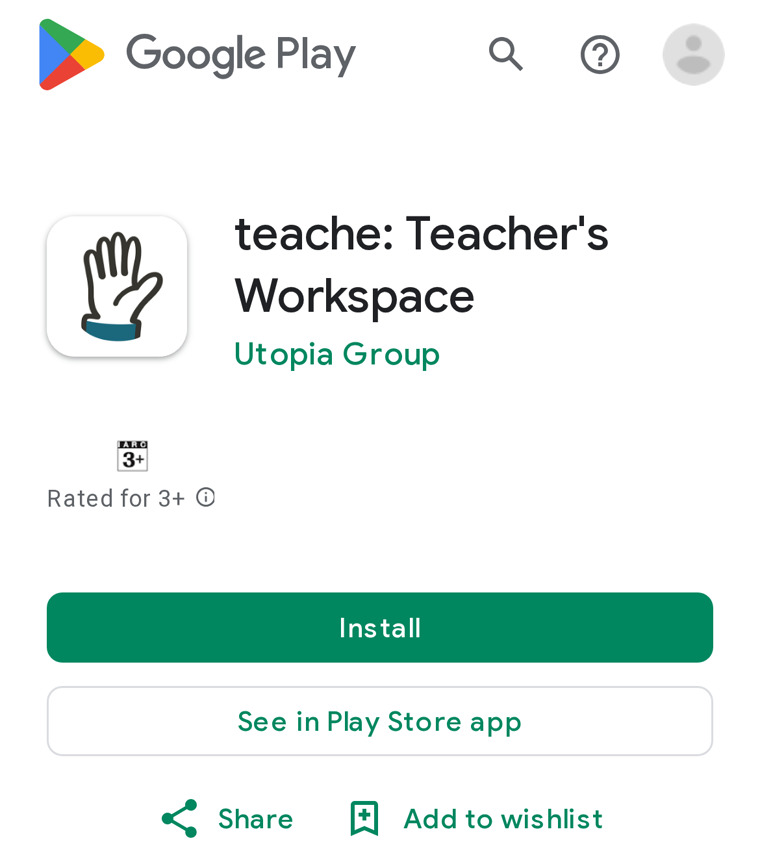
Search teache on Google Play, or tap the button below. Then tap Install.
Sign up or log in
New to teache
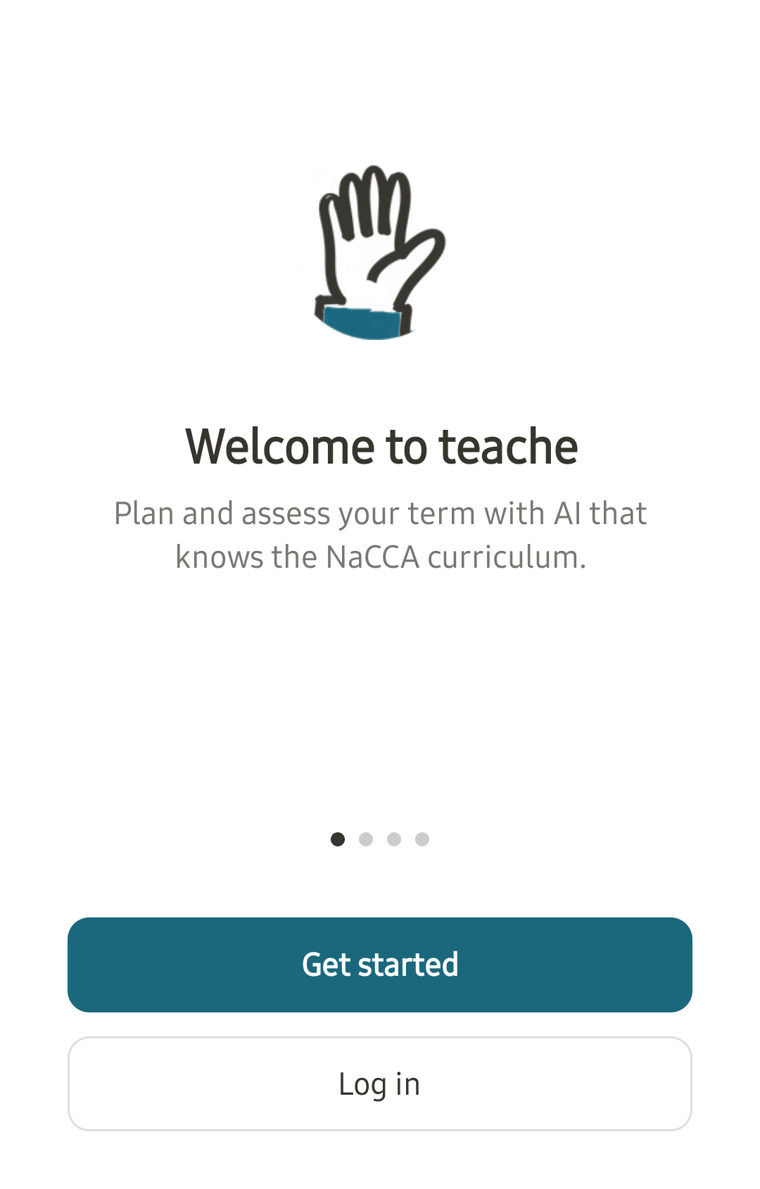
Open the app and tap Get started.
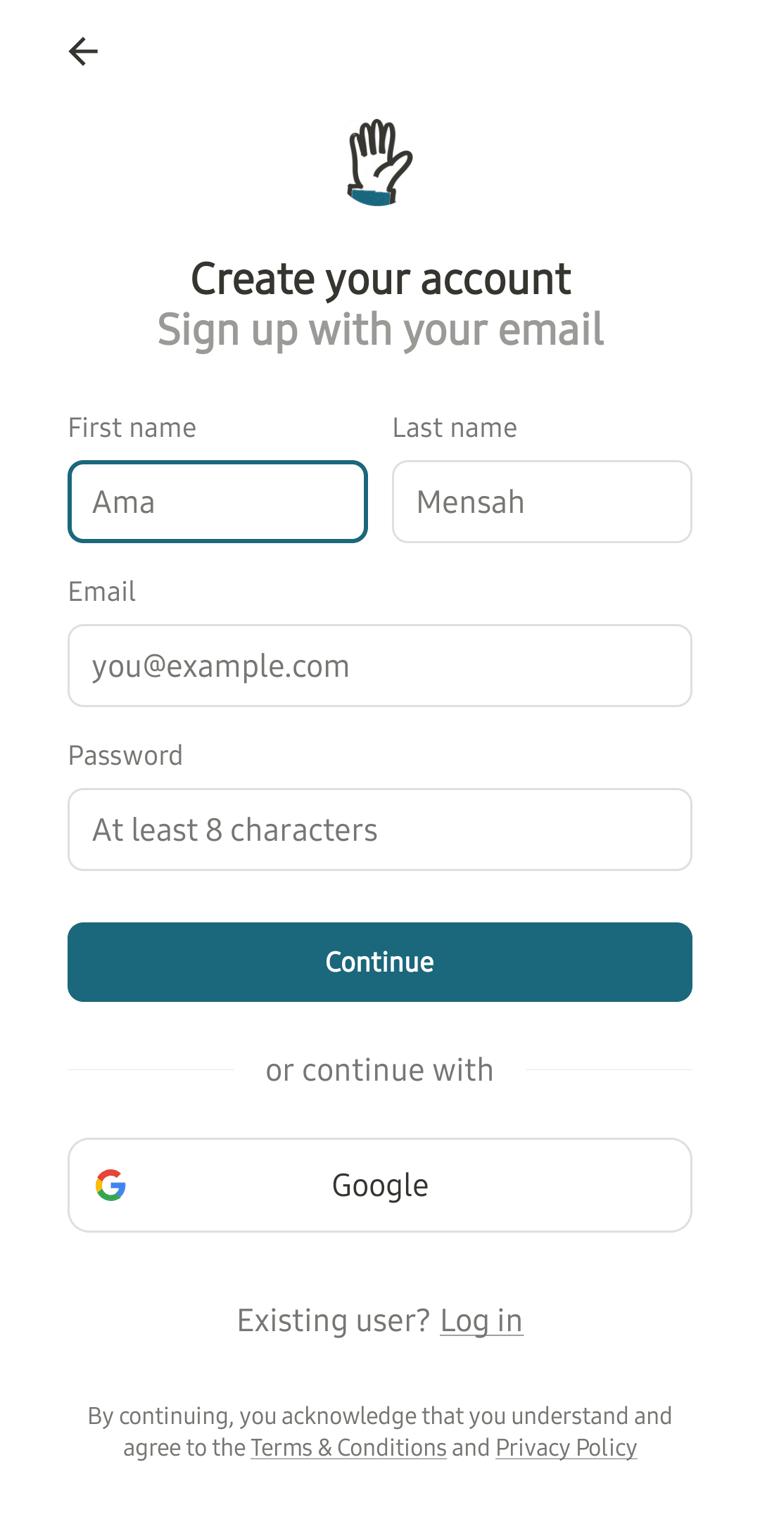
Type your name, your email and a password, then tap Continue. The app then asks for your school and your first class.
You already have an account
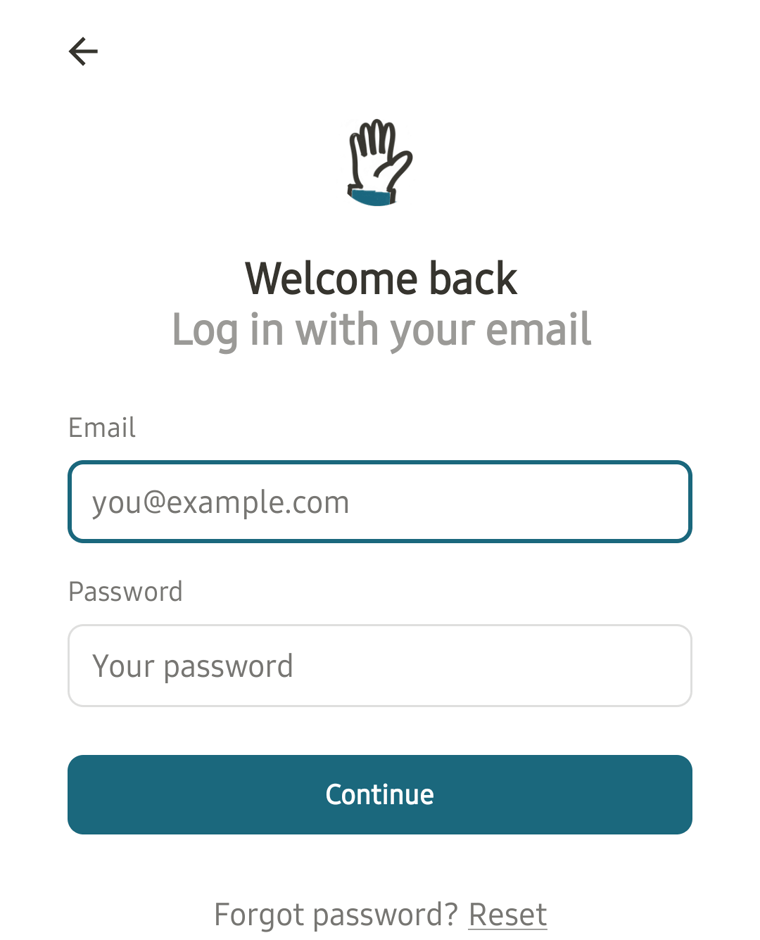
Tap Log in. Choose Google if you use Google on the website, or Email.
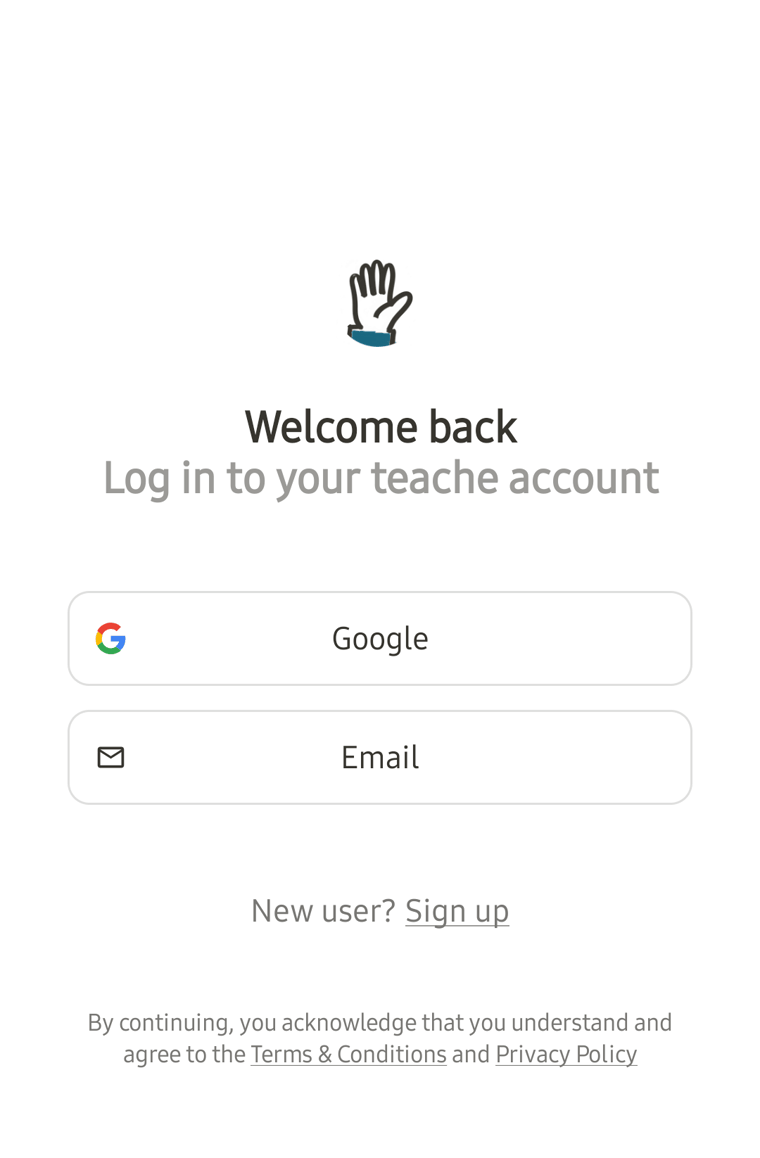
With email, type your email and password and tap Continue. Your classes and documents from the website are all there.
Find your way around
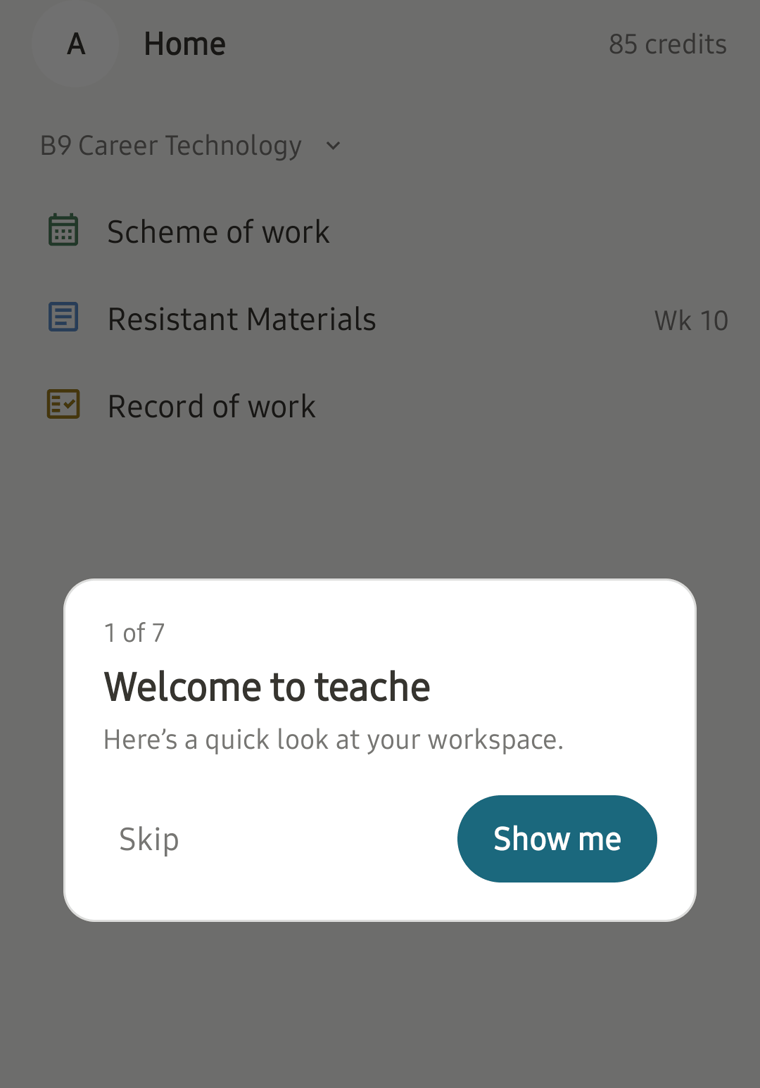
The first time, a short tour shows you the app. Tap Show me to follow it, or Skip.
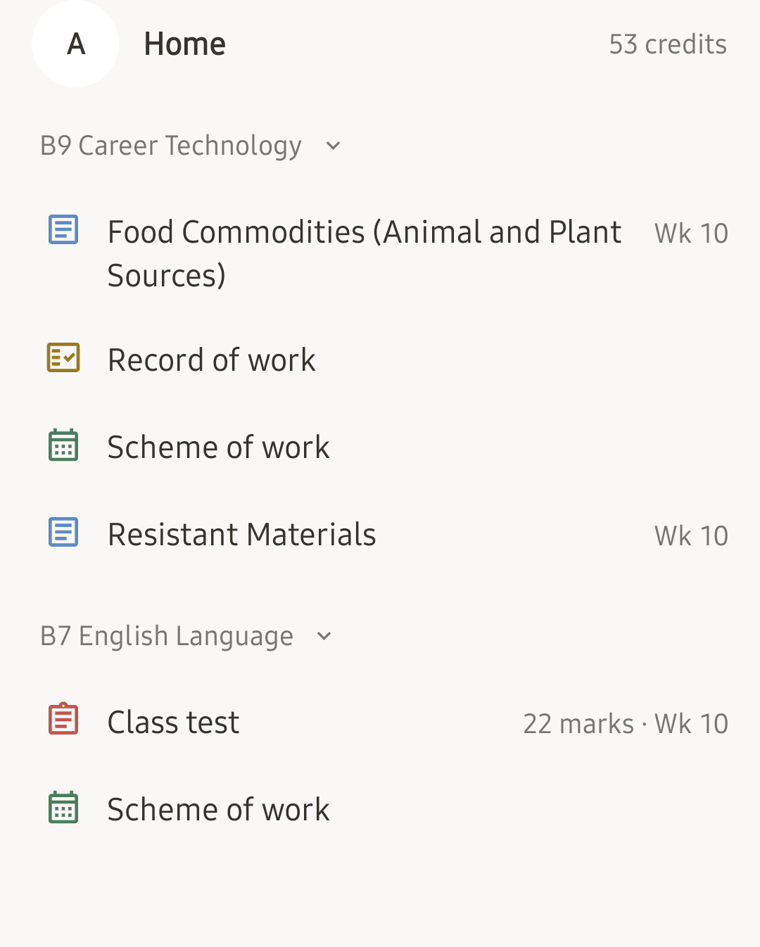
Home lists your documents under each class. Tap one to open it.
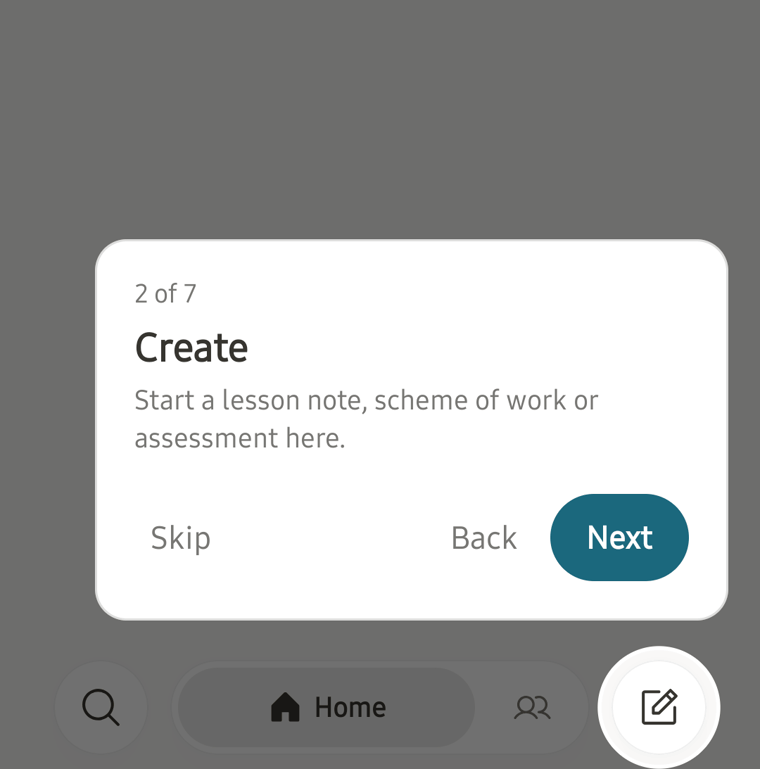
The pencil button at the bottom right makes a new lesson note, scheme of work or assessment.
The magnifier at the bottom left finds any document.
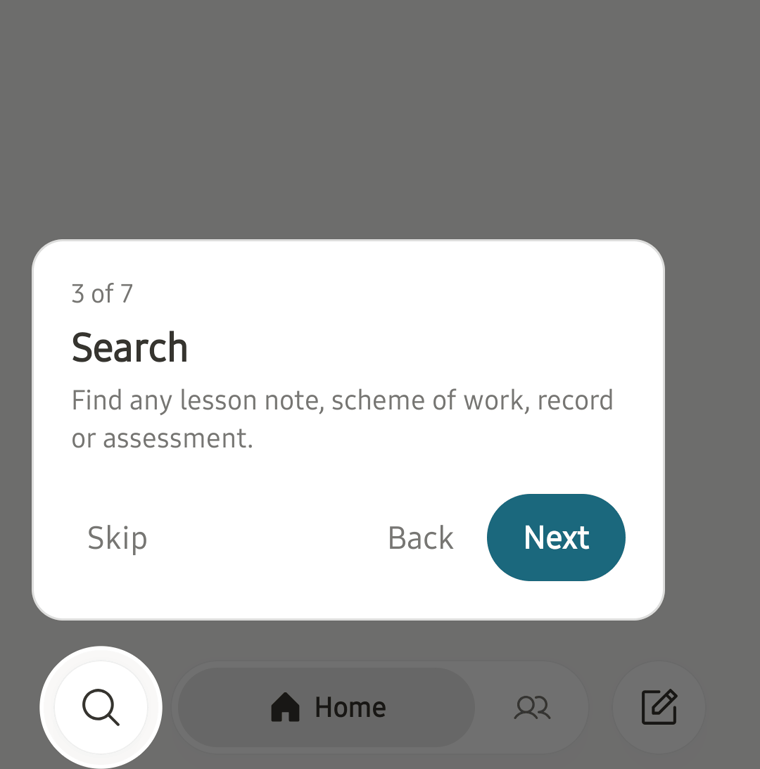
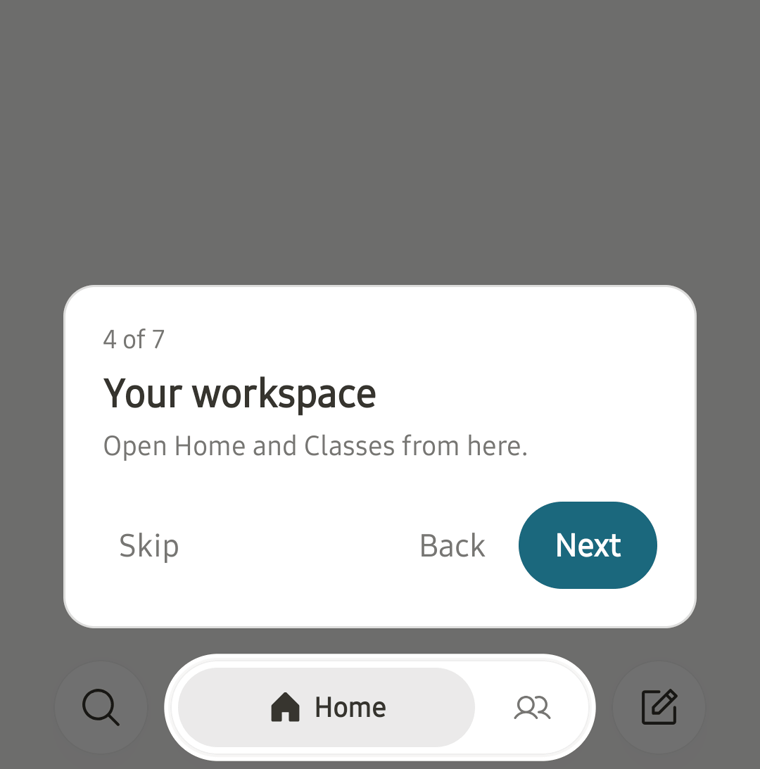
The buttons in the middle of the bottom bar switch between Home and Classes.
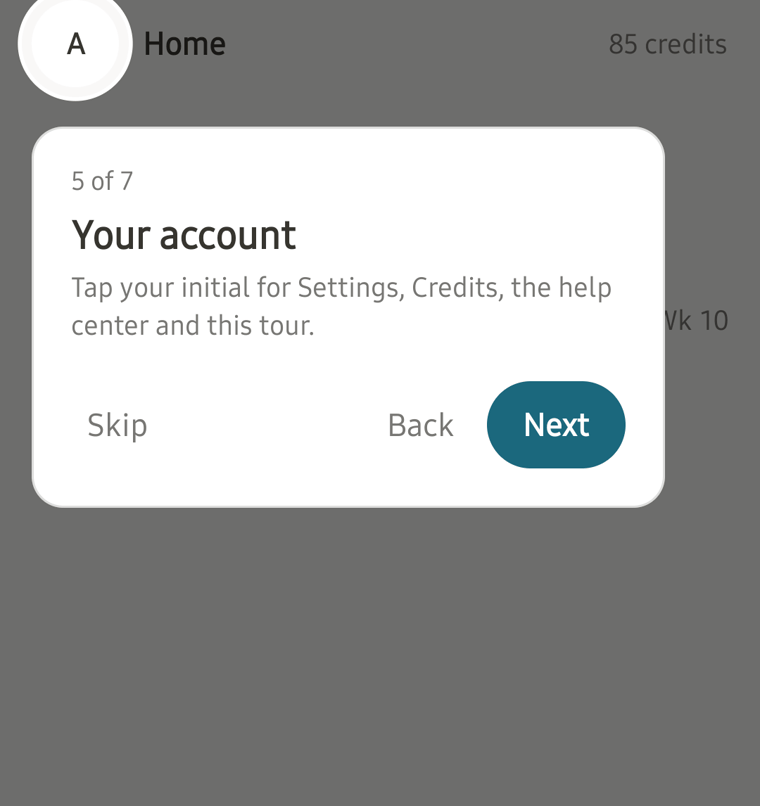
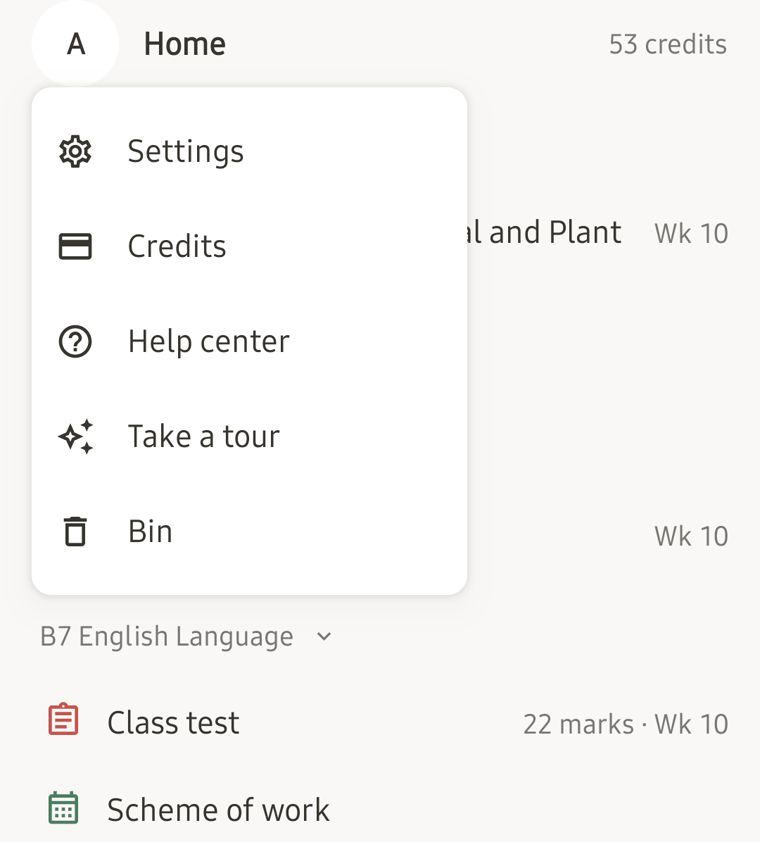
Your initial at the top left opens Settings, Credits, the help center and the tour.
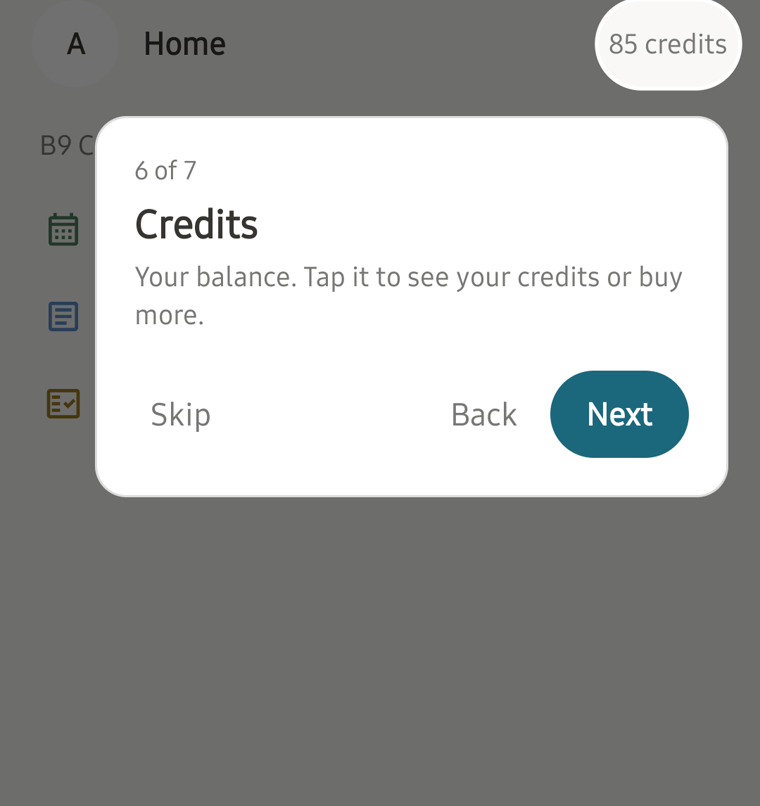
Your credits show at the top right. Tap them to see them or buy more.
Make a lesson note
1. Tap the pencil button, then Lesson note
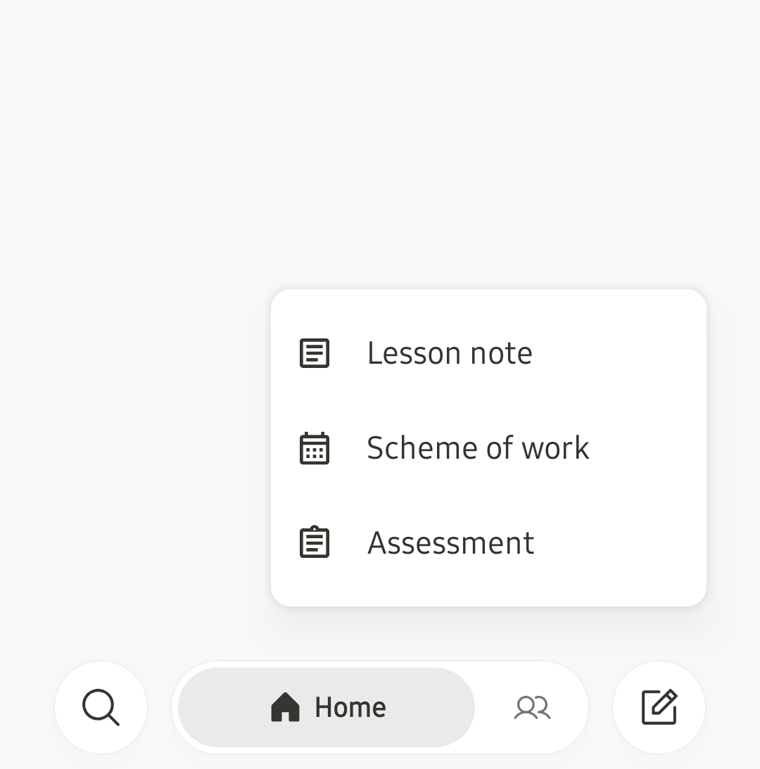
If you teach more than one class, the app asks which class first.
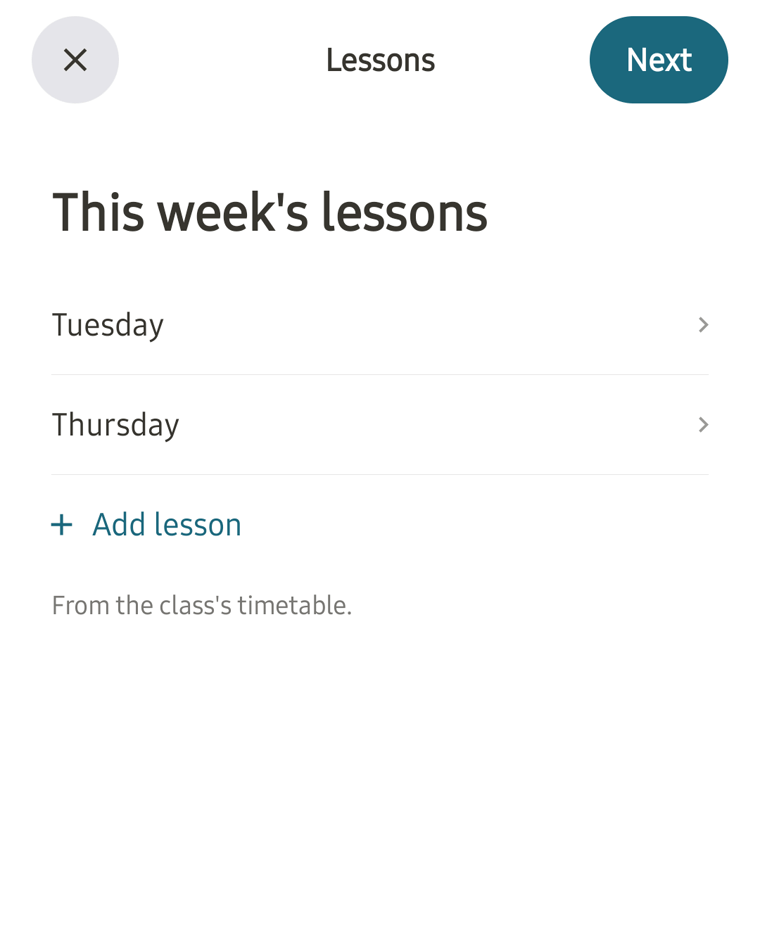
2. Check this week’s lessons
The days come from the class’s timetable. Tap Add lesson for another one, then tap Next.
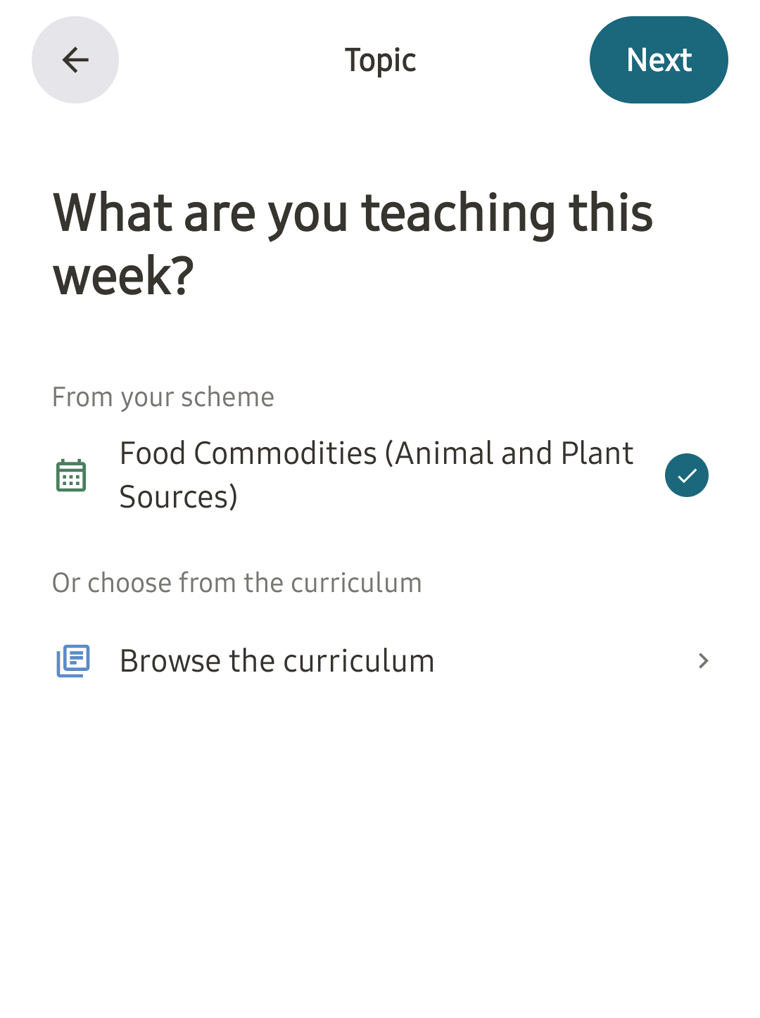
3. Choose what you are teaching
Pick this week’s topic from your scheme of work, or tap Browse the curriculum. Tap Next.
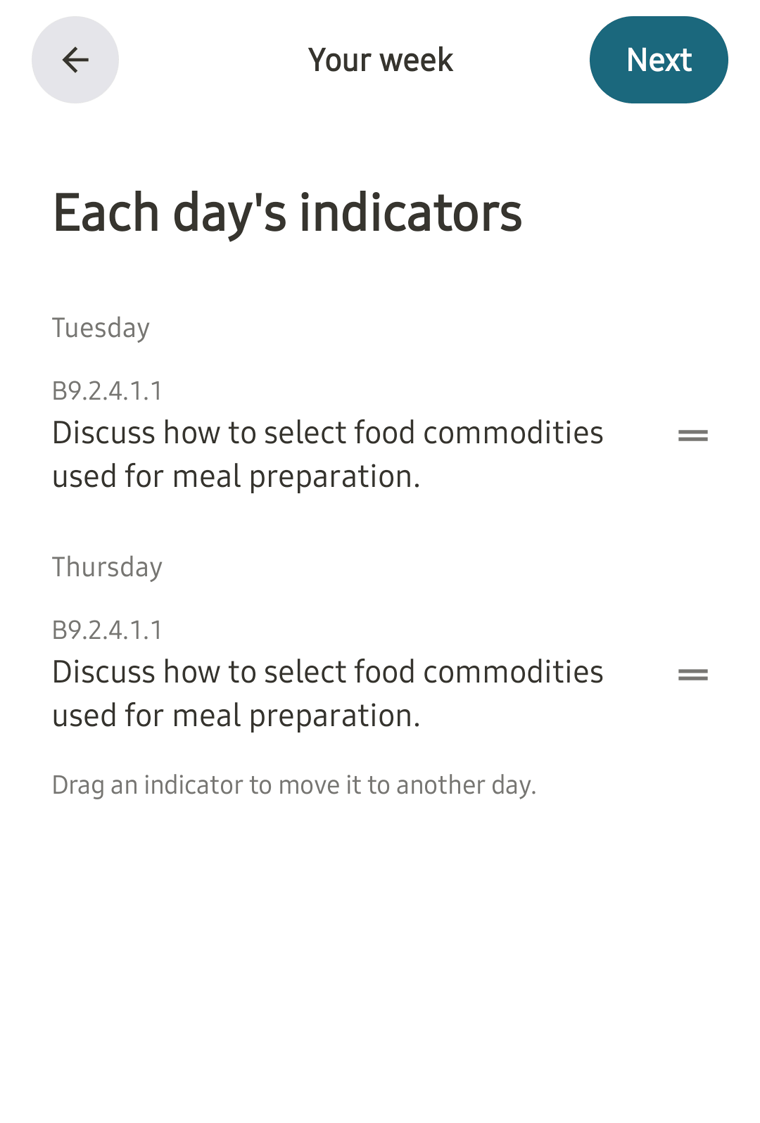
4. Check each day’s indicators
To move an indicator to another day, drag it by the two lines on the right. Tap Next.
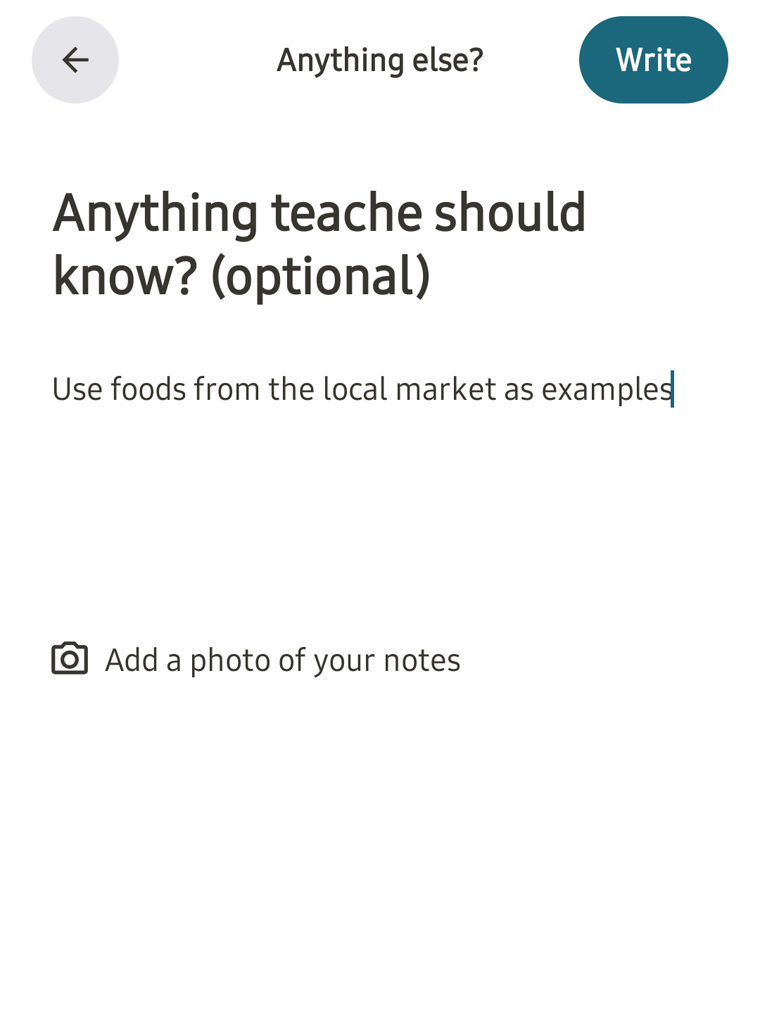
5. Add anything teache should know, then tap Write
This is optional. You can also add a photo of your own notes. A lesson note uses 3 credits.
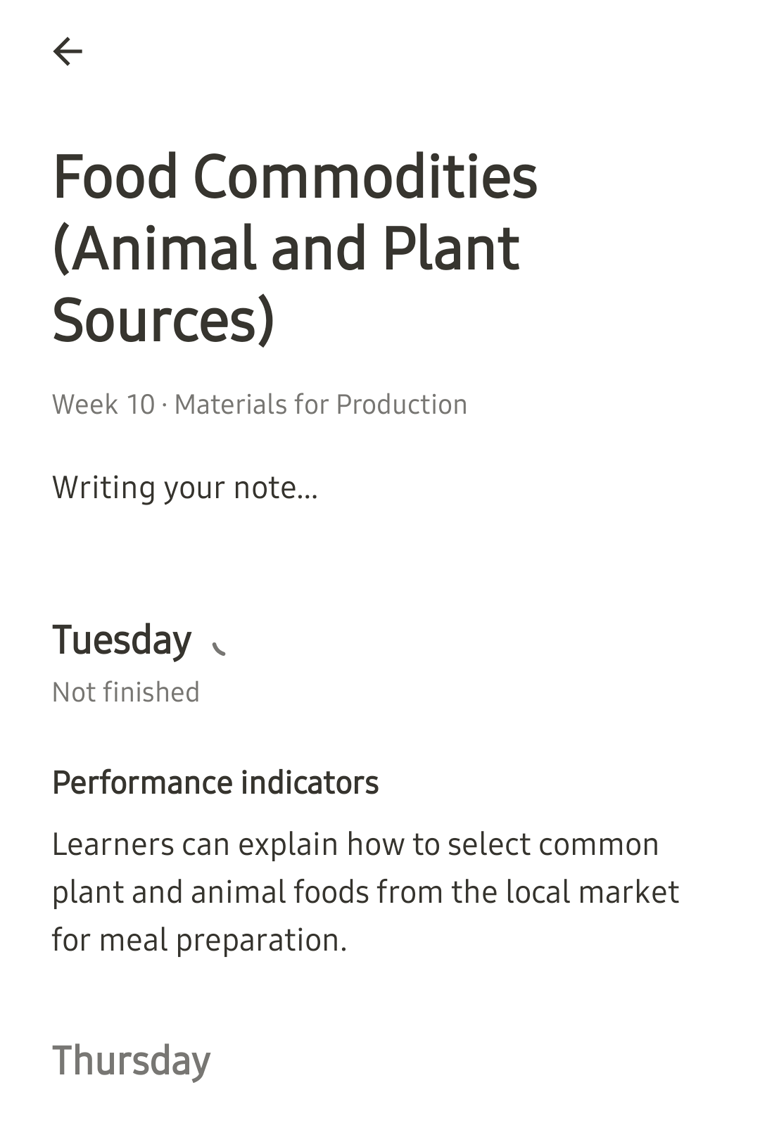
teache writes the note in front of you, day by day.
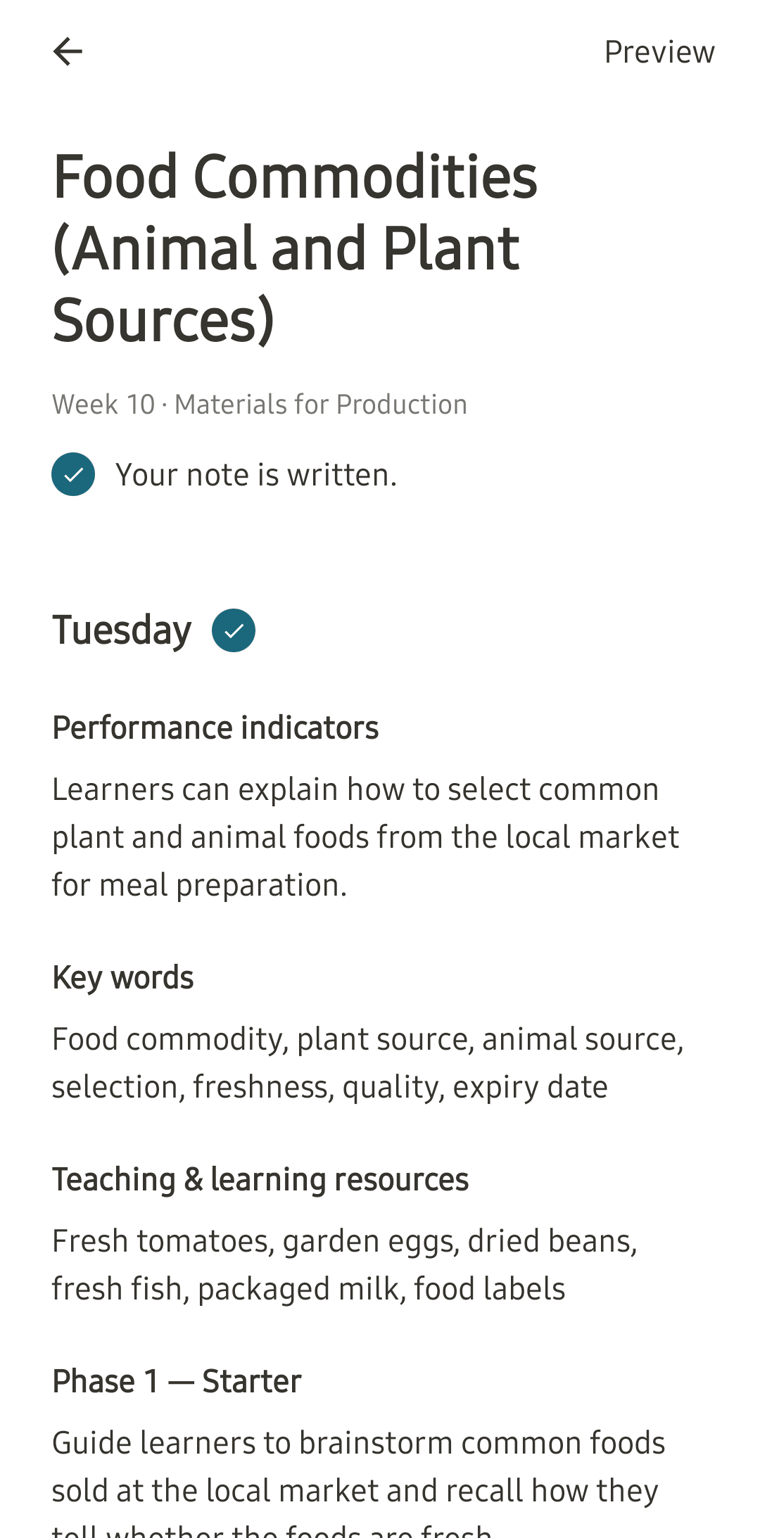
6. Read it, then tap Preview
When it says Your note is written, tap Preview at the top.
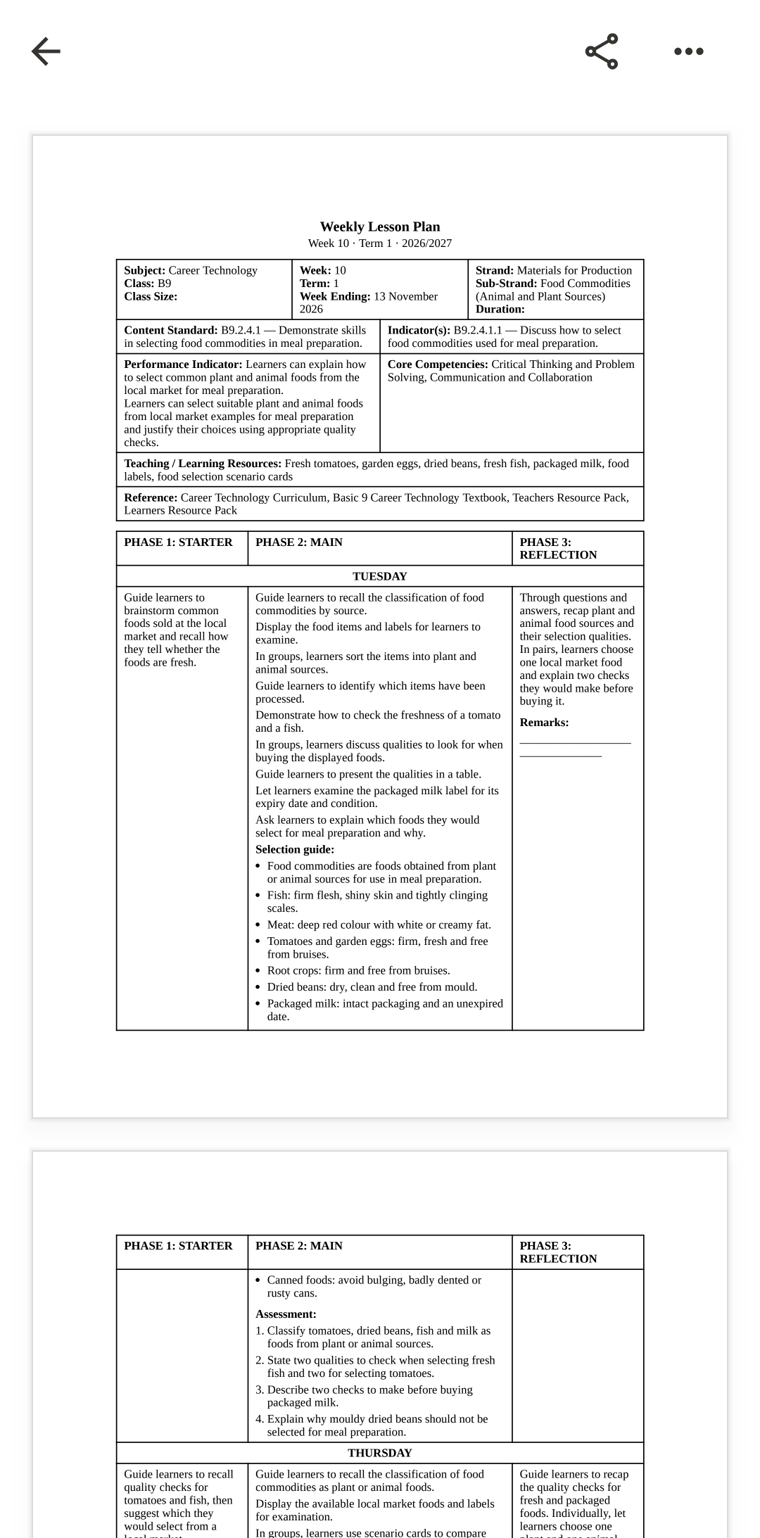
The note shows as it prints.
Share or save a document
These steps work for lesson notes, schemes of work and tests.
Send it to someone
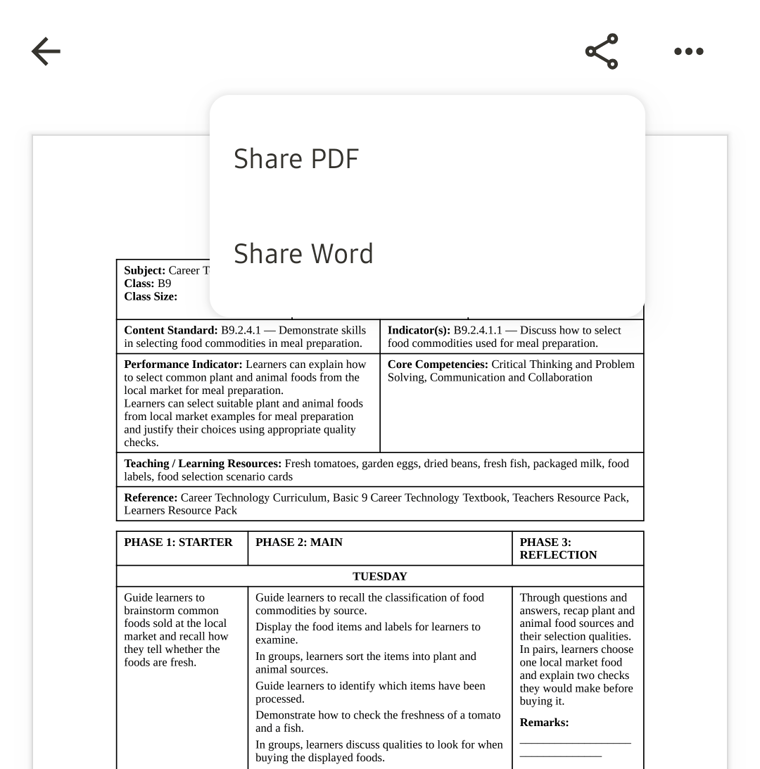
Tap the share button at the top, then Share PDF or Share Word, and pick WhatsApp or another app to send it with.
Save it on your phone
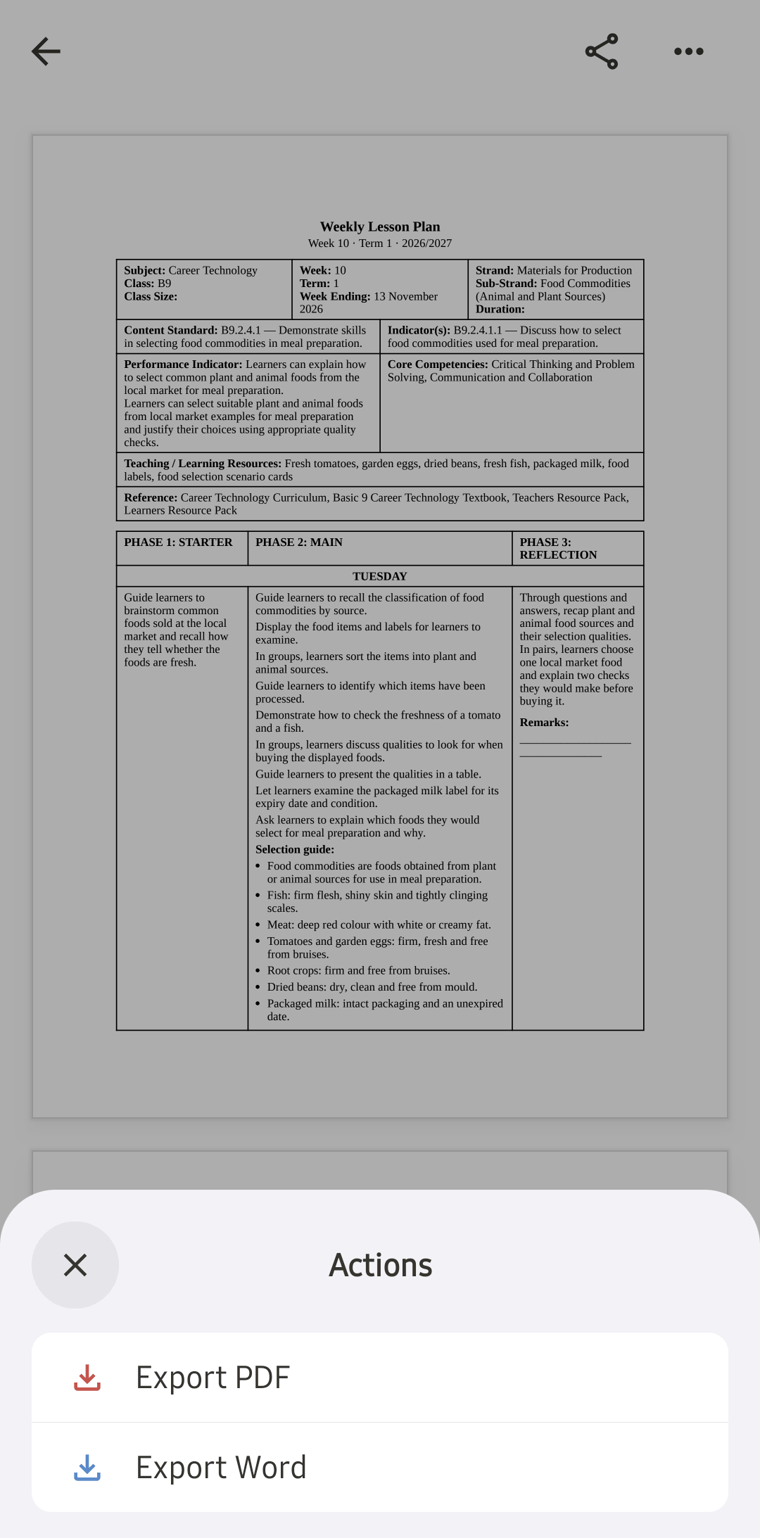
Tap the three dots at the top, then Export PDF or Export Word, and tap Save. The app says Saved to Files.
Make a scheme of work
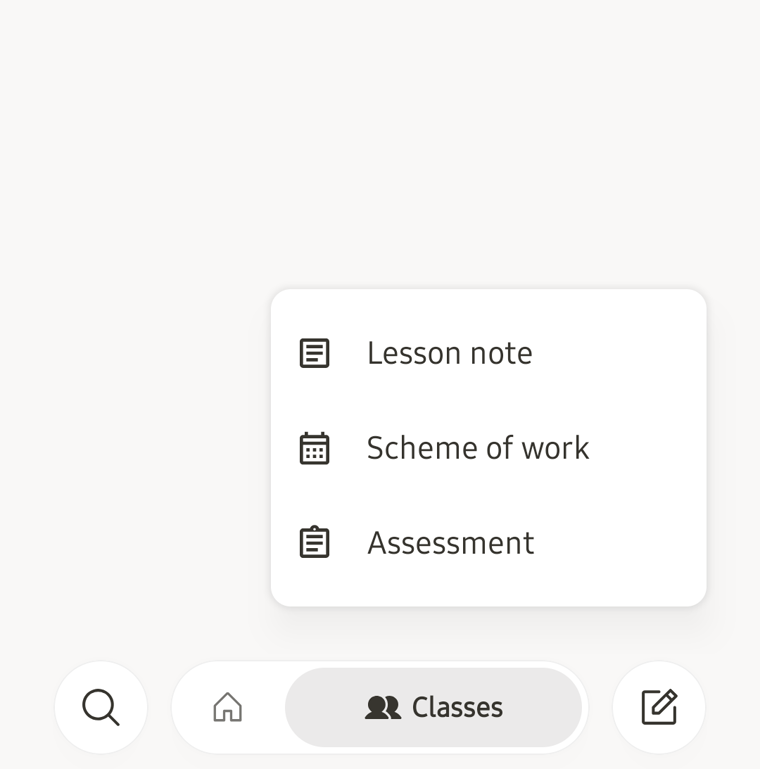
1. Tap the pencil button, then Scheme of work
2. Choose the class
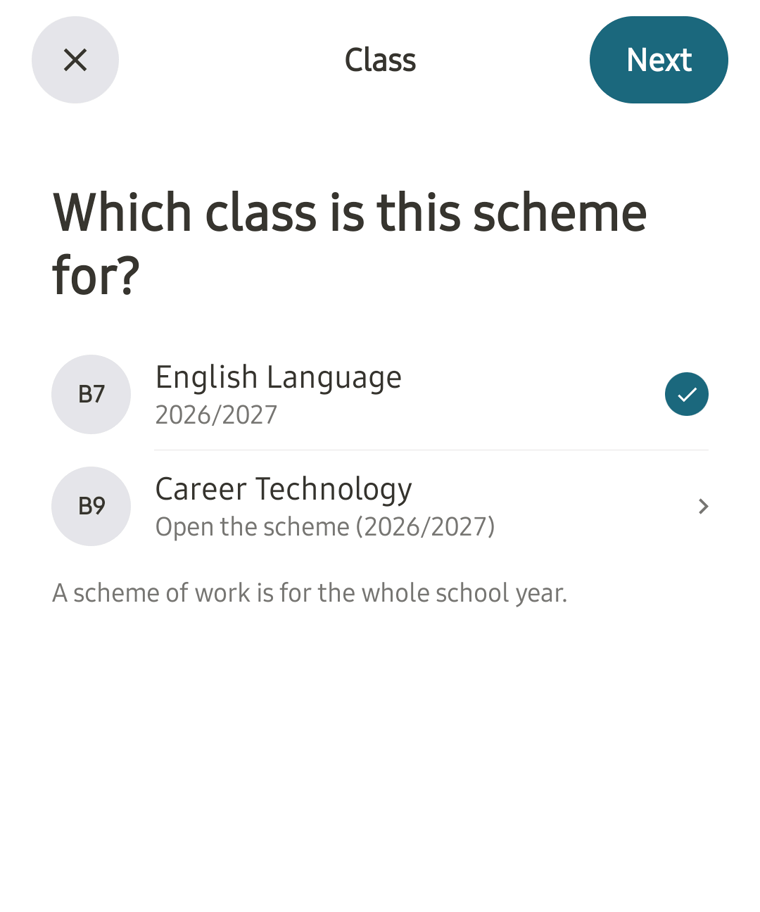
Tap the class, then Next. A class that already has a scheme for this year opens it instead.
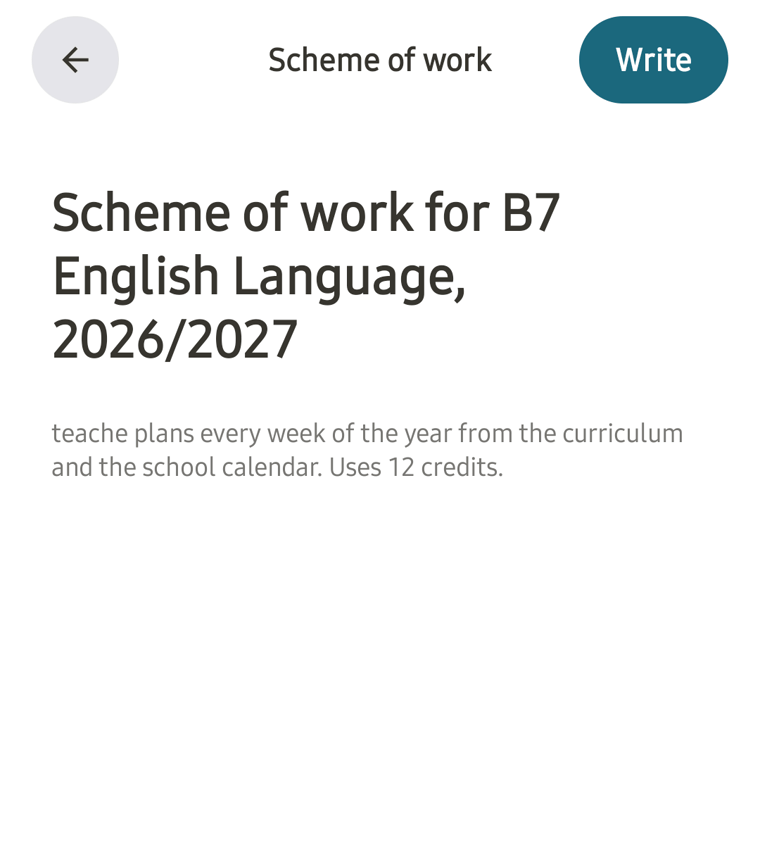
3. Tap Write
teache plans every week of the year from the curriculum and the school calendar. A scheme of work uses 12 credits.
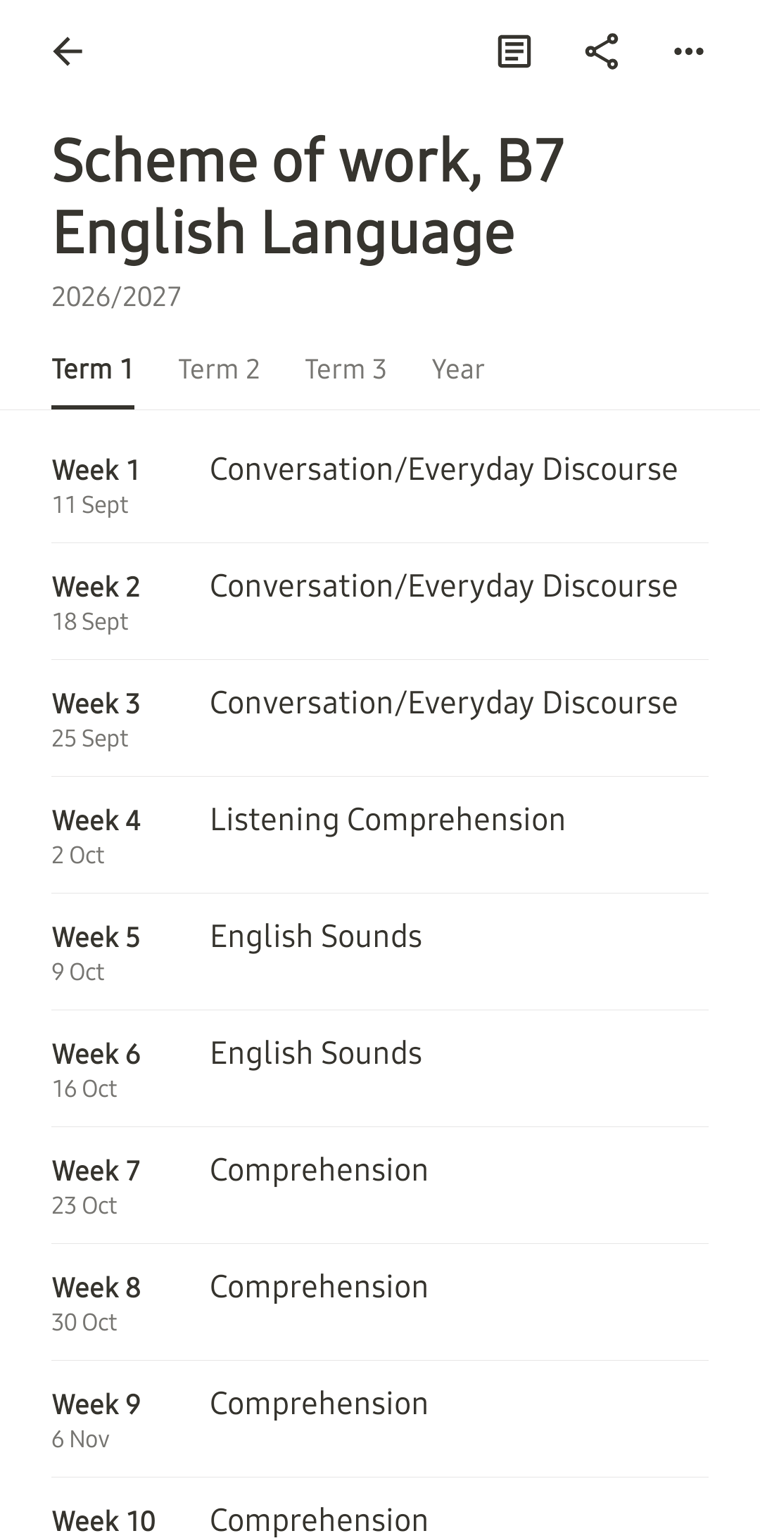
It takes a few minutes. Use the tabs at the top to see each term or the whole year.
Make a class test
1. Tap the pencil button, then Assessment
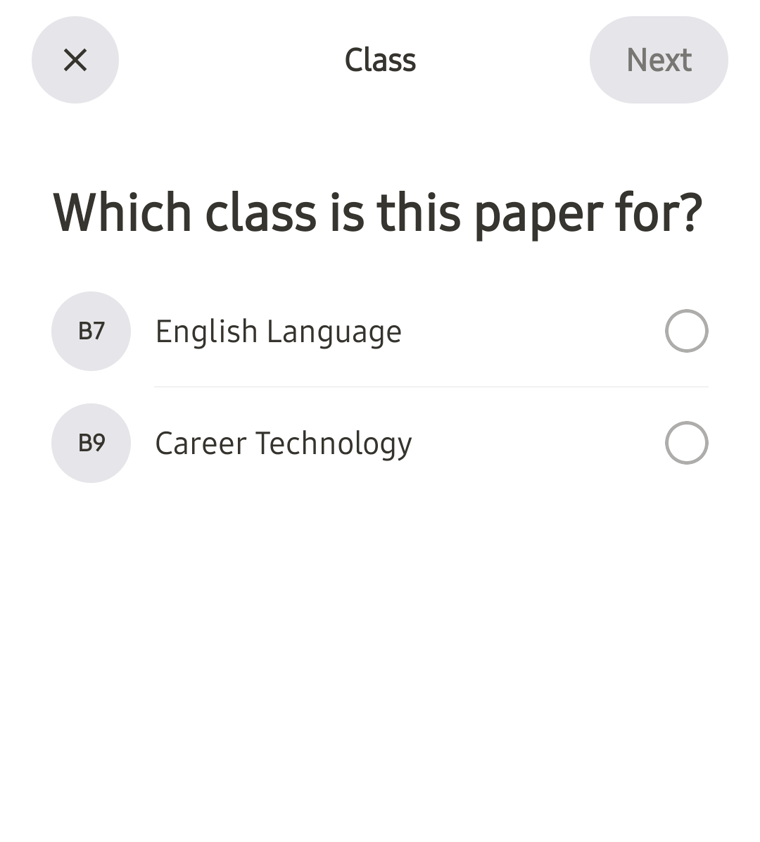
2. Choose the class
Tap the class, then Next.
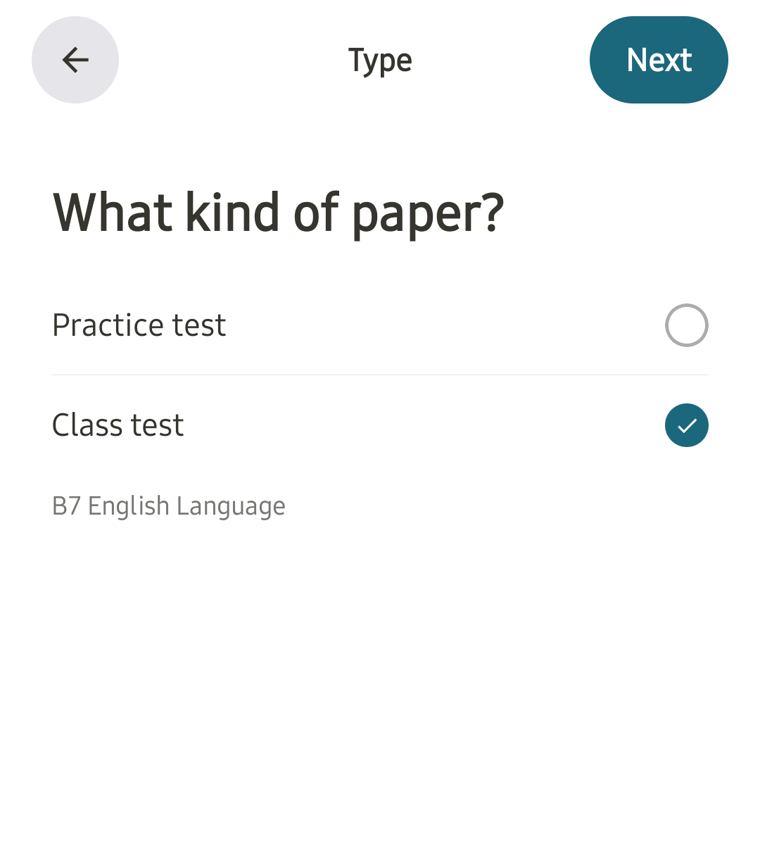
3. Choose the kind of paper
Tap Class test or Practice test, then Next.
4. Choose how many questions
Use the minus and plus buttons for each section. The line underneath shows the questions, marks, time and credits. Tap Next.
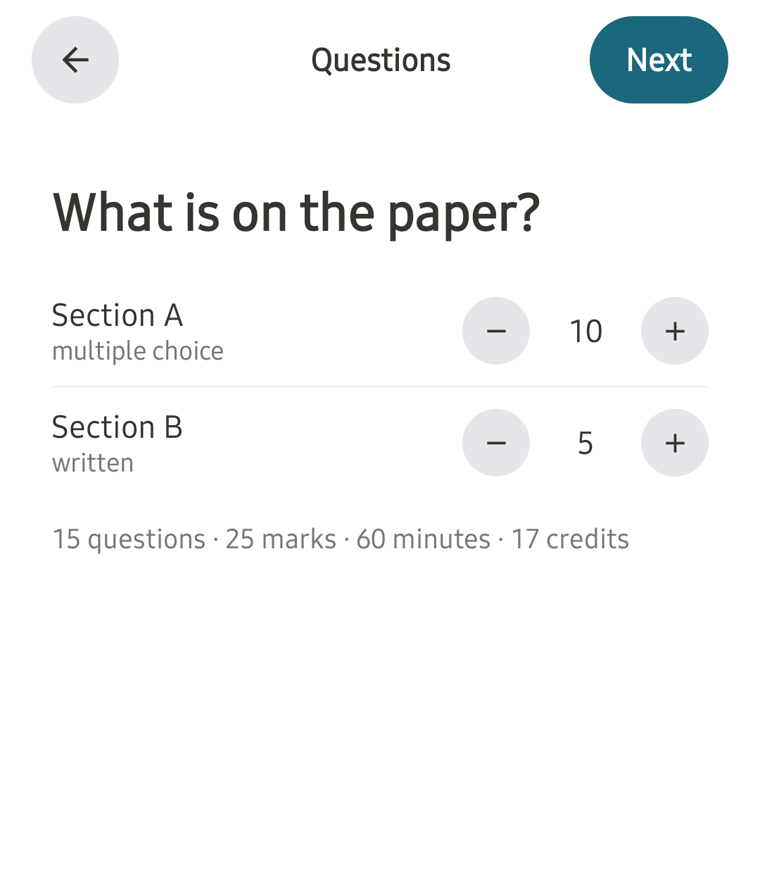
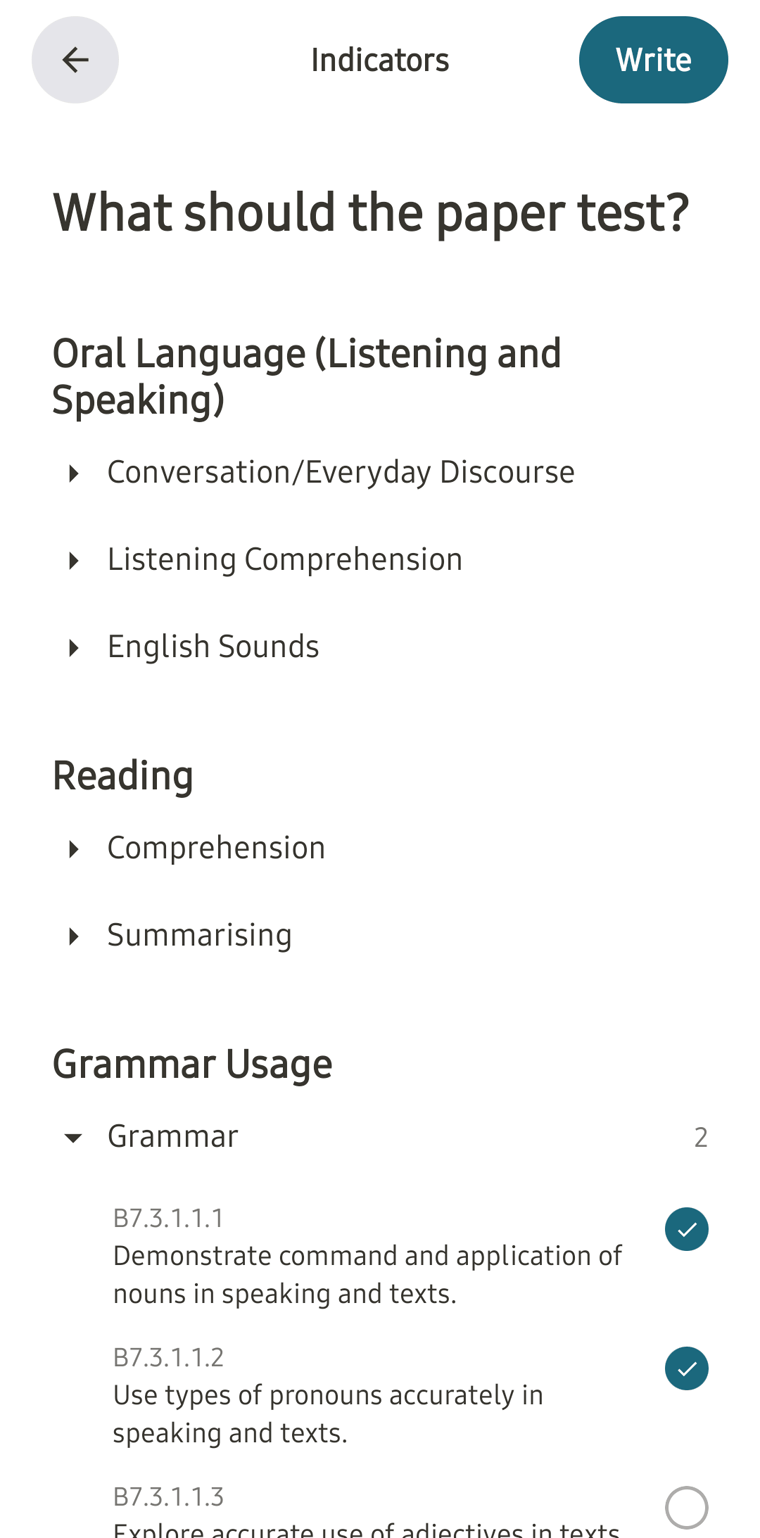
5. Choose what the paper should test, then tap Write
Open a sub-strand and tick its indicators. Indicators marked Class activity only cannot go on a paper.
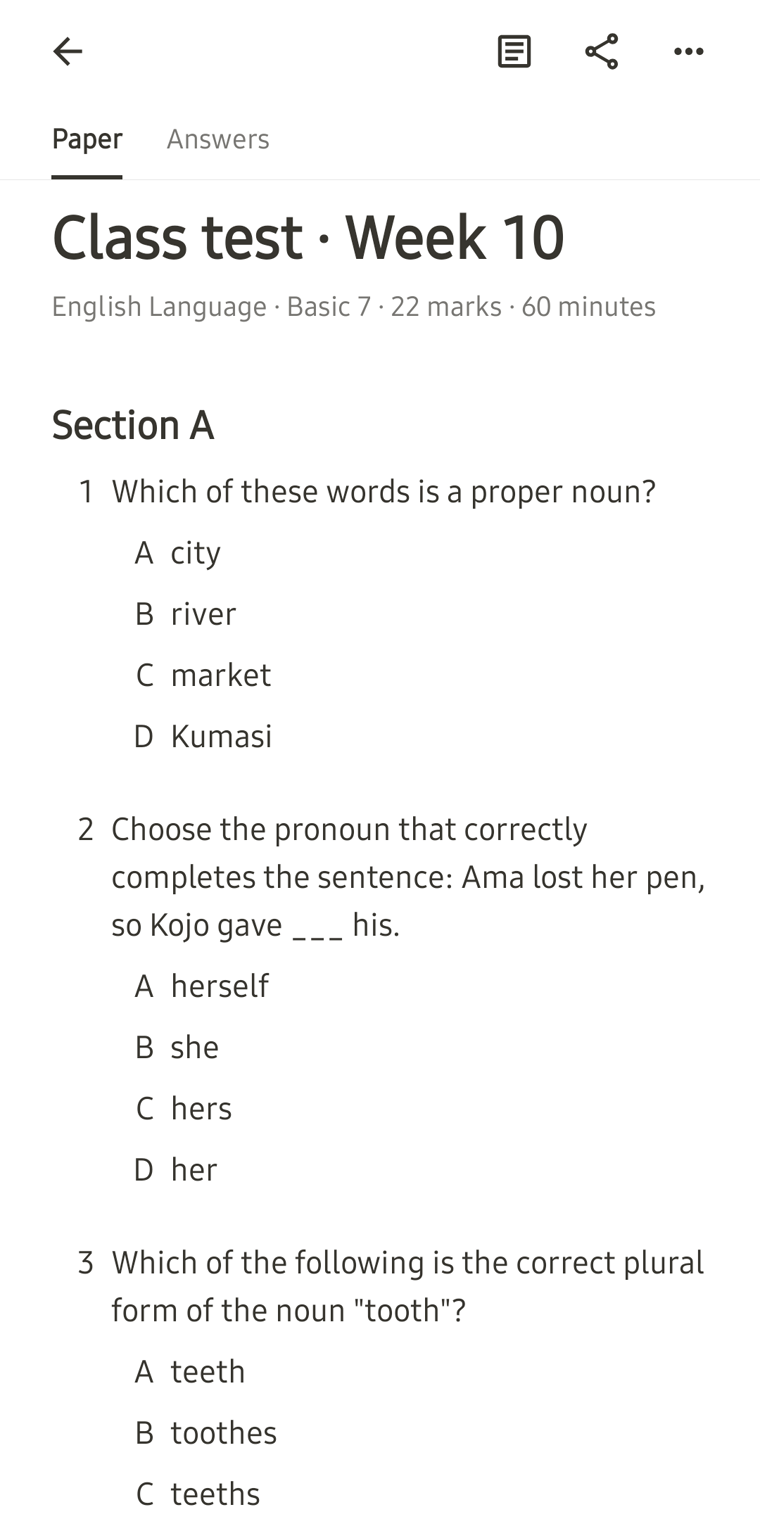
6. Read the paper and the answers
It takes a few minutes. The Paper tab shows the questions.
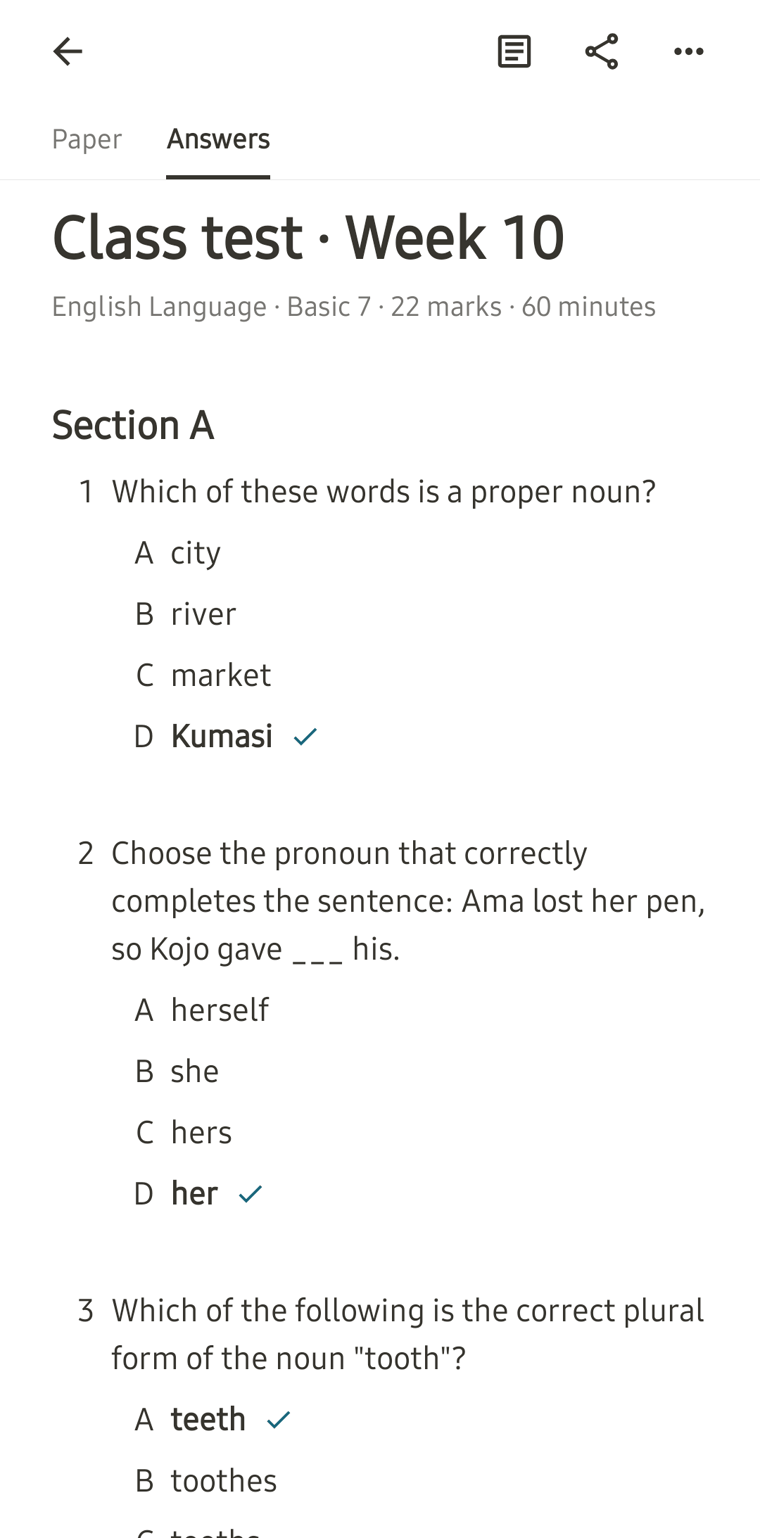
The Answers tab shows the marking scheme.
Add a class
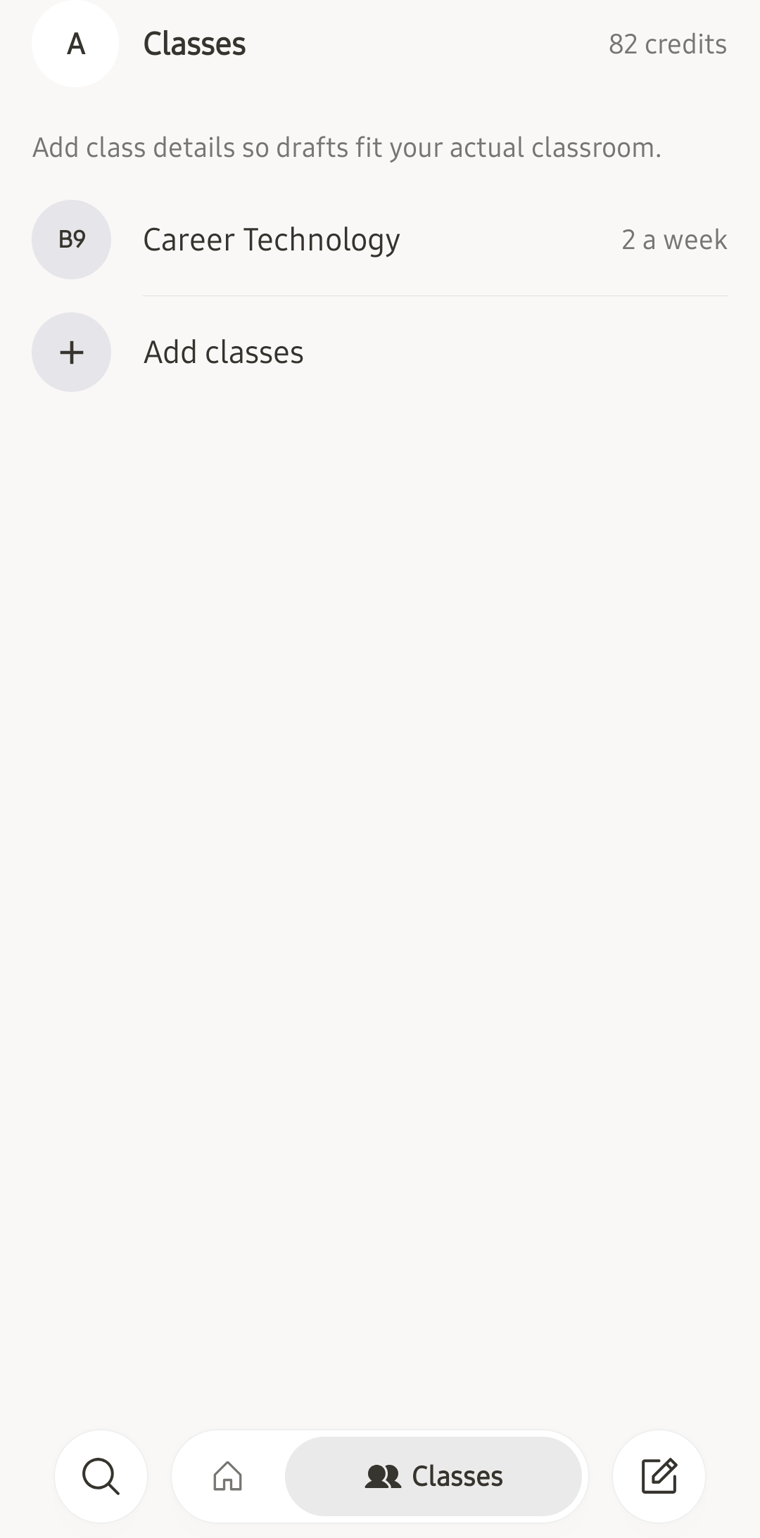
Tap Classes at the bottom, then Add classes.
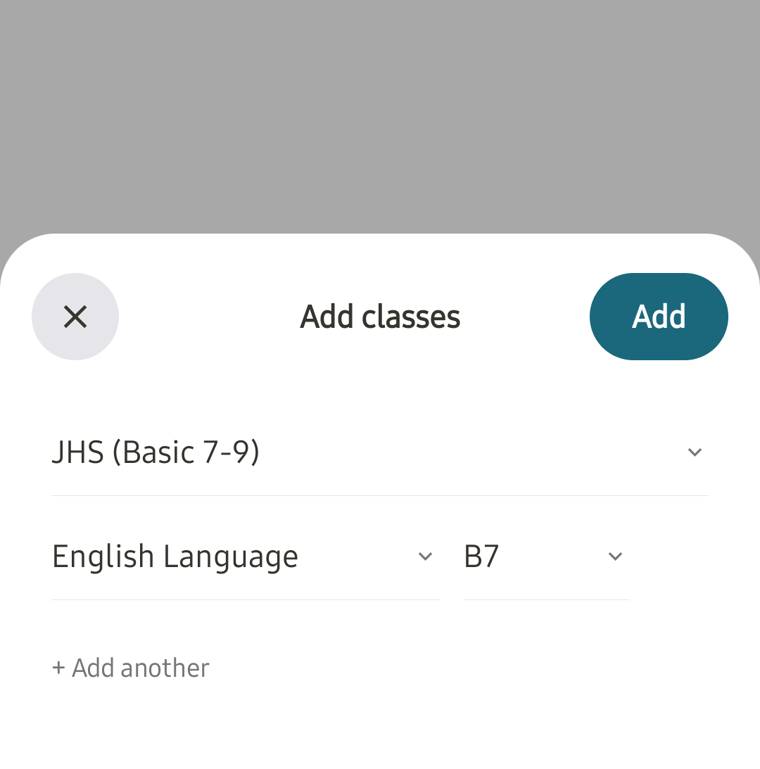
Choose the level, the subject and the class, then tap Add. Tap + Add another to add more than one at a time.
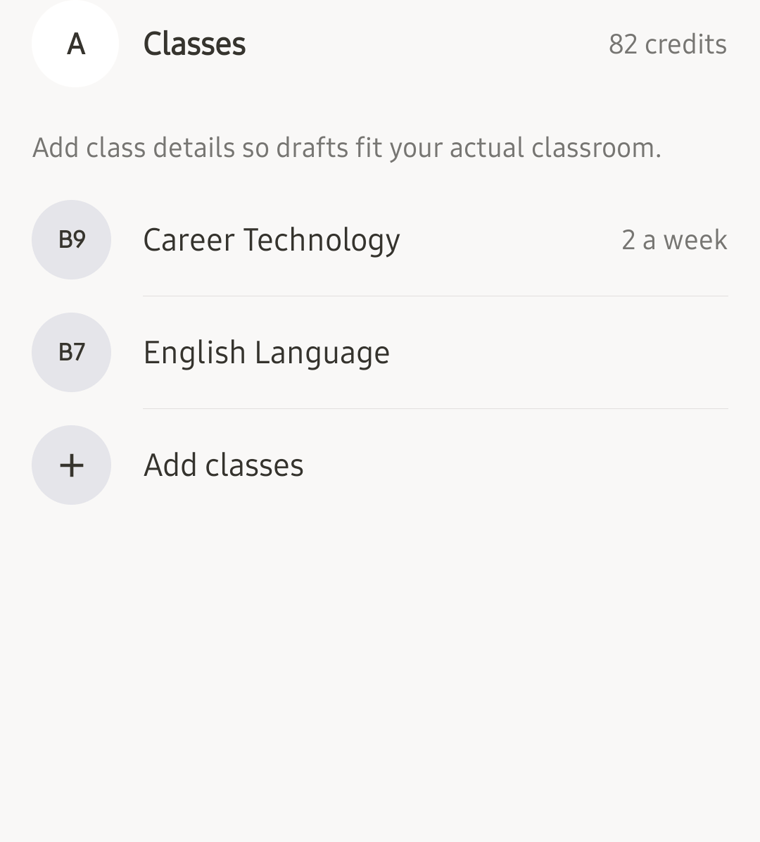
The new class shows in the list.
Top up with Mobile Money
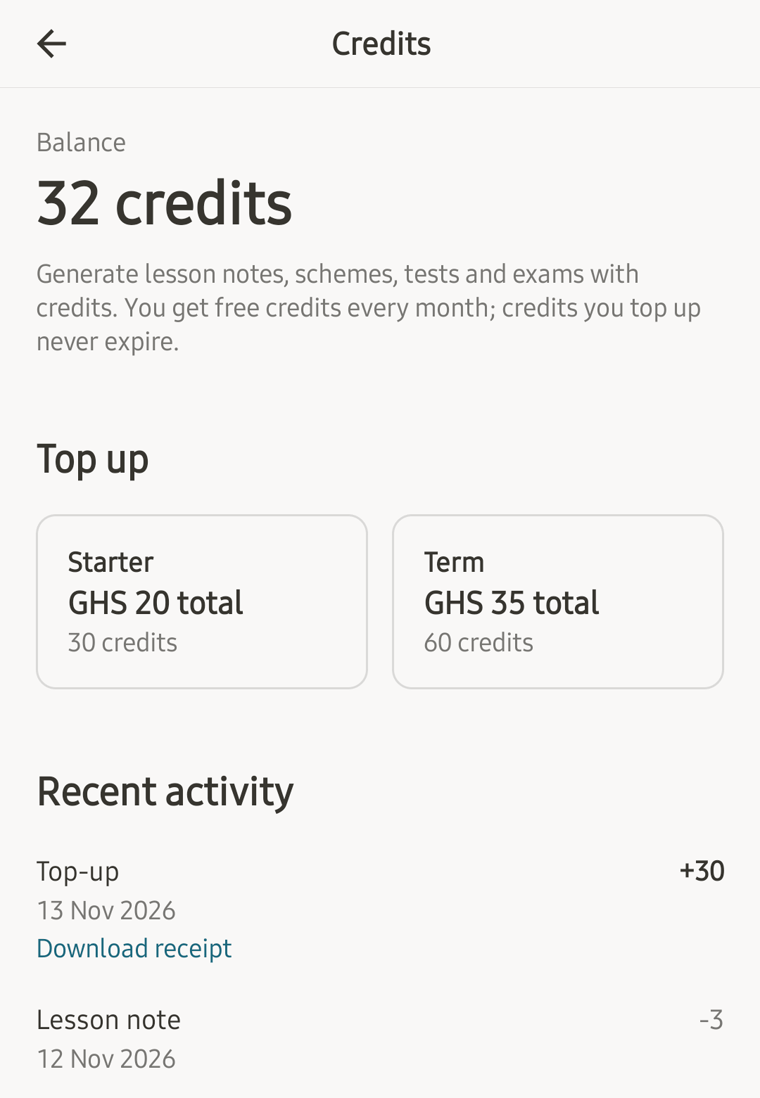
1. Open Credits
Tap your initial at the top left, then Credits.
2. Tap a pack
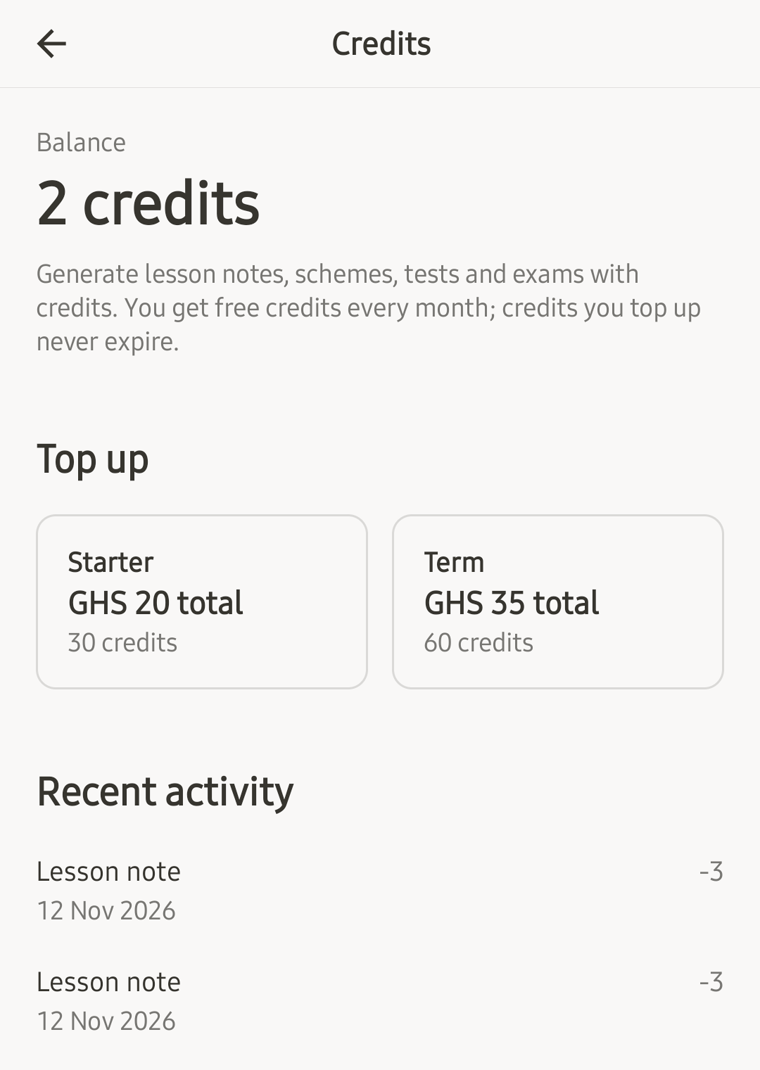
3. Tap Pay with Mobile Money
Paystack’s payment page opens in the app.
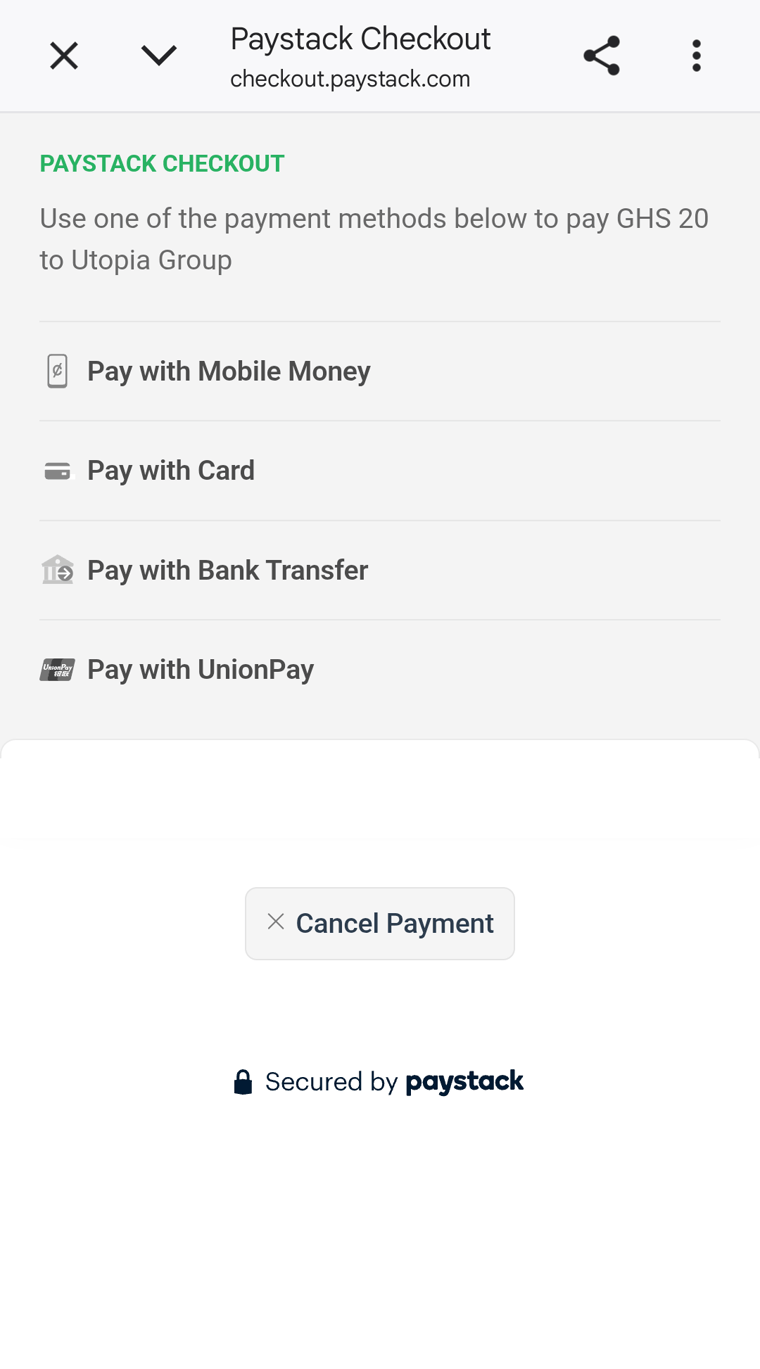
4. Type your number, choose your network and tap Confirm
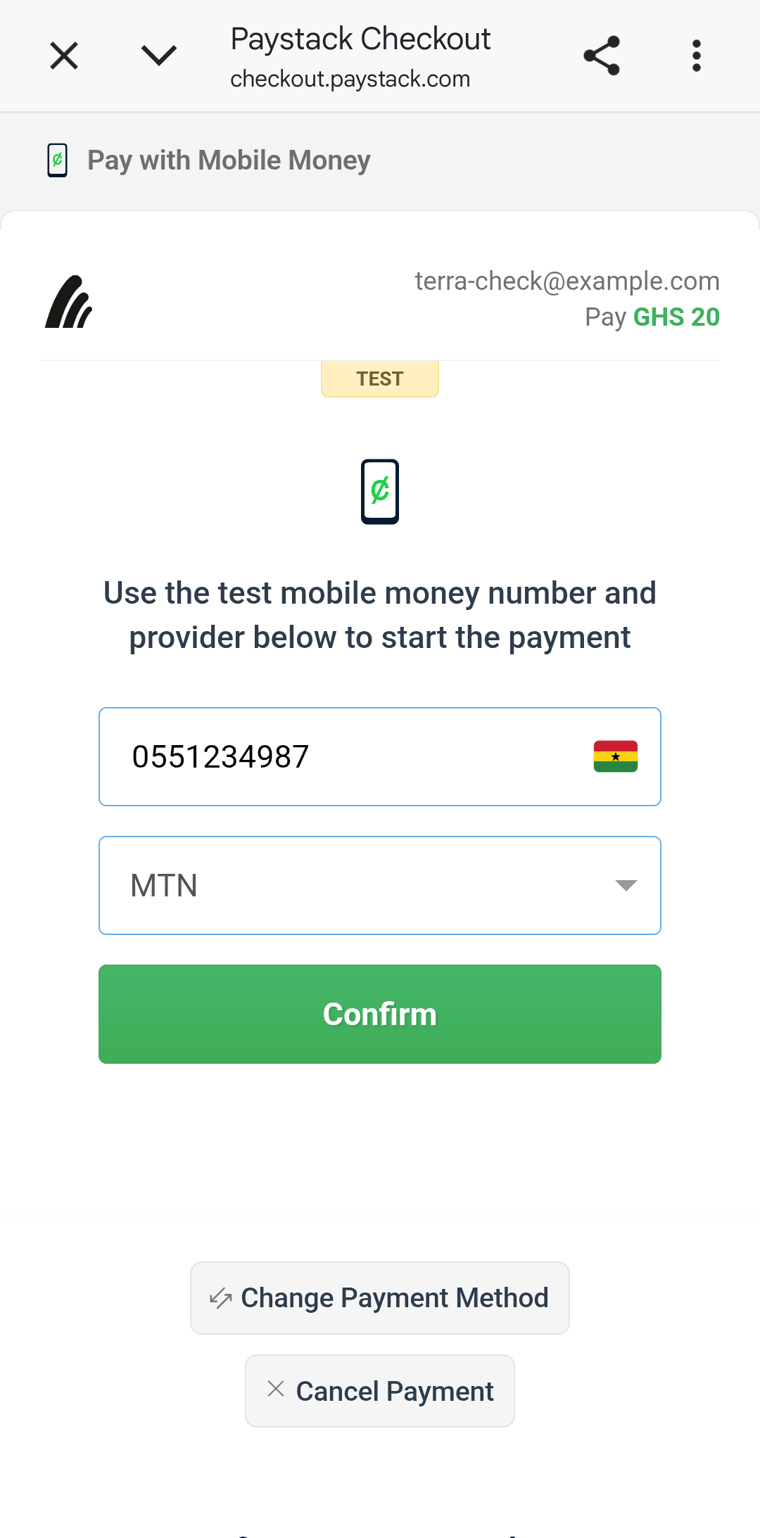
5. Approve the payment on your phone
A Mobile Money prompt opens on the phone that has that number. Enter your Mobile Money PIN, then approve the payment.
Paystack says Payment Successful. If the page stays open, close it to go back to teache.
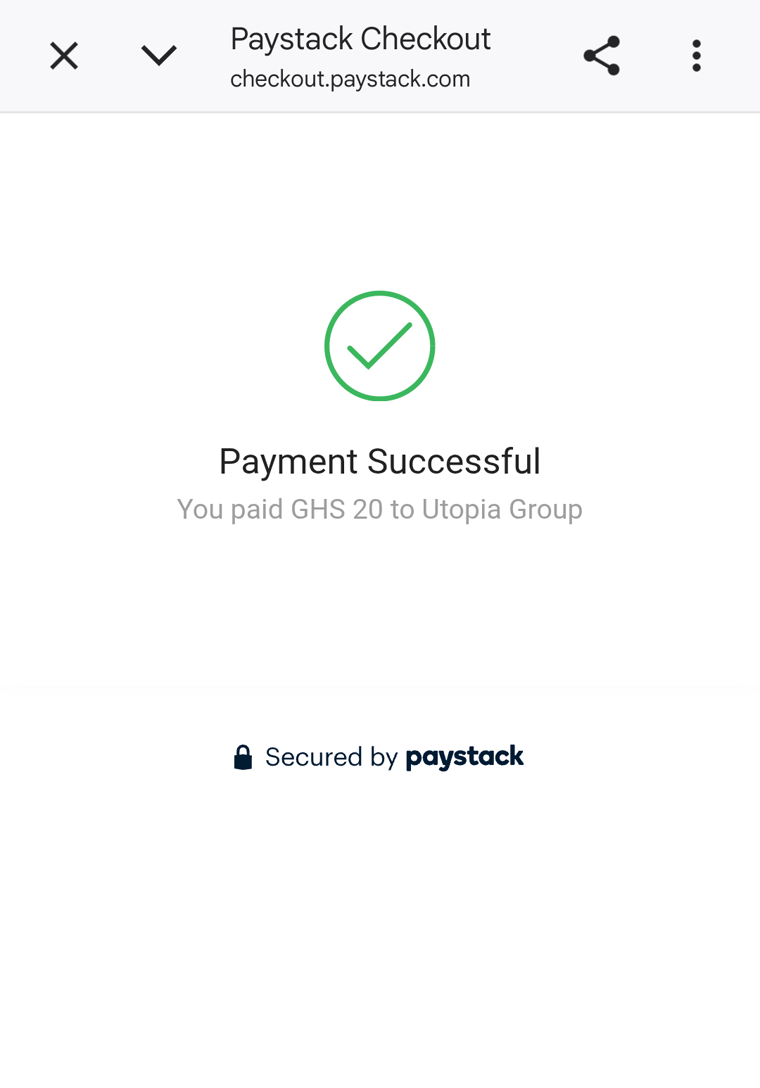
6. See your credits
Your credits can take up to 5 minutes to show. The top-up is listed under Recent activity, with a receipt to download.
More on credits: understand credits and buy credits with Mobile Money.