Buy credits with Mobile Money
When your credits run low, buy a pack and pay from your Mobile Money wallet. The credits are added as soon as the payment is confirmed, and they never expire.
The packs
- Starter: 30 credits for GHS 20
- Term: 60 credits for GHS 35
The price shown is the total you pay. To see what each document costs in credits, read Understand credits.
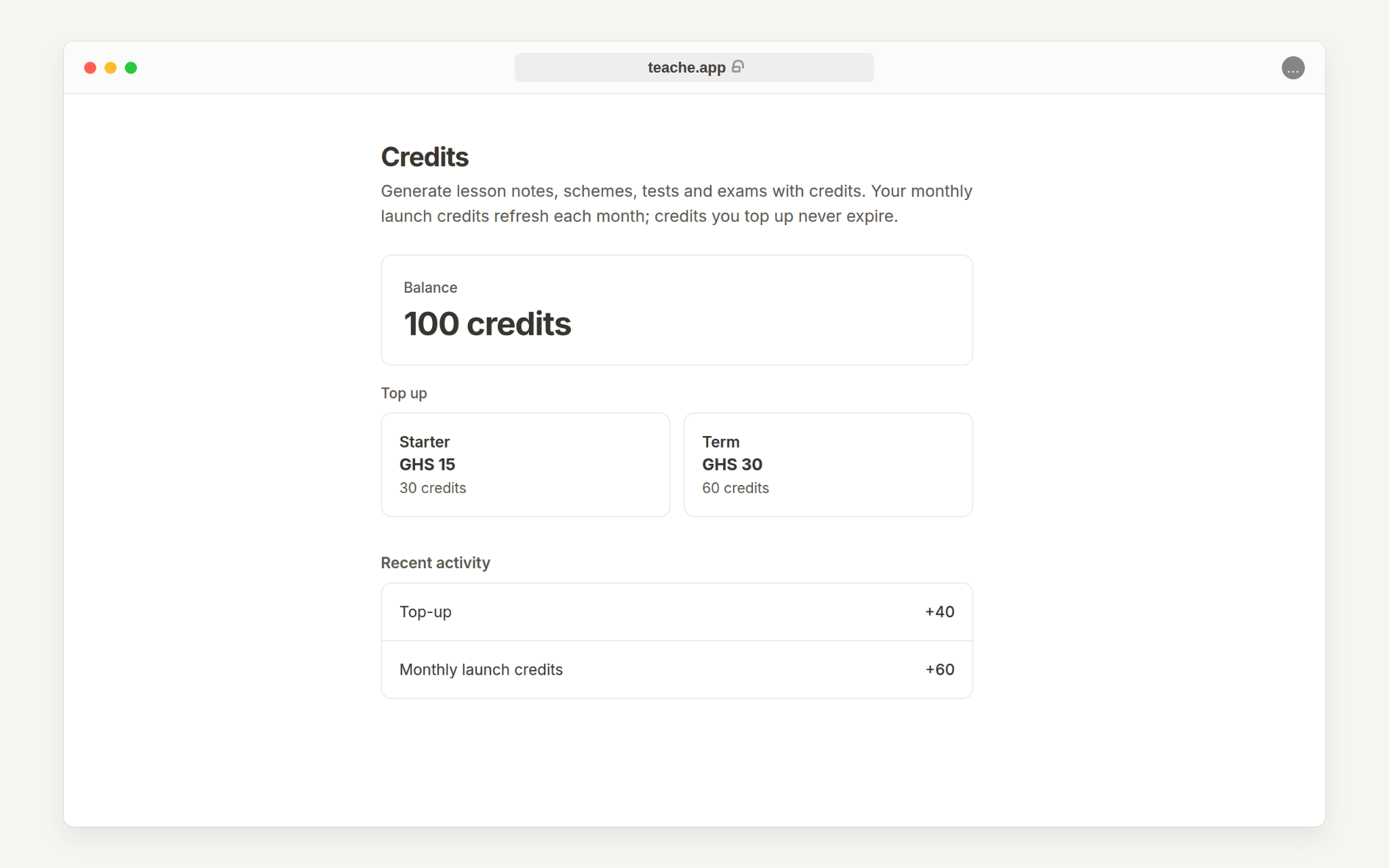
1. Open your credits
Click Credits in the sidebar; the number beside it is your balance. On a phone, tap teache at the top left to open the menu and find it there.
2. Choose a pack
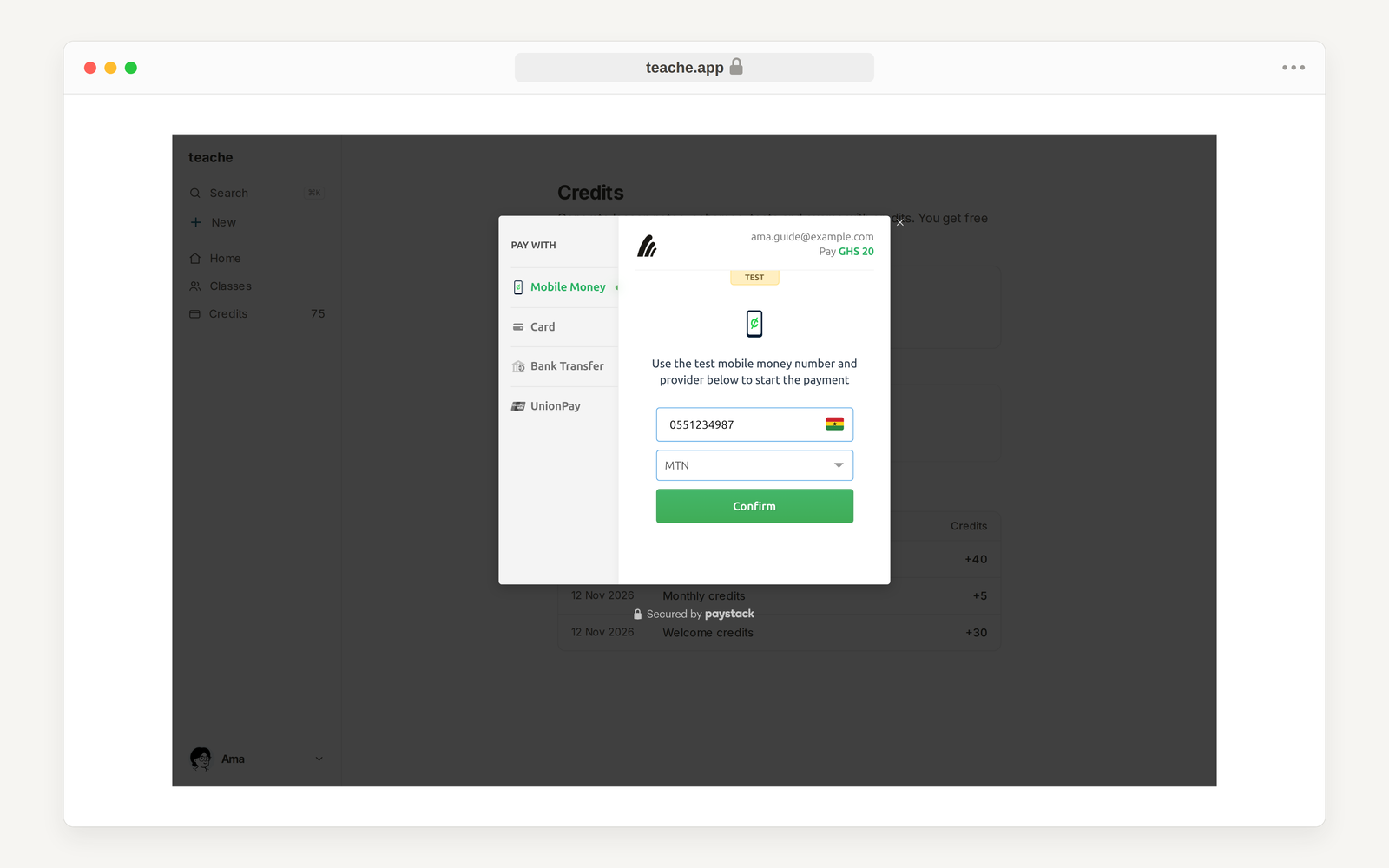
Under Top up, click the pack you want. A payment window from Paystack, our payment partner, opens on top of the page. You stay on teache.
3. Enter your Mobile Money number
Mobile Money is already selected. Type the number of the wallet you are paying from, choose its network (MTN, Telecel or AirtelTigo), and click Confirm.
4. Approve the payment on your phone
Your network sends a prompt to that phone. Approve it with your Mobile Money PIN. If the window asks for anything more, such as a code sent by SMS, follow what it says. Keep the page open while you do this.
teache never sees your PIN. You type it only on your own phone, in your network's prompt.
5. See your credits
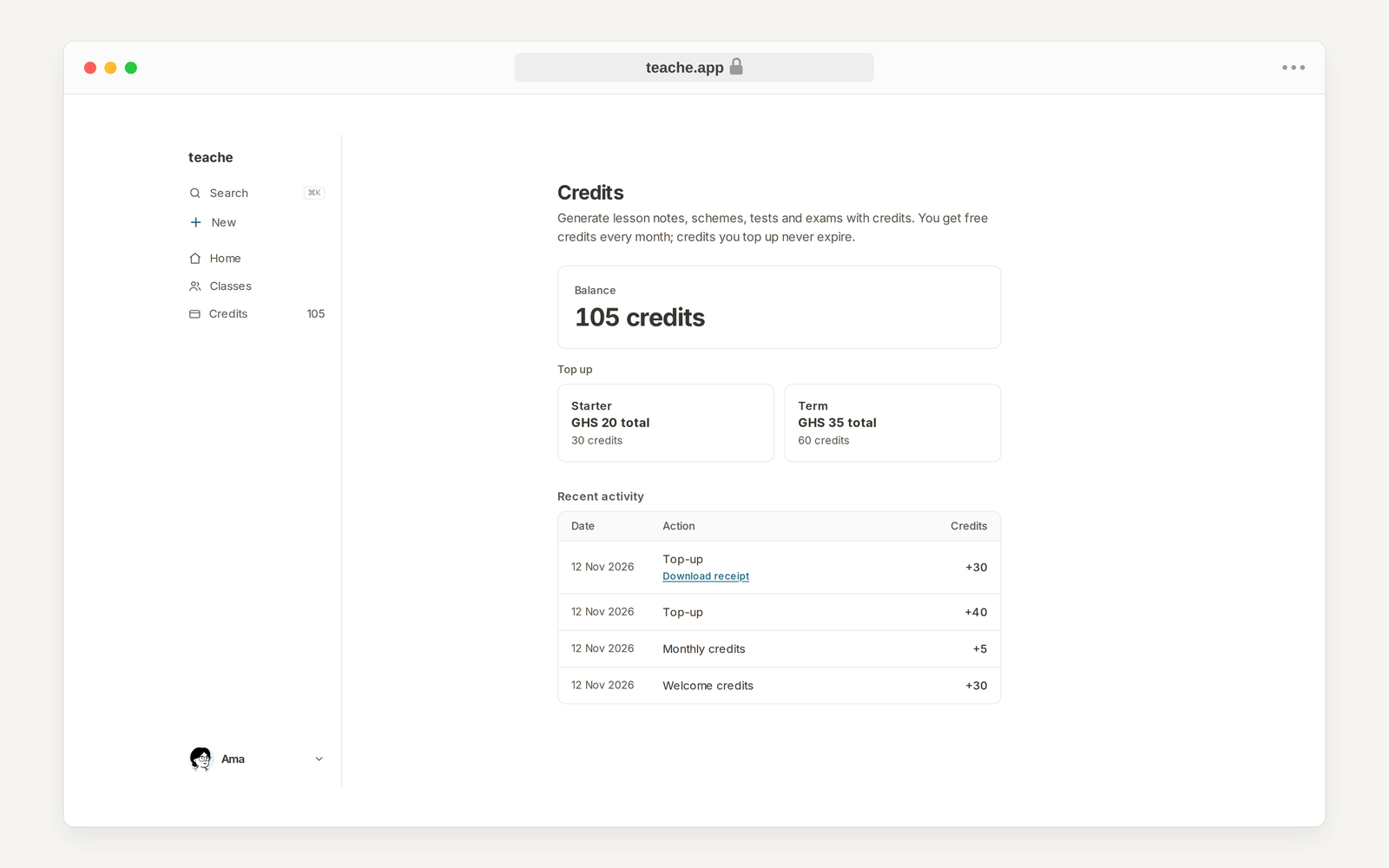
When the payment is confirmed, teache shows Payment successful and the balance goes up. The top-up is the first line under Recent activity, with Download receipt beside it.
If the credits do not show
An approval can arrive late. If you approved the payment and the balance has not changed, wait a few minutes and open Credits again; teache keeps checking and adds the credits when the payment reaches us. If money left your wallet and the credits are still missing after an hour, contact support with the number you paid from and the time.
Closing the window does not cancel the Mobile Money prompt on your phone. If you approve it afterwards, the payment still goes through and the credits arrive. Before you choose a pack again, check your Mobile Money messages and your Credits page, so you do not pay twice. If you never approved the prompt, nothing is charged.
In the mobile app
Tap your initial at the top left, then Credits, and tap a pack. Paystack’s payment page opens in the app, with the same Mobile Money steps.
Step by step with pictures: top up in the mobile app.