Change a lesson note with AI
Give one instruction and teache rewrites the parts of a finished note that it applies to. You see every changed part beside the old one before anything is saved.
When to use it
Use it for a change that runs through the whole note, where editing each lesson by hand would take long. For example: examples from your town, shorter activities, more group work, or assessments on one theme. For one sentence, click the text in the note and type; that is quicker.
It works on any finished lesson note, including KG and SHS notes. It changes the parts written for your lessons: starters, main activities, assessments, plenaries, resources and key words. It does not change what comes from the curriculum or your timetable: the strand and sub-strand, the indicators, the days and the lesson times stay as they are.
1. Open the menu on the note
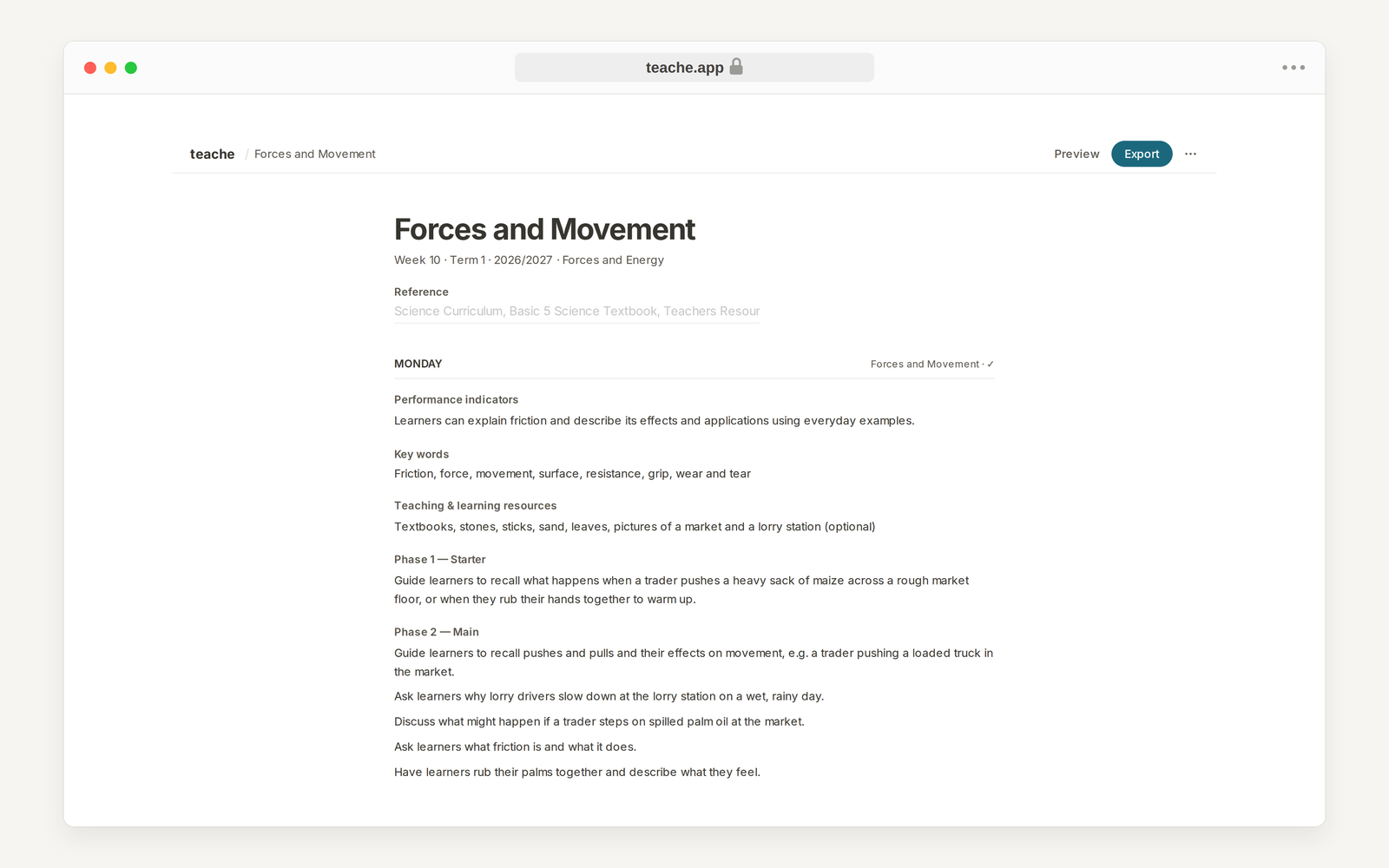
Open the note. At the top right, beside Export, click the … button and choose Change with AI.
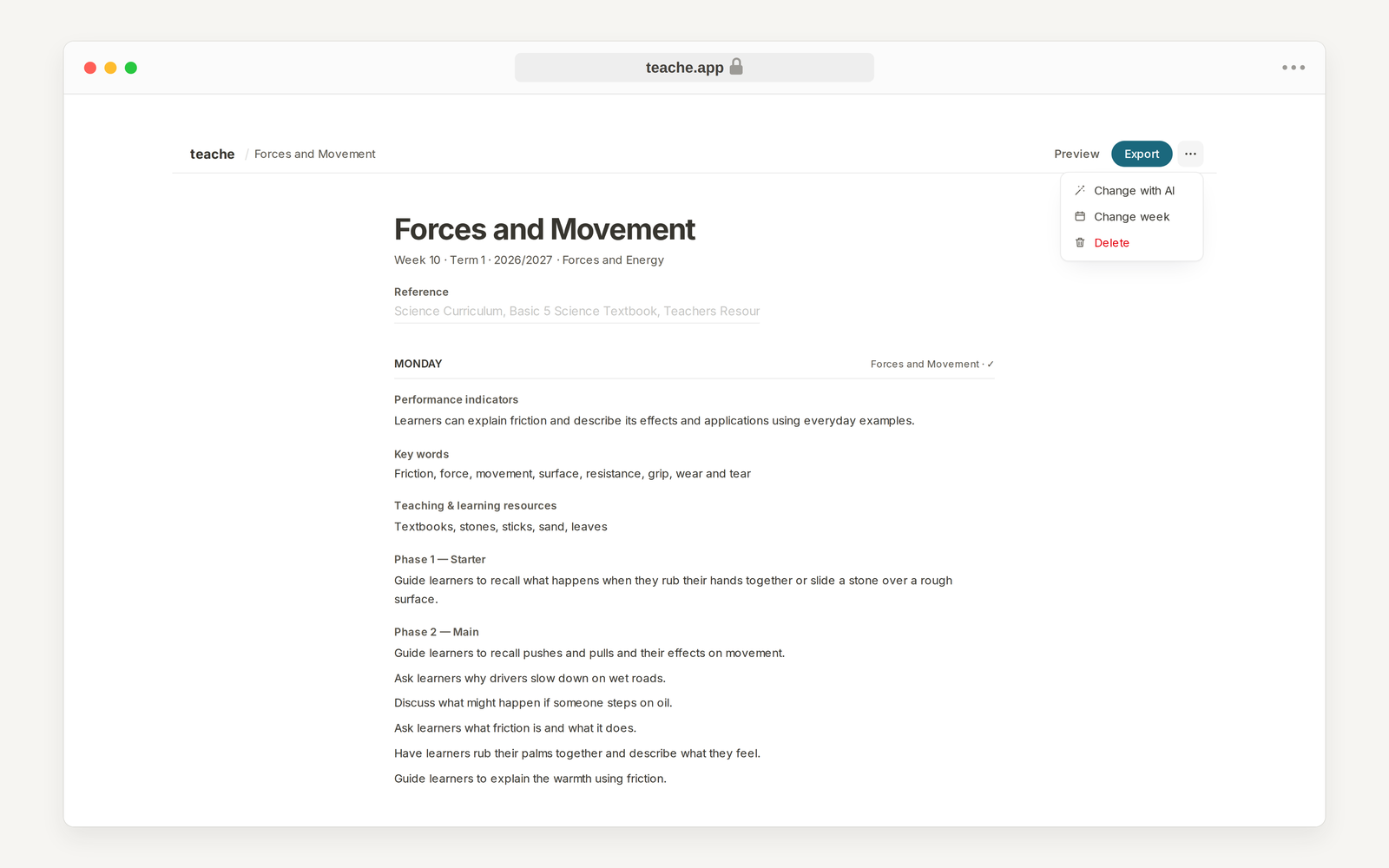
2. Say what to change
Type one instruction in plain words, up to 500 characters, then click Change. Say what you want and where, for example Make all the assessments about market day.
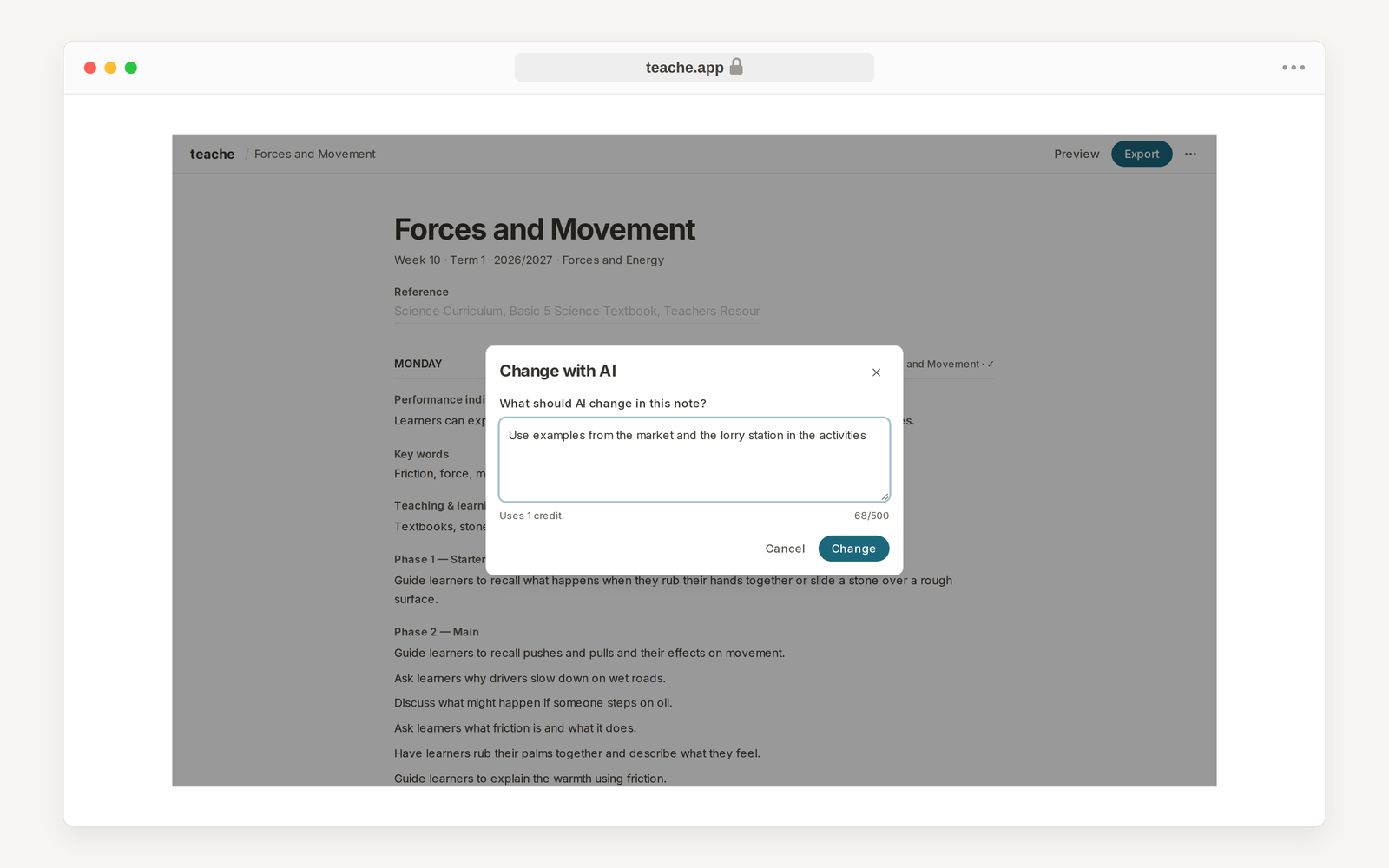
3. Wait for the change
The note shows Changing your note… at the top while the change is written. You can leave the page. When it is ready, the review opens by itself, or you find Your change is ready · Review at the top of the note when you come back.
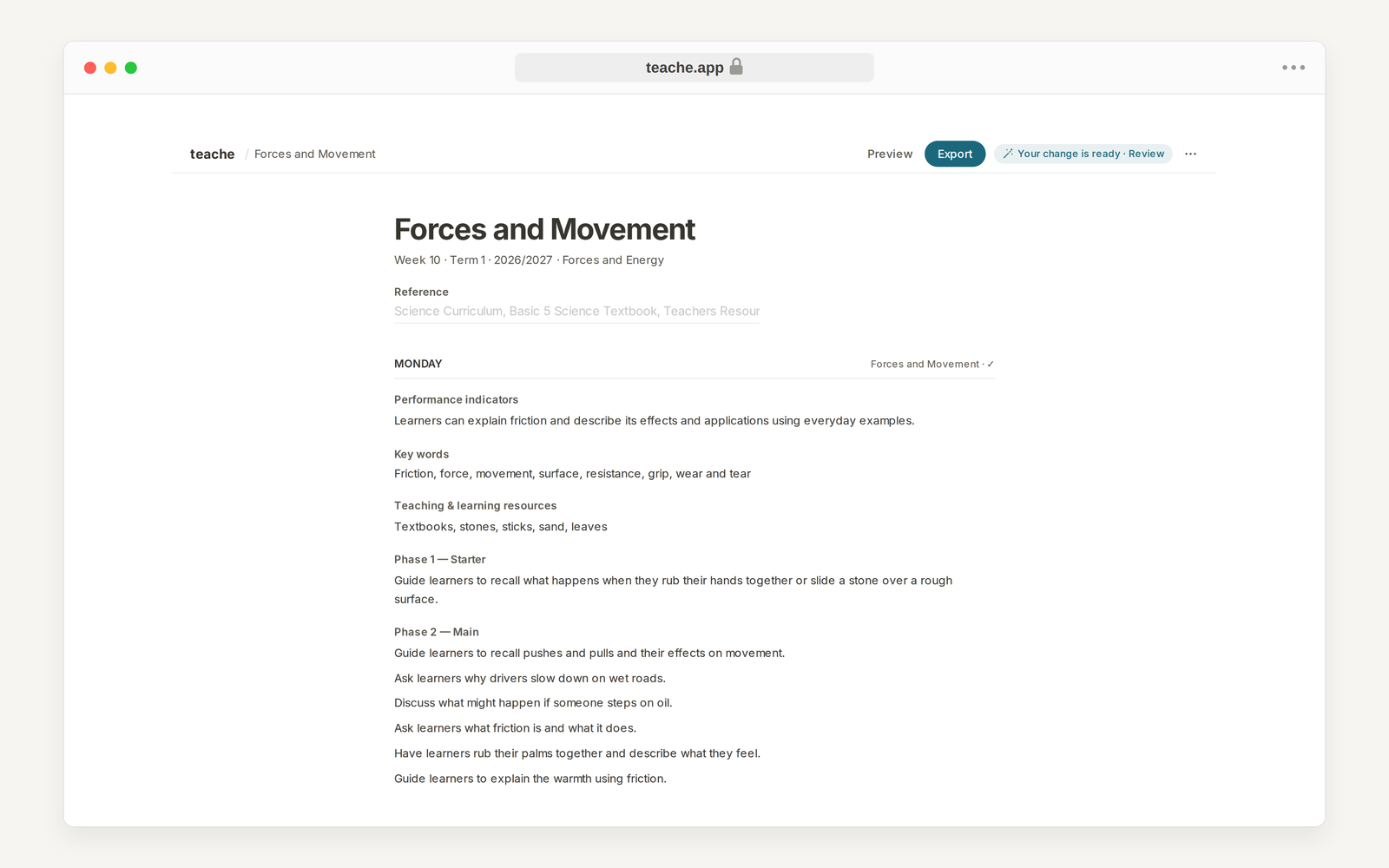
Nothing in your note has changed yet.
4. Review each part
The review lists every part that would change, lesson by lesson, with the new text. Click Before under a part to see the text it replaces.
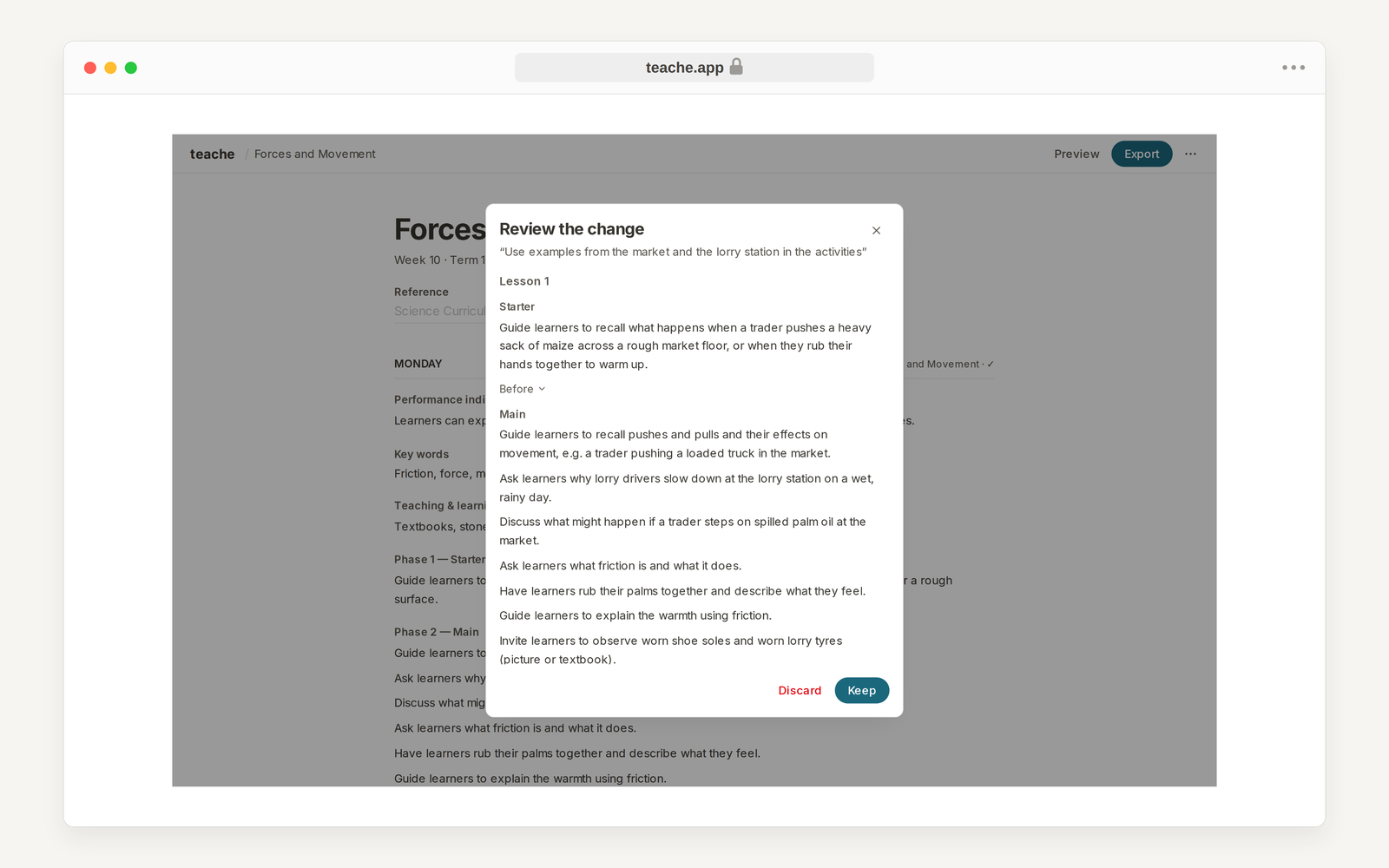
5. Keep or discard
Keep saves all the changed parts into the note. Discard throws the change away and leaves the note exactly as it was. A discarded change still uses its credit, because the work was done.
After Keep, the note is an ordinary note again. Edit any part by hand, or ask for another change. Editing by hand never uses credits; see Understand credits. A lesson note itself costs 3 credits to make.
In the mobile app
The steps are the same. Open the note, tap … at the top, then Change with AI. When the change is ready the note shows Your change is ready · Review. Tap it, check each part against Before, then tap Keep or Discard.
Next in Lesson notes: Print, sign and file your notes