Start from a photo or a scheme
If your lesson idea already exists on paper, attach a photo and let teache turn it into editable seed text.
1. Get to extra guidance
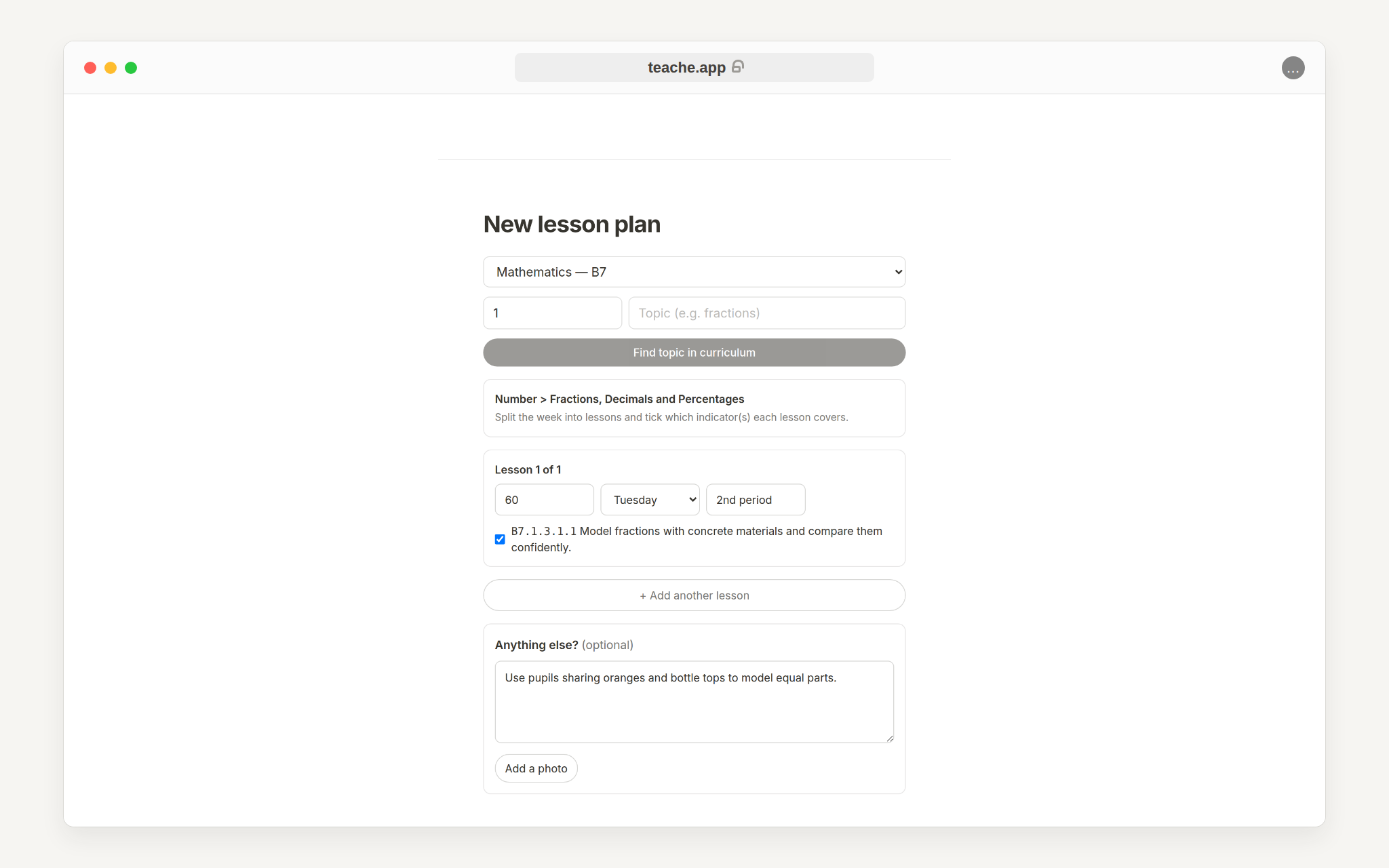
Start a lesson note as usual and answer the questions teache asks: what you are teaching, picked from the curriculum with its indicators, and what each lesson will cover. teache then asks Add extra guidance?. The guidance box includes Upload a photo of your notes.
2. Add the photo
Click Upload a photo of your notes and snap or upload the page: a scheme excerpt, the textbook exercise you want to use, or last year's handwritten note. teache reads the image and adds what it finds to the seed box as text.
Good photos read best: fill the frame with the page, avoid shadows, and keep the writing straight. If the extraction misses something, type it into the seed box yourself. Your typed seed and the photo text are used together.
3. Check what teache read
Read the extracted text before starting the note. Remove page numbers, unrelated lines or anything you do not want in the draft. Keep the activity, examples, materials and teaching angle.
4. Plan from it
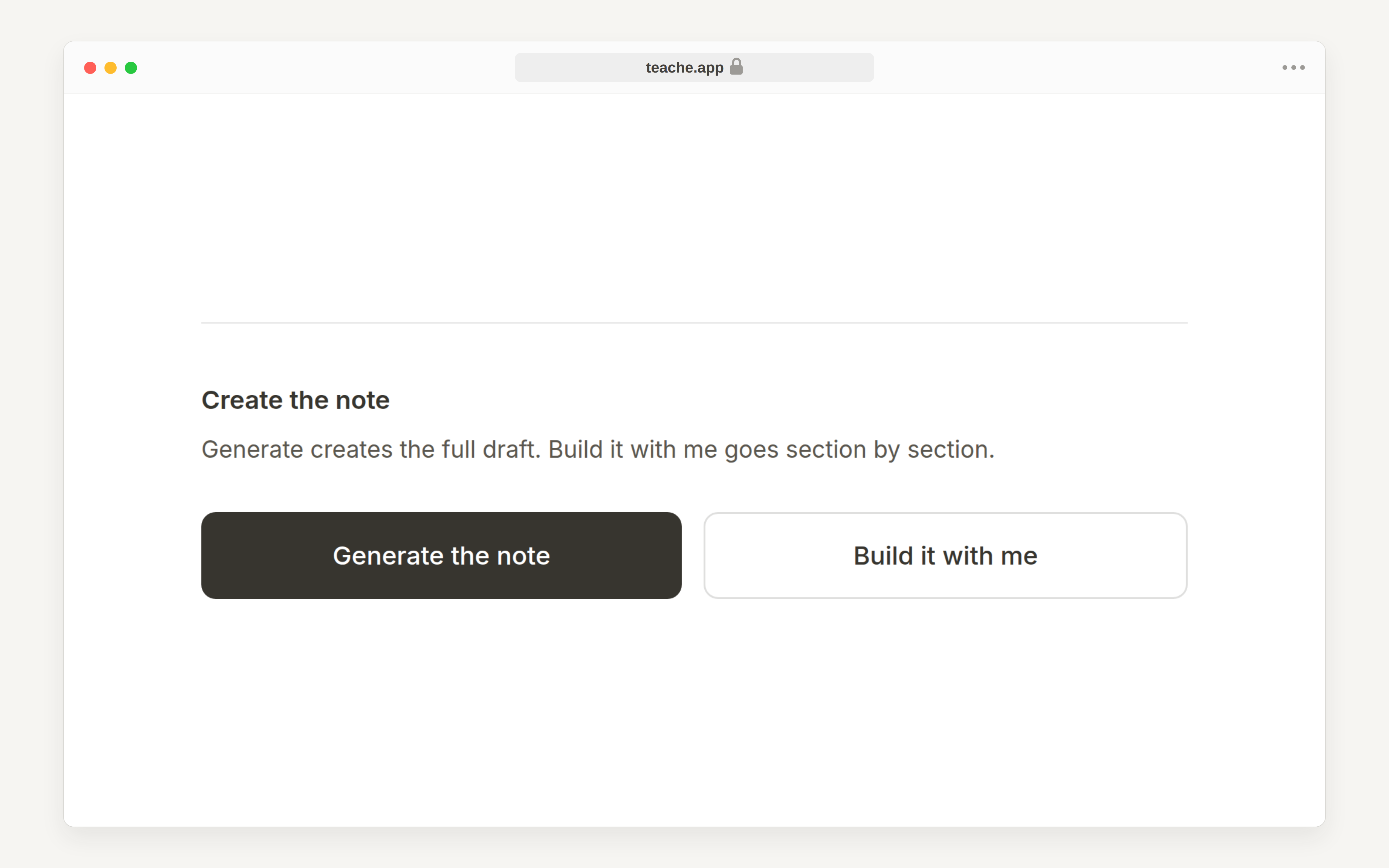
From here it's the normal flow: Build it with me to shape each phase yourself, or Generate the note for a full draft grounded in your seed. Either way the note reflects your idea, not a generic one.
Full walkthrough in create your first lesson note.