Find and print a TLM
TLMs are ready-made teaching and learning materials: charts, flashcards, number cards and posters. Each one is a PDF you download and print.
1. Open the TLMs
Signed in, click TLMs in the sidebar. The row shows when teache has TLMs for one of your classes. If you do not see it, go to teache.app/tlms, which lists every TLM whether you are signed in or not.
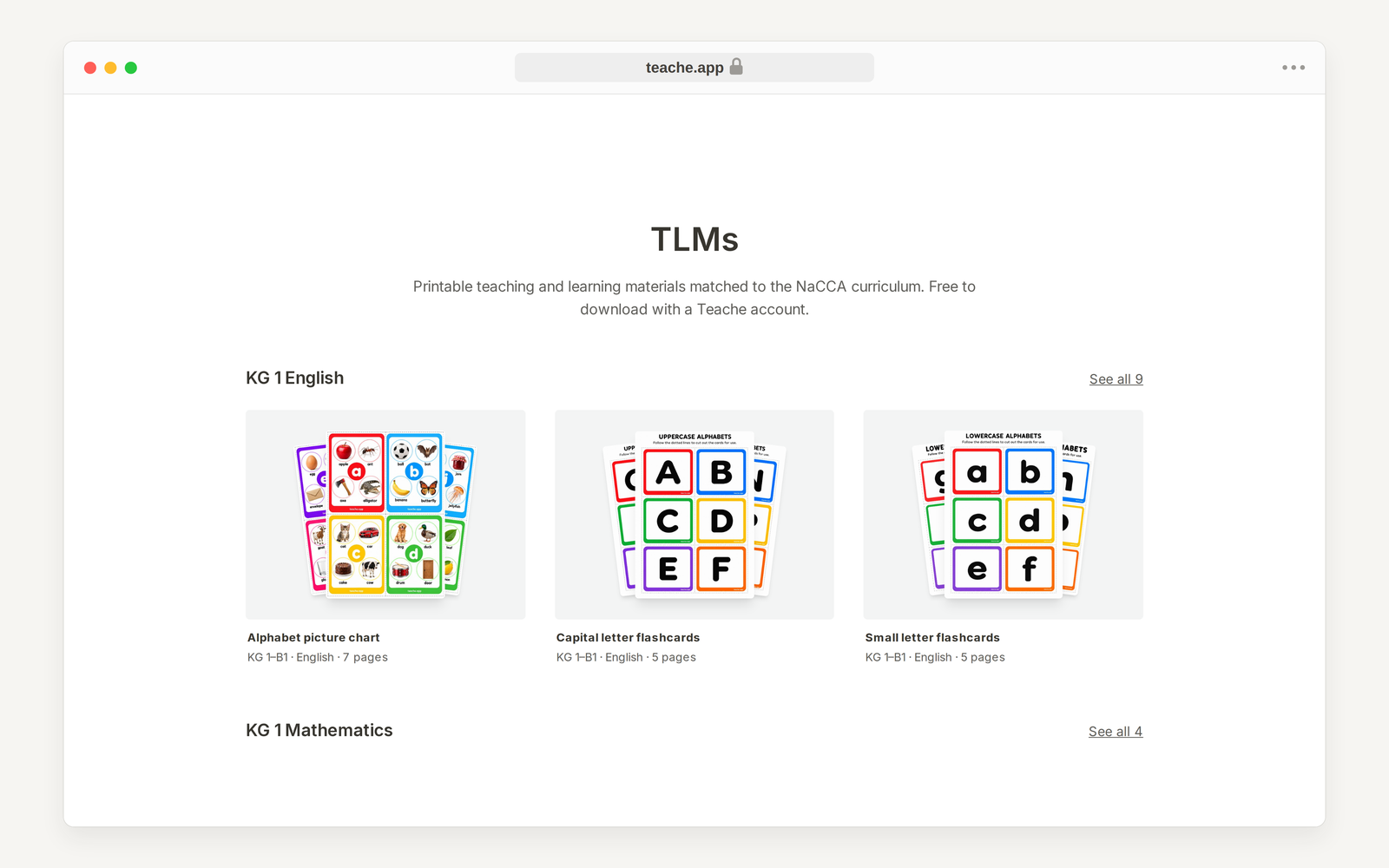
The public page is arranged in shelves, one for each class and subject, such as KG 1 English or B1 Mathematics. See all opens the whole shelf.
2. Find one for your class
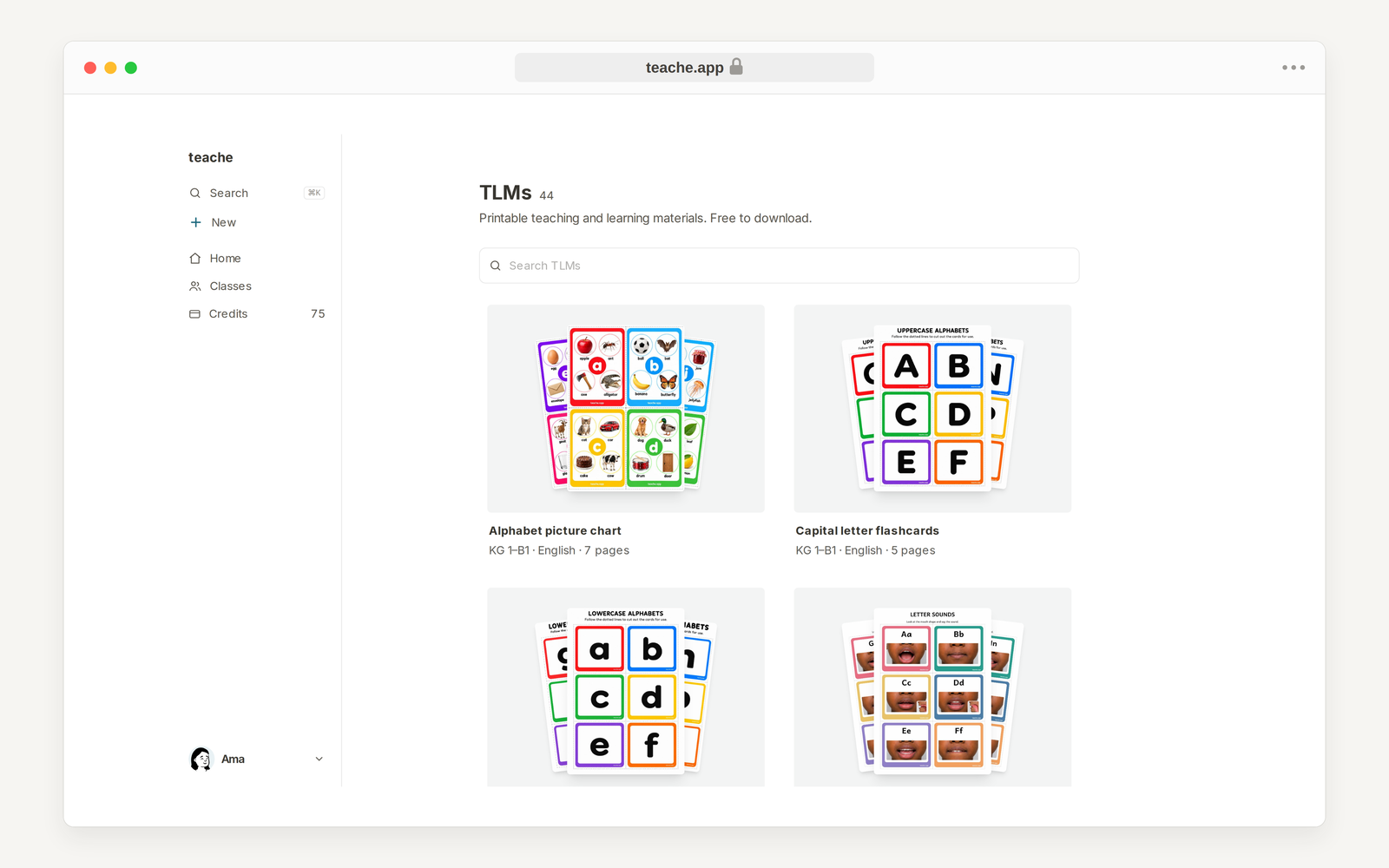
Inside teache, TLMs for the classes you teach come first, under For your classes, and the rest follow under All TLMs. Each card shows the classes it fits, the subject and the number of pages.
To look for something by name, type in Search TLMs. The list narrows as you type, for example flashcards or number cards.
3. Check it is the right one
Click a card to open the TLM. The page shows the cover pages, how many pages the file has, and a short description of what is inside and how to use it. Under Curriculum it lists the NaCCA indicators the TLM covers, so you can match it to the lesson you are teaching.
4. Download the PDF
Click Download. The PDF opens or saves, depending on your browser.
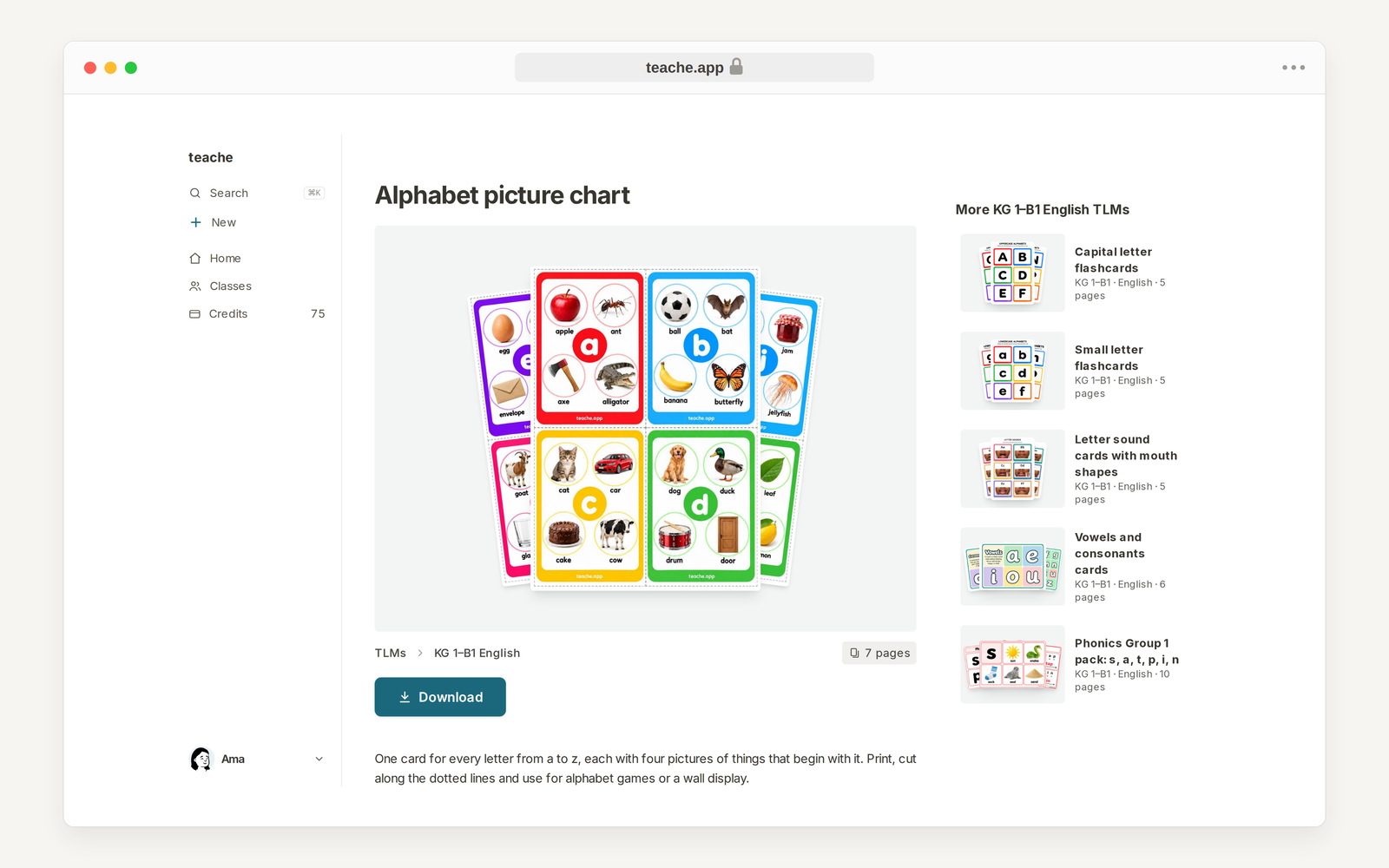
Downloading needs a teache account. On the public page, Download takes you to sign up or log in first, then brings you back to the same TLM.
5. Print and prepare it
Open the PDF and print it on A4 paper. Flashcards and number cards have dotted lines: cut along them after printing. Print in colour where you can, because many cards use colour to tell letters and groups apart.
Cards last longer on thicker paper, or pasted on manila card or old cartons before cutting. Keep the PDF: you can print it again whenever a set wears out.
In the mobile app
When your classes have TLMs, the app has a TLMs tab at the bottom. Open a TLM and tap the share button to send the PDF or save it.